Exclude Fare or Fare Family
The Add a Rule page allows Content Optimizer users to create rules that affect the shopping query results. Rules are tied to a PCC/SID and apply to all users within that PCC/SID.
The Exclude Fare or Fare Family rule is a multi-function rule prevents fares from being returned in shop, pricing, or fare display results.
Application Scenario
Description
Prevents fares from being returned in Shopping, Pricing, and Fare/Tariff Display results. Booking Code and Cabin inhibits can also be applied to Availability. This can be achieved using a number of criteria; restricting specific fare basis codes, fare families, booking codes, cabins, rule and tariff numbers, or a fare type (such as public, airline private, or agency private). Wildcards are also allowed.
Problem scenario
“I can apply the ‘Exclude Fare or Fare Family’ rule to remove no-bag fares, as our travelers typically prefer bag-inclusive fares.”
Technical examples:
Fares can be manipulated in a number of ways for a number of reasons, from removing ‘unbundled’ fares for corporate customers, to driving sales towards your preferred airlines and negotiated fares.
-
Inhibit by Fare Basis Code. (Sh) (FD) (Pr)
-
E.g. Inhibit Fare Basis Code YBT
-
-
Inhibit by Booking Code. (Sh) (FD) (Pr) (A)
-
E.g. Inhibit Booking Code ‘T’. Inhibiting any T-Class Itineraries from being Booked, Priced or Shopped.
-
-
Inhibit by Cabin. (Sh) (FD) (Pr) (A)
-
E.g. Inhibit All Economy on YY
-
-
Inhibit by Tariff and Rule. (Sh) (FD) (Pr)
-
E.g. Inhibit Fares with Rule: ABD and Tariff:123
-
-
Inhibit by Industry Fare Type. (Sh) (FD) (Pr)
-
E.g. Inhibit All Fare with ATPCo Fare Types ERU and EOU. (Unbundled fares for DL)
-
-
Inhibit by Public/Private Fare. (Sh) (FD) (Pr)
-
E.g. Inhibit all Public (published) Fares LON-NYC
-
Create Rule
Note: Required fields are indicated by a red asterisk *
-
From the Rules tab, click the New Rule button to display the Select a Rule to Create dialog.
-
From the Rule Type list, select Exclude Fare or Fare Family. Refer to Air Rule Types for an explanation of each type of rule.
Notes:-
Exclude Fare or Fare Family can be configured to apply up to ten airlines. Each rule has individual limits for the number of airlines the rule supports, if any. See Airline List for more information.
-
If a rule supports NDC carriers, an NDC logo displays by the rule name.

-
Search for a specific rule by entering the search word in the Search by rule name field.
-
-
Set up the rule on the following screen by filling out the following fields:
-
Rule Name Only Alpha Numeric characters, spaces and commas are allowed, and can not be greater than 25 in length.
-
Campaign Name (Optional) Only Alpha Numeric and certain characters (-,:()'.+&) are allowed and can not be greater than 25 in length.
-
Description (Optional). Only Alpha Numeric and certain characters (-,:()'.+&) are allowed and can not be greater than 100 in length.
Note: In the description field, ensure you explain why this rule is created, what are the goals, what is the target, why are you creating this rule, so that everyone who sees the rule understands its reason for creation. E.g., you are creating a rule that limits results for an airline because there is a bankruptcy risk and you don't want your passengers stranded, and later, the airline might be strong but results are still being limited because the rule is still enacted. -
Complete the fields associated with the option chosen.
-
Customize Exclude Fare or Fare Family rule
This rule prevents fares from being returned in shop, pricing, or fare display results.
Usage Notes:
-
Exclude Fare or Fare Family can be used to create a rule to block Basic Economy fares. See the Examples section to review how create this rule.
-
Exclude Fare or Fare Family can be used to create a rule to display Economy Only fares. See the Examples section to review how create this rule.
-
Select the Exclude criteria from the drop-down list. The options change based on the selection
-
Exclude criteria Options Fare basis codes This type of rule prevents fares from being returned in shopping, fare quote/pricing, and fare display results by restricting specific fare basis codes or fare families. Ticket designators can also be specified.
Enter up to 15 fare basis codes separated by a comma. Separate optional ticket designator with a /. Wildcards are allowed. Optionally, enter Tariff and Rule codes to further filter the fare basis codes being excluded. If an entered fare basis code does not match a specified tariff and/or rule number then that fare basis code will not be excluded. Tariff code must contain 3-4 alphanumerics. Rules must contain 4 alphanumerics. Ticket designators can also be specified.
 Show examples
Optionally, select Apply only to specific flight(s). A rule can selectively be applied to specific flight numbers and flight number ranges.
Optionally, in the Geography area, you can exclude directional fares when a fare is being excluded in both directions, when Both ways is selected. This ensures that a fare being excluded will only be excluded for the proper direction.
Notes:
-
To exclude fares only by tariff and/or fare rule number, add a rule using the Tariff and/or Rule option.
-
NDC does not support Tariff and/or rule and Industry fare type options.
-
Exclude by Fare Basis is impacted by Rule Authorization / Rule Override and a competing override rule will cause the exclude fare or fare family by fare basis code to not process. See the examples in How Rule Authorization (Rule Override) applies to Exclude by fare basis code to see how Rule Override applies to your GDS. Review all rule override rules to ensure any exclude by fare basis code rules run without issue.
How to find Fare Tariff and Fare Rule numbers in Galileo
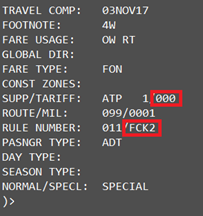
Following a Fare Display (FD), enter FH*x, where x is the line number of the desired fare and then enter MD to move down one screen. From the SUPP/TARIFF line, 000 is the Fare Tariff number. From the RULE NUMBER line, FCK2 is the Fare Rule number.
Response
 How to find Fare Tariff and Fare Rule numbers in Apollo
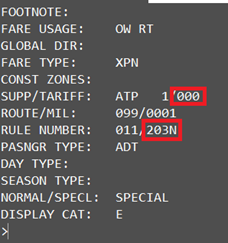
Following a Fare Display ($D), enter FDx, where x is the line number of the desired fare and then enter MD to move down one screen. From the SUPP/TARIFF line, 000 is the Fare Tariff number. From the RULE NUMBER line, 203N is the Fare Rule number.
Response
 How to find Fare Tariff and Fare Rule numbers in Worldspan
There is no entry available to Worldspan customers for displaying the fare tariff number. Please consult ATPCO Appendix H’s Non Fare By Rule cross references to look up the fare tariff number associated with the rule tariff number of the fare you wish to exclude.
Fare basis and booking codes
This rule combines the options for excluding Fare Basis codes and Booking codes. It prevents fares from being returned in shopping, fare quote/pricing, and fare display results by restricting specific fare basis codes or fare families AND booking codes.
You can also restrict up to ten specific booking codes, separated by a comma, at the same time. Wildcards are allowed for fare basis codes, but not allowed for booking codes. Separate optional ticket designator with a /. See the Restriction table for examples.
-
Optionally, enter Tariff and Rule codes. Tariff code must contain 3-4 alphanumerics. Rules must contain 4 alphanumerics. A rule can selectively be applied to specific flight numbers and flight number ranges on the Target and Schedule screen. See the previous Exclude by Fare Basis Codes section for a complete description and examples on how to use wildcards and enter a ticket designator.
-
Optionally, select Apply only to specific flight(s). A rule can selectively be applied to specific flight numbers and flight number ranges.
Booking Codes This type of rule prevents in shopping, fare quote/pricing, fare display, availability (including Direct Access), and sell results by restricting up to ten specific booking codes, separated by a comma. Wildcards are not allowed.
-
Optionally, enter Tariff and Rule codes. Tariff code must contain 3-4 alphanumerics. Rules must contain 4 alphanumerics. A rule can selectively be applied to specific flight numbers and flight number ranges on the Target and Schedule screen. This rule can selectively be applied to the origin and destination of either the entire trip or segments within a trip.
-
Optionally, to restrict this rule to individual flight numbers or a range of flight numbers, select Apply only to specific flight(s). A rule can selectively be applied to specific flight numbers and flight number ranges. Flight numbers must be four digits. Individual flight numbers are separated by a comma. A dash is used to indicate a range of flight numbers. Leading zeroes are required. If a flight number is specified, only one carrier can be specified.
Another optional flight specification applies geography matching.
-
(Default) The Match origin and destination of the trip option matches on either direct or connecting flights that make up the origin/destination of the itinerary.
-
The Match origin and destination of a sector option matches a sector/segment within an itinerary. If this option is selected, you have the option to choose the flight type.
-
When Non-stop flights is selected, if the geographies specified were country US to country DE, then an itinerary JFK-MUC would match the rule, but JFK-FRA-MUC or ATL-IAD-FRA would not match the rule.
-
When Connections is selected, if the geographies specified were country US to country DE, then an itinerary JFK-MUC would NOT match the rule, but JFK-FRA-MUC or ATL-IAD-FRA would match the rule.
-
When both Non-stop flights and Connections are selected, if the geographies specified were country US to country DE, then JFK-MUC, JFK-FRA-MUC, and ATL-IAD-FRA would all match the rule.
-
-
Note: When the exclude criteria matches the booking code, and either non-stop, connections, or both are selected for Match origin and destination of a sector, incidental or un-ticketed stops are not considered and ignored.
For example, if the rule’s specified geography is airport AMS to airport CGK, and the flight's routing is AMS-KUL-CGK (where the stop in KUL carries the same flight number all the way through from AMS-KUL-CGK), then the rule is applied as a match from AMS-CGK. The incidental stop in KUL is ignored.
Cabin This rule prevents fares from being returned in shopping, fare quote/pricing, fare display, availability (including Direct Access), and sell results, by restricting a specific type of aircraft cabin. Select a cabin type from the drop-down menu:
-
Premium First
-
First
-
Premium Business
-
Business
-
Premium Economy
-
Economy
A rule can selectively be applied to specific flight numbers and flight number ranges on the Target and Schedule screen.
Optionally, select Apply only to specific flight(s). A rule can selectively be applied to specific flight numbers and flight number ranges.
Tariff and/or Rule This rule prevents shopping, fare quote/pricing, and fare display results by restricting specific fare tariffs and/or fare rule numbers.
Enter Tariff and optionally Rule codes to be excluded. Tariff codes must contain 3-4 alphanumerics. Rules must contain 4 alphanumerics. Wildcards are not allowed.
Note: NDC does not support Tariff and/or Rule function.
How to find Fare Tariff and Fare Rule numbers in Travelport+ (Galileo):
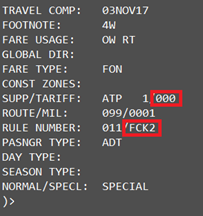
Following a Fare Display (FD), enter FH*x, where x is the line number of the desired fare and then enter MD to move down one screen. From the SUPP/TARIFF line, 000 is the Fare Tariff number. From the RULE NUMBER line, FCK2 is the Fare Rule number.
Response
 How to find Fare Tariff and Fare Rule numbers in Apollo
Following a Fare Display ($D), enter FDx, where x is the line number of the desired fare and then enter MD to move down one screen. From the SUPP/TARIFF line, 000 is the Fare Tariff number. From the RULE NUMBER line, 203N is the Fare Rule number.
Response
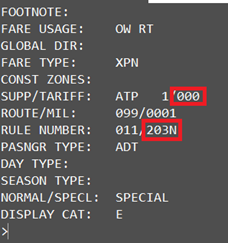 How to find Fare Tariff and Fare Rule numbers in Worldspan
There is no entry available to Worldspan customers for displaying the fare tariff number. Please consult ATPCO Appendix H’s Non Fare By Rule cross references to look up the fare tariff number associated with the rule tariff number of the fare you wish to exclude.
Fares - public/private This type of rule prevents fares by restricting a specific type of fare. Select one of the options from Step 3 below.
Notes: There are a variety of ways to use this rule.
-
The most common is to restrict Airline Private and/or Agency Private fares. Airline Private fares can be restricted through a variety of configurations for Net and Selling types of fares. There are also numerous options for restricting via account codes.
-
Agency Private fares can also be restricted through a variety of configurations for Net and Selling types of fares. The user has numerous options for restricting.
-
Public (sometimes referred to as ‘Published’) fares are defined as fares that are available to the general public. Public fares are available to all agencies without the need for a specific contract or agreement.
-
NDC does not support Fares - Public/Private
-
When specifying the way in which the rule should be applied, it can be applied to Fare Search/Shop, including ‘Best Buy’ transactions, which are Galileo entry FQBB, Apollo entry $BB, and Worldspan entry 4PLF. Rules can also be applied to Fare Quote/Pricing and/or Fare Display. The default is to apply the rule to Fare Search/Shop.
Industry fare type This prevents fares in shopping, fare quote/pricing, and fare display results by restricting a specific type of fare.
Enter up to 10 Industry Fare Types separated by a comma. Example: EU, PRO, SIP
Note: NDC does not support Industry fare type options
How to find Industry Fare Types in Apollo
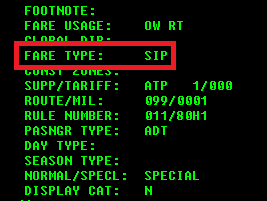
Following a Fare Display ($D), enter FDx, where x is the line number of the desired fare. Move down (MD) to move down one screen to get to the Fare Type information.
Response
 How to find Industry Fare Types in Galileo
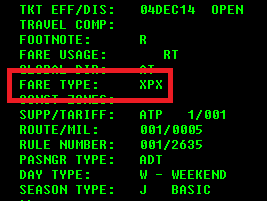
Following a Fare Display (FD), enter FH*x, where x is the line number of the desired fare. Move down (MD) to move down one screen to get to the Fare Type information.
Response
 How to find Industry Fare Types in Worldspan
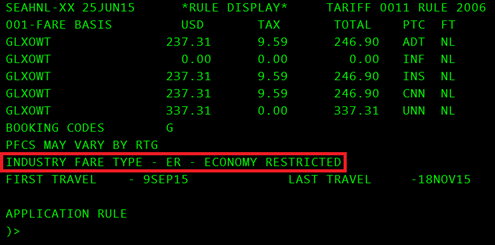
Following a Fare Display (4F), enter 4F.Rx#BRI, where x is the line number of the desired fare.
Response
Fare restriction(s) This restricts certain types of fares from returning:
-
Non-Refundable fares
-
Fares with change fees
-
Fares with cancellation penalties
-
Fares with minimum stay
-
Fares with maximum stay
-
Fares with advance purchase restrictions
-
-
Select options from Public/private fares.
-
All fares Select this option to include all fares in the exclusion criteria. All other options are not selectable.
-
Public Public (sometimes referred to as ‘Published’) fares are defined as fares that are available to the general public. Public fares are available to all agencies without the need for a specific contract or agreement. Select this option to include all public fares in the exclusion criteria.
-
Airline private Select this option to include airline private fares in the exclusion criteria.
-
Both Net and Selling (not supported for NDC content)
-
Net Only (not supported for NDC content)
-
Selling Only
Select the Account code application based on your selection:
-
Exclude only fares without account codes
-
Exclude all fares with or without account codes
-
Exclude fares without account codes, and also exclude the specified account code(s). Enter up to 3 account codes separated by a comma in the following text box.
Note: This option is not supported by NDC.
-
-
Exclude all fares with or without account codes, except the specified account codes. Enter up to 3 account codes separated by a comma in the following text box.
Note: This option is not supported by NDC. -
Exclude only fares with the specified account codes. Enter up to 3 account codes separated by a comma in the following text box.
Note: This option is not supported by NDC.
-
-
-
Agency private
Note: Agency private fares option is not supported by NDC.
-
Both net and selling
-
Net Only
-
Selling Only
Enter the account code application
-
Exclude only fares without account codes
-
Exclude all fares with or without account codes
-
Exclude fares without account codes, and also exclude the specified account code(s). Enter up to 3 account codes separated by a comma in the following text box.
-
Exclude all fares with or without account codes, except the specified account codes. Enter up to 3 account codes separated by a comma in the following text box.
-
Exclude only fares with the specified account codes. Enter up to 3 account codes separated by a comma in the following text box.
-
Exclude fares from the specified supplier code(s). Enter the supplier code(s) in the following text box.
-
Exclude all fares, except those from the specified supplier code(s). Enter the supplier code(s) in the following text box.
-
-
-
-
Enter one or more airlines codes for the rule in the Airlines text box. Use wildcard characters ** to indicate all airlines.
Note: Each rule has individual limits for the number of airlines the rule supports, if any. See Airline List for more information. -
Rule application Select one or more applications of the rule. Some options listed below are not available for all rules. Some options may already be selected based on the rule type and content. For example, if Industry Fare Type is selected, both Fare Search and Fare Quote Rule application settings are pre-checked and cannot be unchecked, and only Fare Display is selectable.
-
Fare search/shop
-
Fare quote/pricing
-
Fare display
-
Sell
-
Availability
-
Exclude availability: Stops the specified value from displaying in response.
-
Zero availability: Returns the specified value in the response but indicates that zero is available of the value.
-
As an example of exclude versus Zero availability, in the scenario of using the Exclude Fare or Fare Family rule, if the excluded criteria is set to “booking code” and ‘Y’ is specified as the booking code:
-
Exclude availability: “Y’ booking codes are missing in the response.

-
Zero availability: “Y” displays as “Y0” meaning no Y seats are left on the flight.
-
-
-
-
Select Content application:
-
Traditional
-
NDC
-
The default setting is Traditional.
-
If NDC is selected, the rule is only be applied to those airlines from which the customer is authorized to receive NDC content. Customers should work with their account managers to be authorized to receive NDC content.
-
If Both is selected, the rule applies to both Traditional and NDC content.
-
-
-
Optionally, select Apply only to specific flights to display the specific flight or range field, and enter the flight number or range or flight numbers in the text box. Flight numbers must be four digits. Individual flight numbers are separated by commas. A dash is used to indicate a range of flight numbers. Leading zeroes are required. If a flight number is specified, only one carrier can be specified. For example: 0123, 1234, 4567, 4568, 4568-4699, 4672-4678
Note: If the flight number is three digits, you must add a leading 0. For example, 0123, 0987, 0456-0789. -
Optionally, in the Geography area, you can exclude directional fares when a fare is being excluded in both directions. This ensures that a fare being excluded will only be excluded for the proper direction. Initially, this only applies to fares being excluded by fare basis code.
Examples
These examples demonstrate key ways to use this rule.
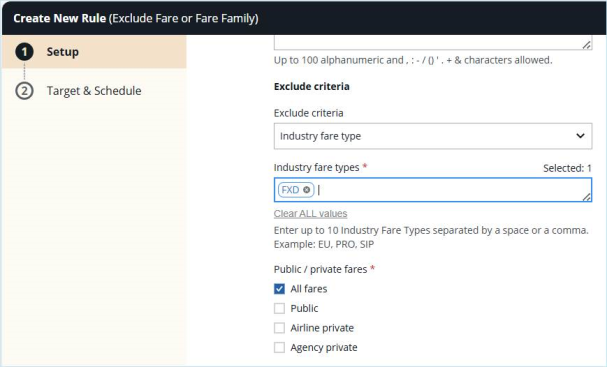
How to block Basic Economy fares
-
In the Exclude criteria field, select Industry fare type.
-
In the Industry fare types field, enter FXD.
Notes:-
‘FXD’ is a catch-all for all of the following ‘basic economy’ fare types:
eou, eru, eow, eox, eoy erh, erx, ery, pfd, psu, piu, pgu, pru, bru, zru, pmf, psf, pre.
-
FXD works if the airline is using the same industry fare type as most airlines to distinguish their Basic Economy Fares.
-
Some carriers do not follow the ATPCo standard when filing the fare type on their fares. In cases where an airline isn’t using any of the indicated industry fare types captured using FXD, then you may need to add additional industry fares types as needed, e.g., XES, which is used by airline Cielo Maya (CM).
-
-
In the Public / private fare check boxes area, select All fares.
How to display Economy Only fares
This application works for both Traditional and NDC searches. The rule application follows that this could be used for cabin type such that all cabins except desired cabin are excluded.
-
In the Setup screen, select Industry fare type.
-
In Exclude criteria, select Cabin.
-
In Cabin type, select Premium First and finish setting up the rule.
-
Repeat step A and B, and in step C, select First, and finish setting up the rule.
-
Keep repeating these steps until you've selected all Cabin types except Economy.
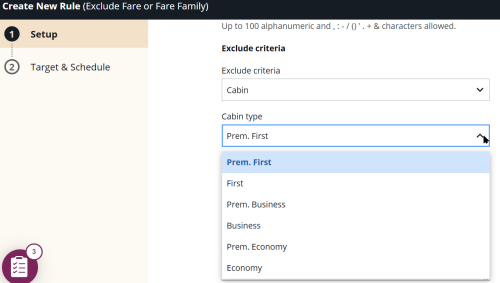
Since Cabin type is not multi-select, multiple rules must be created for each targeted cabin you wish to exclude. Alternatively, various rules could be created with Channel IDs for each applicable targeted cabin you wish to exclude.
How Rule Authorization (Rule Override) applies to Exclude by fare basis code
Fare basis codes can only be included in fare display and pricing entries.
-
If no Rule Authorization exists or if it is set to Specific inputs supersede rule, a matching Content Optimizer Air rule for an agent-entered fare basis code is ignored and the entry is processed normally.
-
If the Rule Authorization is set to Rule is always applied, then if a Fare Basis Code is included in an entry and that fare basis code is also in the rule, then the rule is applied and the fare basis code is excluded.
Fare display example for Galileo
In this scenario, the user wants to exclude fare basis codes UA21A0UP and LA21A0VP for Dos Equis Airlines (XX) in the JFK-MIA market.
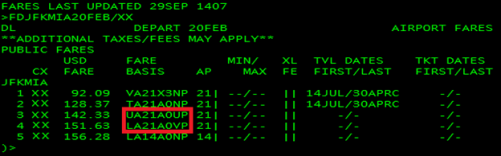
To exclude these fare basis codes, create a rule with these parameters:
- Exclude Type – Fare Basis Code(s)
- Codes – UA21A0UP, LA21A0VP
- Fare Type – All Fares
- Airlines– Dos Equis Airlines (XX)
- Rule Application – fare quote/pricing and fare display
- Content application - Traditional
- Geography: From – Airport – JFK; To – Airport – MIA, Both Ways
For the UA21AOUP and LA21AOVP fares to be excluded for a Fare Display that does not include a fare basis code, Rule Authorization is not needed. The fares will be excluded for the FDJFKMIA entry and not returned in the response.
But if an agent was to include the excluded fare basis code (and the optional airline code of XX), then having Rule Authorization set to ‘Specific inputs supersede rule’ is required to exclude the fare basis code. In this scenario, the agent would receive an error response:
 Fare quote example for Galileo
In this scenario, a user wants to exclude fare basis codes UA21A0UP and LA21A0VP for Dos Equis Airlines (XX) in the JFK-MIA market. These flights are booked on Dos Equis Airlines for JFK-MIA-JFK.

To exclude this fare quote, create a rule with these parameters:
- Exclude Type – Fare Basis Code(s)
- Codes – UA21A0UP, LA21A0VP
- Fare Type – All Fares
- Carrier – Dos Equis Airlines (XX)
- Rule Application – shopping, fare quote/pricing, and fare display
- Geography: From – Airport – JFK; To – Airport – MIA, Both Ways
For the UA21AOUP and LA21AOVP fares to be excluded for a Fare Quote that does not include a fare basis code, Rule Authorization is not needed. The fares will be excluded for the FQ@ entry and not considered in the response.
But if an agent was to include the excluded fare basis code, then having Rule Authorization set to ‘Specific inputs supersede rule’ is required to exclude the fare basis code. In this scenario, the agent would receive an error response:
 Fare display example for Apollo
In this scenario, the user wants to exclude fare basis codes TNN07BNZ and UNN03RNZ for Dos Equis Airlines (XX) in the JFK-MEX market.
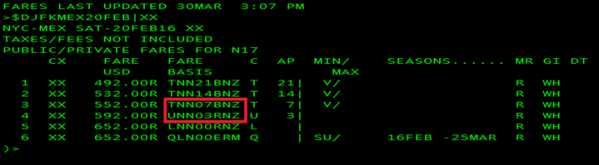
To exclude these fare basis codes, create a rule with these parameters:
- Exclude Type – Fare Basis Code(s)
- Codes – TNN07BNZ,UNN03RNZ
- Fare Type – All Fares
- Carrier – Dos Equis Airlines (XX)
- Rule Application – fare quote/pricing and fare display
- Geography: From – Airport – JFK; To – Airport – MEX, Both Ways
For the TNN07BNZ and UNN03RNZ fares to be excluded for a Fare Display that does not include a fare basis code, Rule Authorization is not needed. The fares will be excluded for the $DJFKMEX entry and not returned in the response.
But if an agent was to include the excluded fare basis code and the mandatory airline code of XX, then having Rule Authorization set to ‘Specific inputs supersede rule’ is required to exclude the fare basis code. In this scenario, the agent would receive an error response:
 Pricing examples for Apollo
In this scenario, the user wants to exclude fare basis codes TNN07BNZ and UNN03RNZ for Dos Equis Airlines (XX) in the JFK-MEX market.

To exclude this fare quote, create a rule with these parameters:
- Exclude Type – Fare Basis Code(s)
- Codes – TNN07BNZ,UNN03RNZ
- Fare Type – All Fares
- Carrier – Dos Equis Airlines (XX)
- Rule Application – fare quote/pricing and fare display
- Geography: From – Airport – JFK; To – Airport – MEX, Both Ways
For the TNN07BNZ and UNN03RNZ fares to be excluded for a Pricing entry that does not include a fare basis code, Rule Authorization is not needed. The fares will be excluded for the $B@ entry and not considered in the response.
But if an agent was to include the excluded fare basis code, then having Rule Authorization set to ‘Specific inputs supersede rule’ is required to exclude the fare basis code. In this scenario, the agent would receive an error response:
 Fare display example for Worldspan
In this scenario, the user wants to exclude fare basis codes TNN07BNZ and UNN03RNZ for Dos Equis Airlines (XX) in the JFK-MEX market.
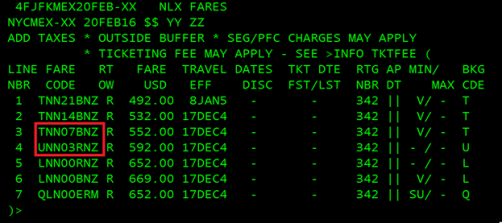
To exclude these fare basis codes, create a rule with these parameters:
- Exclude Type – Fare Basis Code(s)
- Codes – TNN07BNZ,UNN03RNZ
- Fare Type – All Fares
- Carrier – Dos Equis Airlines (XX)
- Rule Application – fare quote/pricing and fare display
- Geography: From – Airport – JFK; To – Airport – MEX, Both Ways
For the TNN07BNZ and UNN03RNZ fares to be excluded for a Fare Display that does not include a fare basis code, Rule Authorization is not needed. The fares will be excluded for the 4FJFKMEX entry and not returned in the response.
But if an agent was to include the excluded fare basis code and the mandatory airline code of XX, then having Rule Authorization set to ‘Specific inputs supersede rule’ is required to exclude the fare basis code. In this scenario, the agent would receive an error response:
 Pricing examples for Worldspan
In this scenario, the user wants to exclude fare basis codes TNN07BNZ and UNN03RNZ for Dos Equis Airlines (XX) in the JFK-MEX market.

To exclude this fare quote, create a rule with these parameters:
- Exclude Type – Fare Basis Code(s)
- Codes – TNN07BNZ,UNN03RNZ
- Fare Type – All Fares
- Carrier – Dos Equis Airlines (XX)
- Rule Application – fare quote/pricing and fare display
- Geography: From – Airport – JFK; To – Airport – MEX, Both Ways
For the TNN07BNZ and UNN03RNZ fares to be excluded for a Pricing entry that does not include a fare basis code, Rule Authorization is not needed. The fares will be excluded for the 4P-- or 4p*-- entry and not considered in the response.
But if an agent was to include the excluded fare basis code, then having Rule Authorization set to ‘Specific inputs supersede rule’ is required to exclude the fare basis code. In this scenario, the agent would receive an error response:

-
Click Next to display the Target and Schedule screen.
Target and Schedule
The Target and Schedule screen continues the rule creation process by allowing you to specify PCC/Groups, geography, rule timing, and travel dates.
What will be the rule target?
-
Enter the Galileo (1G), Apollo (1V), or Worldspan (1P) PCC(s)/SIDs or PCC Group Name that this rule affects.
-
To enter a single PCC or multiple PCCs:
-
Indicate which Travelport GDS the PCC applies to along with the input. For example. if PCC ABC is a Galileo PCC, the system requires this as the input: ABC-1G.
-
The list of matching values display. Click to select the correct PCC or Group.
-
You can enter multiple PCCs. For example, XYZ5-1V, ABC7-1G
-
-
To add from a PCC group list:
-
Click Add from PCC group list to select a PCC group.
-
Search for the PCC group in the Search box.
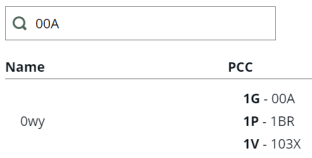
-
Scroll to the bottom of the results and enter the page number, or click the right / left arrows.
-
Click the Add button
 next to the PCC group to add it to the rule. Items already added display a blue button
  .
.
-
-
-
Optionally, enter the associated Channel IDs. The available Channel IDs display when the box is selected.
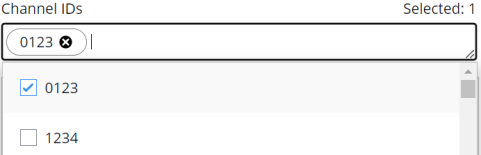
Geography and Exceptions
This section allows you to specify how geography will affect the rules, and create exceptions to these rules.
Note: See Geography Exceptions and Global Geography Application to review exception notes and see how to make Content Optimizer default the rule to worldwide application, a.k.a. “global.”
-
-
If the option is presented, select the Location type:
-
Select the Geography values for the From/Between and To/And options. Optionally, select Both ways if available.
-
Optionally, for the Exclude Fare of Fare Family rule, select the Enforce directionality checkbox. This allows you to exclude directional fares when a fare is being excluded in both directions. This ensures that a fare being excluded will only be excluded for the proper direction. Initially, this only applies to fares being excluded by fare basis code.
-
Optionally, select values in the Geography Exceptions, if available, to enter exceptions to the general Location Type.
-
Optionally, click Add geography exception to add an additional exception to the rule.
-
Multiple geography exceptions can be added.
-
Click the delete icon
 to remove an exception option.
-
-
-
Select Flight Options if the Booking Codes rule was selected on the previous screen, The rule can selectively be applied to:
-
Match the origin and destination of a trip, or
-
Match the origin and destination of a sector within a trip, for either
-
Non-stop flights, and/or
-
Connections
-
-
When will the rule run?
This section lets you specify the dates and times when the rule will run for airlines, e.g., when the rule is live (i.e., the dates and local time during which the search results will be affected by the rule).
-
Select Continuously, Daily, or Weekly from the Run rule drop-down box.
-
If the rule is to be effective every day but only during certain time windows during the day, then select the Daily option.
-
You can then specify up to five time windows during which the rule will be effective.
-
The times are based on the time zone of each PCC or SID specified in the rule.
-
-
If the rule is to be effective only on selected days of the week, select the Weekly option.
-
-
Click the Start date field to select the date when the rule will start running.
-
Specify the time the rule begins on the date selected. The times are based on the time zone of each PCC specified in the rule.
-
If Daily was specified in step 1, specify time windows within each day for the rule to be effective in the Recurring start time and Recurring end time fields by selecting the clock icon
 .
. -
Optionally, click the plus sign
to add additional time windows. You can then specify up to five time windows during which the rule will be effective. -
If the selection is between 7 AM - 9 AM:
-
Starting at 7:00 AM, the rule is active.
-
From 9:01 AM - 6:59 AM the following day, the rule is not active.
-
-
-
Specify the End date and time for when the rule will stop running or select the check box to run rule indefinitely.
Note: Leave the rule End date empty to run indefinitely. Content Optimizer defaults to December 31, 2059 in these instances.
-
If Daily was specified in step 1
-
Specify a time windows within each day for the rule to be effective in the Recurring start time and Recurring end time fields.
-
Optionally, click the plus sign
to add up to five additional time windows.
-
-
If Weekly was selected in step 1:
-
Specify the number of weeks the rule will run in the Recur every field.
-
If the rule is to be effective every week, then leave the Recur Every value at its default setting of ‘1’. Otherwise, specify a number of alternating weeks for the rule to be effective.
-
Use the checkboxes to select which days of the week the rule should be effective, i.e., the days the rule will run.
-
Travel Dates
This section lets you optionally specify when the air rules apply continuously, or specific days of the week.
Notes:
-
Multiple travel date ranges can be specified for only the Booking Code and Fare Basis Code/Booking Code rule types.
-
The rule is only applied if all travel falls within the date range(s).
-
It is Best Practice to add an end-date to your rule, for example, three months, and create a reminder for yourself to recheck the rule then to see if it's still valid, or whether the data still applies. Perhaps for a Commercially Important Airline it may be valid, but a contract for a block carrier may only be for three months, but if the rule is set to run continuously without end, you may experience issues at a later date.
-
If the rule is built One Way:
-
The travel dates for only the matched geography segment must fall within the rule Travel Start and End dates.
-
The travel dates of any other segments are not taken into consideration.
-
-
If the rule is built for Both Ways:
-
The travel dates for the entire itinerary must fall within the rule Travel Start and End dates.
-
If either the outbound or return date fails this check, the rule will not be applied.
-
-
Select Continuously, or Weekly from the Run rule drop-down box.
-
Optionally, select the Date window check box to specify dates for the rule to run. If this is selected, go to step 7
-
Enter a Start date and End date when the rule will start running.
Note: Leave the travel End date empty to run indefinitely. Content Optimizer defaults to December 31, 2059 in these instances.
-
Specify the time the rule begins on the date selected. The times are based on the time zone of each PCC specified in the rule.
-
Specify the End date and time for when the rule will stop running
-
If Weekly was selected in step 1:
-
Specify the number of weeks the rule will run in the Recur every field.
-
Select which days of the week the rule will run.
-
-
Click the add
at the end of the row to add another date range. -
If Date window was selected in step 2, enter values in the Starting and Ending fields to specify the number of days from the current date the rule will run. Enter a value between 1 and 90 in the ‘Ending’ text box.
Notes:-
This number represents the number of days from the date an entry is made (current date) and is compared to the travel date in the entry. If this is the only value entered, then the restriction is applicable from the current date for the number of days matching the entered number.
-
For example, if you want to apply a rule to travel that will be in effect for travel for the next 30 days from the date the agent is making the entry, you would then enter ‘30’ in the Ending textbox and leave the Starting textbox set to ‘0’.
-
-
Alternately, if you want the rule to start being effective ‘x’ days from the date an agent is making an entry (current date), then use both the Starting and Ending textboxes.
-
The Starting textbox will be the number of days from the current date when travel will be impacted, and the Ending textbox will be the number of days from the current date when travel will be no longer be impacted.
-
The Ending number must be greater than or equal to the number is the Starting textbox and cannot be any greater than 365.
-
For example, if you want to apply a rule to travel that will be in effect for travel 60 days from the date the agent is making the entry, but the rule will not apply to travel 90 days from the entry, then you would enter ‘60’ in the Starting textbox and ‘90’ in the Ending textbox. This results in a ‘sliding’ 30-day window restriction.
-
-
The number of days varies by airline. Therefore, we recommend neither the Starting nor Ending field value should be greater than 362 days.
-
This functionality is available for all rules except for the Exclude marketing airlines for time window.
-
-
Click Activate. Optionally, click Previous to return to the Setup screen.