NDC Response Time
The Add a Rule page allows Content Optimizer users to create rules that affect the shopping query results. Rules are tied to a PCC/SID and apply to all users within that PCC/SID.
The NDC Response Time rule gives the customer control over how long the system will wait for search results from an NDC airline. I.e., the rule allows customers to set different time out values for each NDC airline. The system default wait time is ten seconds.
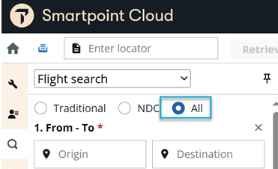
This rule only works when NDC or All is selected in Smartpoint Cloud integrated flight search (CCL-traditional and NDC search).
-
This functionality works with any request for NDC content. Thus, when All (CCL) is selected, it calls NDC.
-
However, the NDC response time rule does not apply to Traditional (EDIFACT) content, even when making integrated shop request.
Application Scenario
Description
This rule gives the customer control over how long the system will wait for search results from an NDC airline. I.e., the rule allows customers to set different time-out values for each NDC airline. The system’s default wait time is 10 seconds.
Problem scenario
“I have noticed that the NDC responses from airline XX are taking upwards of 15 seconds. I can use this rule to bypass airline XX if they are taking longer than 8 seconds to respond.”
Technical example
The agency does not wish their agents to wait until the system default of 10 seconds passes for an NDC response from AA. They can use this rule to limit the wait time to 5 seconds.
Create Rule
Note: Required fields are indicated by a red asterisk *
-
From the Rules tab, click the New Rule button to display the Select a Rule to Create dialog.
-
From the Rule Type list, select NDC Response Time. Refer to Air Rule Types for an explanation of each type of rule.
Notes:-
NDC Response Time can be configured to apply up to ten airlines. Each rule has individual limits for the number of airlines the rule supports, if any. See Airline List for more information.
-
If a rule supports NDC carriers, an NDC logo displays by the rule name.

-
Search for a specific rule by entering the search word in the Search by rule name field.
-
-
Set up the rule on the following screen by filling out the following fields:
-
Rule Name Only Alpha Numeric characters, spaces and commas are allowed, and can not be greater than 25 in length.
-
Campaign Name (Optional) Only Alpha Numeric and certain characters (-,:()'.+&) are allowed and can not be greater than 25 in length.
-
Description (Optional). Only Alpha Numeric and certain characters (-,:()'.+&) are allowed and can not be greater than 100 in length.
Note: In the description field, ensure you explain why this rule is created, what are the goals, what is the target, why are you creating this rule, so that everyone who sees the rule understands its reason for creation. E.g., you are creating a rule that limits results for an airline because there is a bankruptcy risk and you don't want your passengers stranded, and later, the airline might be strong but results are still being limited because the rule is still enacted. -
Complete the fields associated with the option chosen.
-
Customize NDC Response Time rule
To customize this rule:
-
Enter NDC airlines for the rule in the Airline text box to set the Maximum NDC search response time. Only NDC airlines can be specified, and the customer must be authorized to receive the NDC airlines’ content. Use wildcard characters ** to indicate all NDC airlines.
Note: Each rule has individual limits for the number of airlines the rule supports, if any. See Airline List for more information. -
Enter a value from 1 - 10 in the Seconds field. The default and maximum value is 10.
Note: The Content application selection does not display on the screen for this rule. The rule is programmatically set to Both.
-
Optionally, click Add another Airline to add additional airlines to this rule.
Actual time for NDC response
The response time value entered is for the service alone and does not include the potential lag time (1-2 seconds) it takes for SmartPoint Cloud to respond (or any external service to respond).
If the NDC response time rule only indicates one carrier, like EK, for example, then EK is at the mercy of all the other NDC carriers in that market to respond.
Example 1:
-
Rule is for EK alone – 5 seconds.
-
Shop is LON (city) to HKG (city).
-
The other NDC carriers in this market like AY, BA, QR may take longer to respond. Rather than stop waiting for EK to respond within 5 seconds, Content Optimizer waits for the other carriers to respond (default wait time for NDC shop is up to 30 seconds).
Example 2:
-
Rule is for ALL NDC carriers – 5 seconds.
-
Shop is LON (city) to HKG (city).
-
The filtration service itself has the 5 seconds time out as indicated by the rule.
-
However, it does not include the time it takes SmartPoint Cloud to make the call to the Search API (see the first bullet point regarding the1-2 seconds lag time).
-
Click Next to display the Target and Schedule screen.
Target and Schedule
The Target and Schedule screen continues the rule creation process by allowing you to specify PCC/Groups, geography, rule timing, and travel dates.
What will be the rule target?
-
Enter the Galileo (1G), Apollo (1V), or Worldspan (1P) PCC(s)/SIDs or PCC Group Name that this rule affects.
-
To enter a single PCC or multiple PCCs:
-
Indicate which Travelport GDS the PCC applies to along with the input. For example. if PCC ABC is a Galileo PCC, the system requires this as the input: ABC-1G.
-
The list of matching values display. Click to select the correct PCC or Group.
-
You can enter multiple PCCs. For example, XYZ5-1V, ABC7-1G.
-
-
To add from a PCC group list:
-
Click Add from PCC group list to select a PCC group.
-
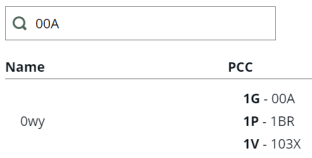
Search for the PCC group in the Search box.
-
Scroll to the bottom of the results and enter the page number, or click the right / left arrows.
-
Click the Add button
 next to the PCC group to add it to the rule. Items already added display a blue button
  .
.
-
-
-
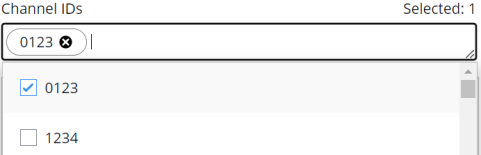
Optionally, enter the associated Channel IDs. The available Channel IDs display when the box is selected.
Geography and Exceptions
This section allows you to specify how geography will affect the rules, and create exceptions to these rules.
Note: See Geography Exceptions and Global Geography Application to review exception notes and see how to make Content Optimizer default the rule to worldwide application, a.k.a. “global.”
-
-
If the option is presented, select the Location type:
-
Select the Geography values for the From/Between and To/And options. Optionally, select Both ways if available.
Note: Both ways is not available for Promote Preferred Fares, NDC content preference, and NDC response time*.
-
Optionally, select values in the Geography Exceptions, if available, to enter exceptions to the general Location Type.
-
Optionally, click Add geography exception to add an additional exception to the rule.
-
Multiple geography exceptions can be added.
-
Click the delete icon
 to remove an exception option.
-
-
 * Understanding NDC Response Time Geography Rules
These examples demonstrate the difference when selecting From / To versus Between / And
When From / To is selected
This option is unidirectional. The Origin must match the From element and the Destination must match the To element.
-
Rule is applied to One-Way and Round-Trip.
-
From airport is DEN
-
To airport is ORD
Rule:
-
Runs DEN > ORD (one-way)
-
Runs DEN > ORD > DEN (round trip)
-
Runs DEN > LAX > ORD (one way with connection)
-
Runs DEN > LAX > ORD > LGA > DEN (round trip with connections)
-
Does not run ORD > DEN, ORD > DEN > ORD, or ORD > LAX > DEN
-
Does not run if DEN > ORD are stopovers or layovers.
E.g., LAX > DEN > ORD > LGA -
Does not run if the origin or destination doesn't match.
E.g., LAX > DEN > ORD
-
-
When Between / And is selected
This option is omnidirectional. The Origin can match either the Between or And element, with the Destination matching the other element.
-
Rule is applied to One-Way and Round-Trip.
-
Between city is DEN
-
And city or ORD
Promote preferred fares:
-
Runs DEN > ORD or DEN > ORD > DEN
-
Runs ORD > DEN and ORD > DEN > ORD
-
Runs DEN > LAX > ORD > LGA > DEN (round-trip with connections)
-
Does not run if DEN > ORD are stopovers or layovers.
E.g., LAX > DEN > ORD > LGA -
Does not run if the Origins or Destinations do not match the rule.
E.g., LAX > DEN > ORD
-
-
When will the rule run?
This section lets you specify the dates and times when the rule will run for airlines, e.g., when the rule is live (i.e., the dates and local time during which the search results will be affected by the rule).
-
Select Continuously, Daily, or Weekly from the Run rule drop-down box.
-
If the rule is to be effective every day but only during certain time windows during the day, then select the Daily option.
-
You can then specify up to five time windows during which the rule will be effective.
-
The times are based on the time zone of each PCC or SID specified in the rule.
-
-
If the rule is to be effective only on selected days of the week, select the Weekly option.
-
-
Click the Start date field to select the date when the rule will start running.
-
Specify the time the rule begins on the date selected. The times are based on the time zone of each PCC specified in the rule.
-
If Daily was specified in step 1, specify time windows within each day for the rule to be effective in the Recurring start time and Recurring end time fields by selecting the clock icon
 .
. -
Optionally, click the plus sign
to add additional time windows. You can then specify up to five time windows during which the rule will be effective. -
If the selection is between 7 AM - 9 AM:
-
Starting at 7:00 AM, the rule is active.
-
From 9:01 AM - 6:59 AM the following day, the rule is not active.
-
-
-
Specify the End date and time for when the rule will stop running or select the check box to run rule indefinitely.
Note: Leave the rule End date empty to run indefinitely. Content Optimizer defaults to December 31, 2059 in these instances.
-
If Daily was specified in step 1
-
Specify a time windows within each day for the rule to be effective in the Recurring start time and Recurring end time fields.
-
Optionally, click the plus sign
to add up to five additional time windows.
-
-
If Weekly was selected in step 1:
-
Specify the number of weeks the rule will run in the Recur every field.
-
If the rule is to be effective every week, then leave the Recur Every value at its default setting of ‘1’. Otherwise, specify a number of alternating weeks for the rule to be effective.
-
Use the checkboxes to select which days of the week the rule should be effective, i.e., the days the rule will run.
-
Travel Dates
This section lets you optionally specify when the air rules apply continuously, or specific days of the week.
Notes:
-
Multiple travel date ranges can be specified for only the Booking Code and Fare Basis Code/Booking Code rule types.
-
The rule is only applied if all travel falls within the date range(s).
-
It is Best Practice to add an end-date to your rule, for example, three months, and create a reminder for yourself to recheck the rule then to see if it's still valid, or whether the data still applies. Perhaps for a Commercially Important Airline it may be valid, but a contract for a block carrier may only be for three months, but if the rule is set to run continuously without end, you may experience issues at a later date.
-
If the rule is built One Way:
-
The travel dates for only the matched geography segment must fall within the rule Travel Start and End dates.
-
The travel dates of any other segments are not taken into consideration.
-
-
If the rule is built for Both Ways:
-
The travel dates for the entire itinerary must fall within the rule Travel Start and End dates.
-
If either the outbound or return date fails this check, the rule will not be applied.
-
-
Select Continuously, or Weekly from the Run rule drop-down box.
-
Optionally, select the Date window check box to specify dates for the rule to run. If this is selected, go to step 7
-
Enter a Start date and End date when the rule will start running.
Note: Leave the travel End date empty to run indefinitely. Content Optimizer defaults to December 31, 2059 in these instances.
-
Specify the time the rule begins on the date selected. The times are based on the time zone of each PCC specified in the rule.
-
Specify the End date and time for when the rule will stop running
-
If Weekly was selected in step 1:
-
Specify the number of weeks the rule will run in the Recur every field.
-
Select which days of the week the rule will run.
-
-
Click the add
at the end of the row to add another date range. -
If Date window was selected in step 2, enter values in the Starting and Ending fields to specify the number of days from the current date the rule will run. Enter a value between 1 and 90 in the ‘Ending’ text box.
Notes:-
This number represents the number of days from the date an entry is made (current date) and is compared to the travel date in the entry. If this is the only value entered, then the restriction is applicable from the current date for the number of days matching the entered number.
-
For example, if you want to apply a rule to travel that will be in effect for travel for the next 30 days from the date the agent is making the entry, you would then enter ‘30’ in the Ending textbox and leave the Starting textbox set to ‘0’.
-
-
Alternately, if you want the rule to start being effective ‘x’ days from the date an agent is making an entry (current date), then use both the Starting and Ending textboxes.
-
The Starting textbox will be the number of days from the current date when travel will be impacted, and the Ending textbox will be the number of days from the current date when travel will be no longer be impacted.
-
The Ending number must be greater than or equal to the number is the Starting textbox and cannot be any greater than 365.
-
For example, if you want to apply a rule to travel that will be in effect for travel 60 days from the date the agent is making the entry, but the rule will not apply to travel 90 days from the entry, then you would enter ‘60’ in the Starting textbox and ‘90’ in the Ending textbox. This results in a ‘sliding’ 30-day window restriction.
-
-
The number of days varies by airline. Therefore, we recommend neither the Starting nor Ending field value should be greater than 362 days.
-
This functionality is available for all rules except for the Exclude marketing airlines for time window.
-
-
Click Activate. Optionally, click Previous to return to the Setup screen.