Flex Windows
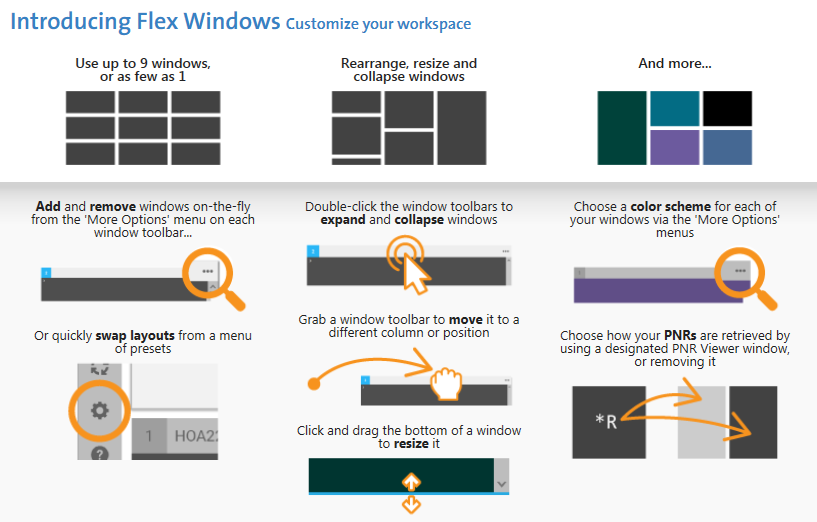
Travelport Smartpoint offers a Flex Windows option for window layouts. As of Smartpoint 12.0, Flex Windows is the default layout after installation.
Using Flex Windows
| Feature | Description |
|---|---|
|
By default, Smartpoint is displayed in the original Classic Windows theme. However, you can switch between Classic Windows and Flex Windows at any time. |
|
|
Descriptions of icons in the main menu panel and queues panel. |
|
|
By default, Flex Windows displays two windows, including a PNR Viewer window. However, you can change this default by:
|
|
|
You can rearrange windows in Flex Windows by either:
|
|
|
In Flex Windows, you can change the an increase or decrease the height of a window by either:
|
|
|
In Flex Windows, you can change the color scheme for each window. |
|
|
Change individual windows to native mode to display data directly from Travelport+ (1G) or Apollo (1V) system without any interactive functionality. |
|
|
You can choose a default setting for which window you want to sell from for last availability sells and its follow-on entries. This setting applies to air, car, and hotel entries. |