Flex Windows
Rearranging Windows
 You can rearrange windows in Flex Windows by either:
- Moving individual windows.
- Adding a new column.
- Selecting preset layouts to automatically change the number and arrangement of the windows.
Moving Individual Windows
You can move each window in the Flex Windows layout.
To move an individual window:
Click and drag the title bar of a window to the desired location. The active location displays a blue bar.
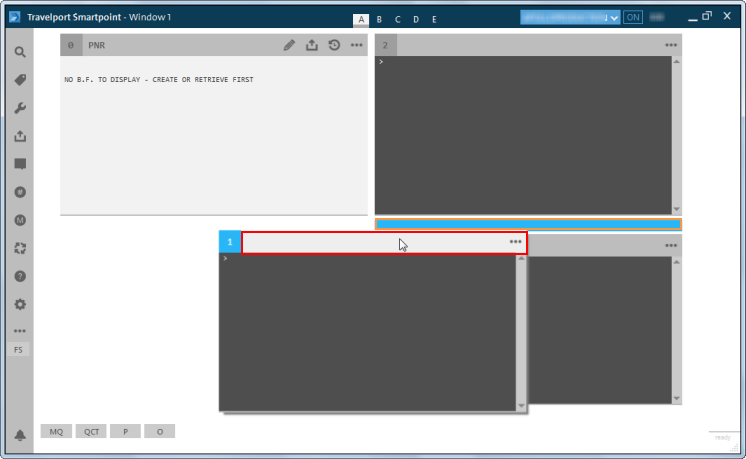
The window is moved to the new location.

Adding a Column
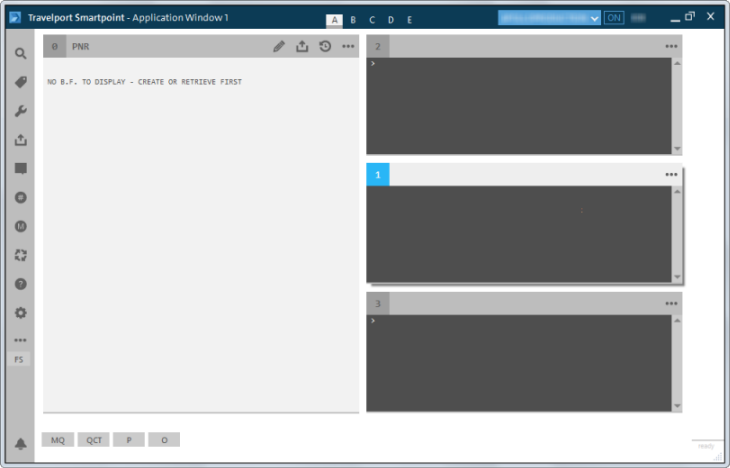
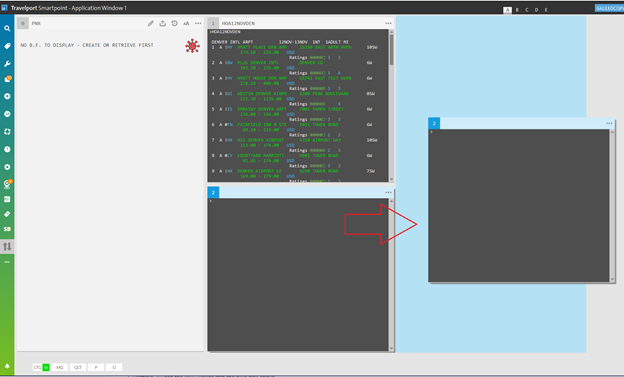
In layouts that have two columns and two rows, you can move one of the windows to create a new third column.
To add a column:
Click and drag one of the windows to the right.
Selecting Preset Window Layouts
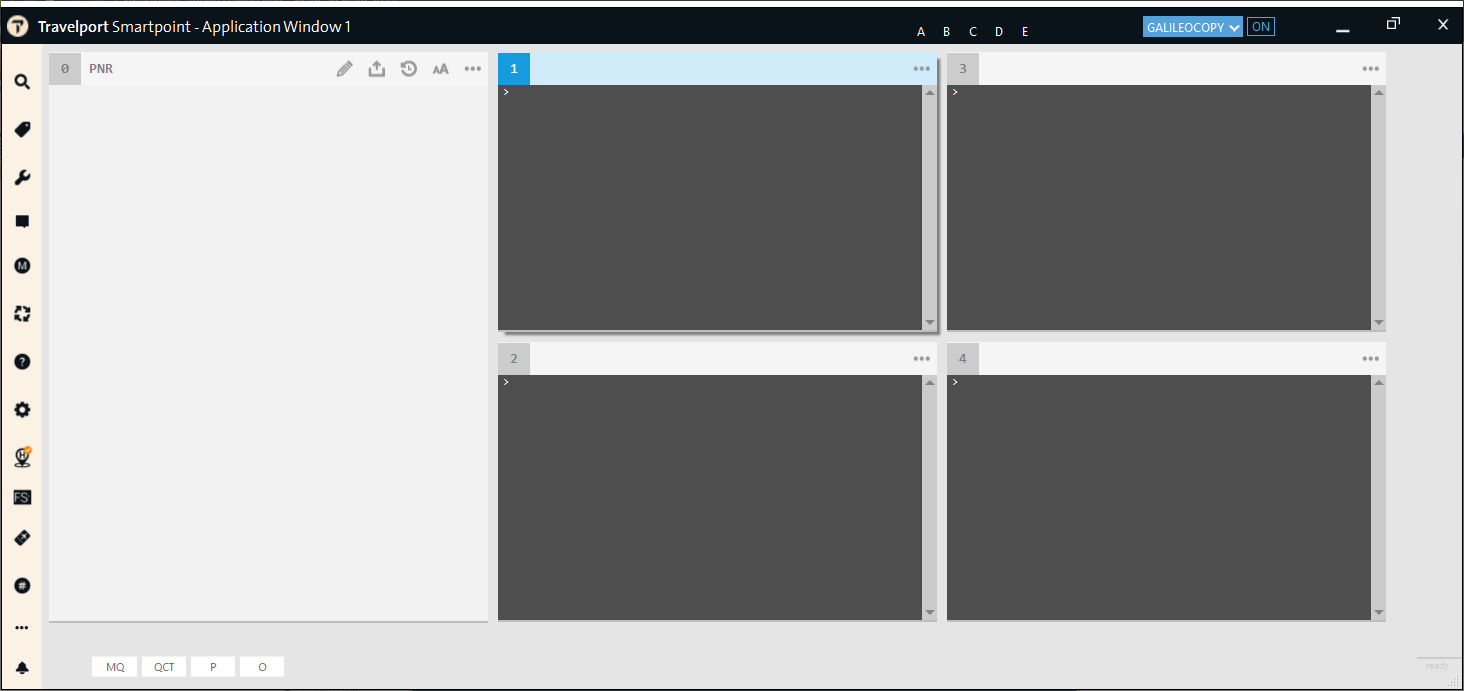
In Flex Windows, you can use preset window layouts to automatically change the number and arrangement of the windows, including the placement of the PNR Viewer.
To select a window layout:
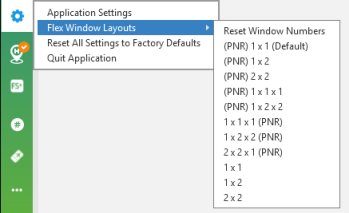
- Select the desired layout from the list of layouts. For example, the (PNR) 1x2x2 layout displays the PNR Viewer on the left with two rows of two windows.
Running Scriptwriter Plus Scripts in Flex Windows
By default, Scriptwriter Plus automatically opens four windows when you run a Scriptwriter Plus script, regardless of how many windows are currently open in Flex Windows.
If your current Flex Windows layout has less than four windows , additional windows are automatically added. When you exit the Scriptwriter Plus Script, your original layout automatically redisplays.
To avoid a manual process of closing the excess windows, an option was added to automatically close windows.
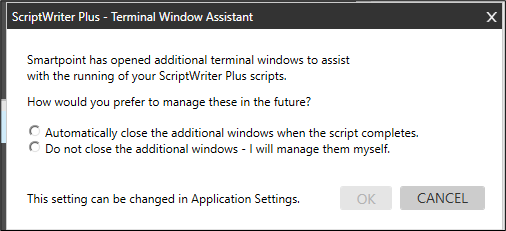
The first time that you run ScriptWriter Plus, a message is displayed.
-
Select either:
-
The first option to automatically close additional windows.
-
The second option to keep the additional windows open.
-
Click OK.
After your selection, this warning message does not display again. However, you can change the setting at any time:
-
From the Application menu, select Application Settings.
-
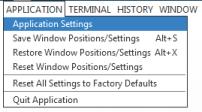
Classic Windows. From the APPLICATION menu, select Application Settings.
-
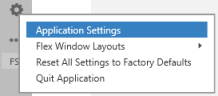
Flex Windows. Click the Settings
 icon to select Application Settings.
-
-
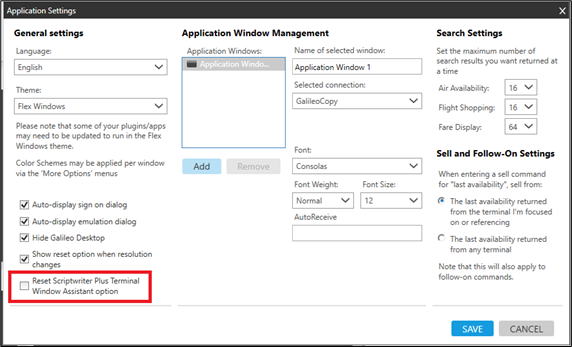
Open the Application Settings window to automatically close the extra windows after the script is complete.
-
Select Reset ScriptWriter Plus Terminal Window Assistant Option if you want the extra windows to close automatically.
 Menu
Menu