Signing ON
Travelport+: Smartpoint 12.0
Signing On
 Machine translation for sign-on topics is available in the Knowledge Base in the Sign on to Smartpoint Desktop with multi-factor authentication (MFA) article.
After you sign on for the first time, when you enter your MyTravelport credentials, your selected GTID/connection is checked against the saved profile, and you are automatically logged in to Travelport+.
To sign on:
-
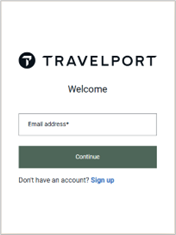
Launch Smartpoint to display the Welcome window.
-
In Email address, enter the unique email address associated to your MyTravelport account.
-
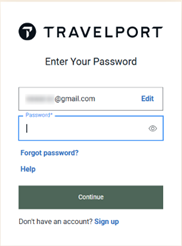
Click Continue to display the Enter Your Password screen.
-
In Password, enter password for your MyTravelport account.
-
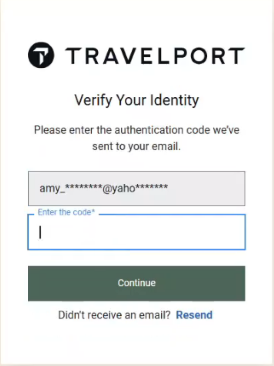
Click Continue to display the Verify Your Identity screen
-
In Enter the code, enter the one-time passcode (OTP) that was emailed to your address.
-
Click Continue to complete your sign on.
When you log into MyTravelport, you automatically sign on to Travelport+ (1G) using the host sign on permissions that you added in your first sign on.
-
If applicable. Enter SEM/PCC/AG to emulate to another PCC.
 More Information
Your sign on defaults to your assigned PCC. If your Client ID is associated to more than one PCC, your sign on defaults to your primary PCC, and you must manually emulate.
Tip! The auto-sign on feature is not applicable for Travelport+ in Smartpoint 12.0. The Auto-display sign on dialog and Auto-display emulation dialog checkboxes are disabled for Travelport+ agencies in the Application Settings dialog box.However, you can use the Configuration settings to set a default PCC.
Next Steps
After you sign on, you can:
-
Sign off manually.
Tip! Signing on with SON terminal formats is not available in Smartpoint 12.0. If you enter SOF to sign off, while Smartpoint remains open, the MyTravelport Welcome window automatically displays when you press ENTER in the Terminal window. -
Access other Travelport platforms and products from the same MyTravelport login, including:
-
MyTravelport, including the Knowledge Base, eLearning tutorials and training registration, Travelport community forums, automated Client ID and host password resets, online chats, and case management.
-
Travelport Marketplace to view and access Travelport software.
-
Smartpoint Cloud.
-
Tools in Smartpoint Desktop that are shared with Smartpoint Cloud, including Flight Search (NDC) and European Rail.
In Smartpoint 11.7 and earlier, these tools require a separate login to access from Smartpoint Desktop.
Tip! Single sign-on functionality applies only when other environments are accessed directly from Smartpoint Desktop. If you access these environments from a browser outside of Smartpoint Desktop, you will need to use your MyTravelport login again. -
