Frequently Asked Questions and Examples
Frequently asked questions, and examples of how to implement certain scenarios, are detailed below.
 How do I specify geography exceptions?
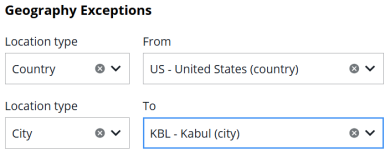
To specify geography exceptions, enter values in the Geography Exceptions fields in the Target and Schedule screen.
- The From or To fields in a geography exception must either be the same, or more restrictive (granular), than the main Geography in the rule. For example, if the rule's From type is Nation, then the exception's location type must be Nation, City, or Airport.
- Exceptions for both the From and To locations must be specified.
- Exceptions cannot be created for Airport location types.
- The From and To Exceptions are associated as a pair. Exceptions will not be processed for all combinations of the From and To Exception Locations.
- You can add one or more geography exceptions to a rule.
How do I apply a global geography to a rule?
Several rules don’t require a main geography, and the geography field can be “blank.” When the main geography is left blank, Content Optimizer defaults the rule to worldwide application a.k.a. “global.”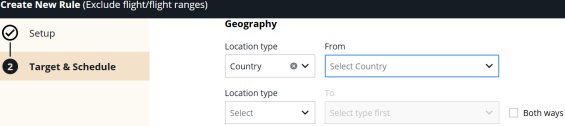
Global application
The following list is of rules where main geography can be left blank to represent “global” application:
-
Exclude flight/flight ranges
-
Exclude airlines
-
Exclude marketing/codeshare airlines
-
Exclude/only include branded fares
-
Exclude fares by brand name
-
Blended PTC
-
Availability promote
-
Availability demote
-
Bundled/unbundled fares preference
-
Cabin class actions
-
Commercially important airline
-
Direct flights only
-
Display only online solutions
-
Exclude airport/city locations
-
Exclude equipment type
-
Exclude marketing airline for time window
-
Fare type preferences
-
Maximum journey time
-
Maximum number of results
-
NDC content preference
-
NDC Response Time
-
Validating airline override
-
Bias/exclude multi-airport connections
-
Exclude undesirable connection points
-
Exclude connections between airlines
-
Maximum connection time
-
Maximum connection time for online connections
-
Maximum number of connections
-
Maximum overnight connection time
-
Minimum connection time
-
Permit multi-airport connections
Rules where main geography is required
The following rules require main geography:
-
Exclude Fare or Fare Family
-
Promote preferred fares
Rules without geography
By design, the following are rules where geography is not applicable:
-
Rule override
For Embargoed / Blacklisted carriers, how would I use Content Optimizer to block those carriers from being returned?
-
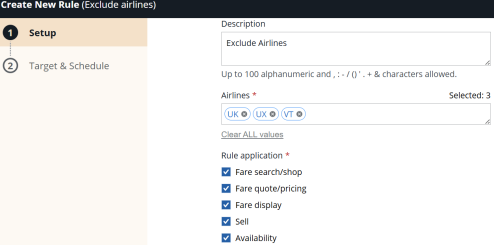
Create Exclude airlines (typeID 104) rule for the carrier you wish to block. For example, add UK, UX, VT, etc., to the carrier list.
-
Apply the rule by Availability, Sell, Fare Search/Shop, Fare display, or Fare Quote/Pricing.
-
Leave Geography blank to indicate global geography.
If a more precise block required (marketing carrier/operating carrier, etc):
-
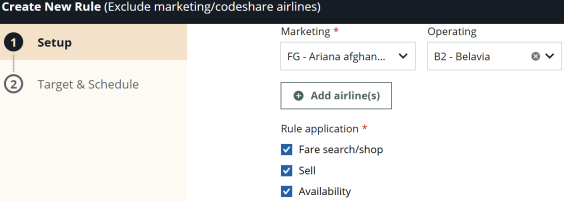
Select the Exclude marketing/codeshare airline (typeID 6) rule.
-
Add an airline list (i.e. **VS **KL).
-
Apply rule to Availability, Search, or Sell.
-
Leave Geography blank (global geography).
How would I use Content Optimizer to block travel to No Travel Zones, e.g., Afghanistan, Belarus, Central African Republic and Myanmar?
Create these rules by city/airport location, not by zone/country/area.
Note: Content Optimizer only allows you to create this as a Search rule.
-
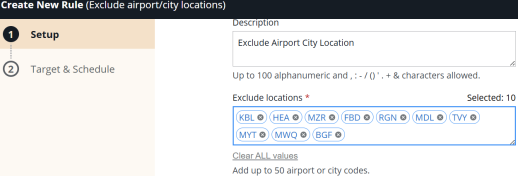
Create Exclude airport/city locations (typeID 59) rule.
-
Add all the carriers, all geography, and all city and airport codes Example – all carriers / all geography/ city-airport cod es (i.e. KBL HEA MZR FBD RGN MDL TVY MYT MWQ BGF)
-
Create an Exclude undesirable connection points (typeID 52) rule.
-
Add all the carriers, all geography, and all city-airport codes (i.e. KBL HEA MZR FBD RGN MDL TVY MYT MWQ BGF).

How do I block Basic Economy fares?
-
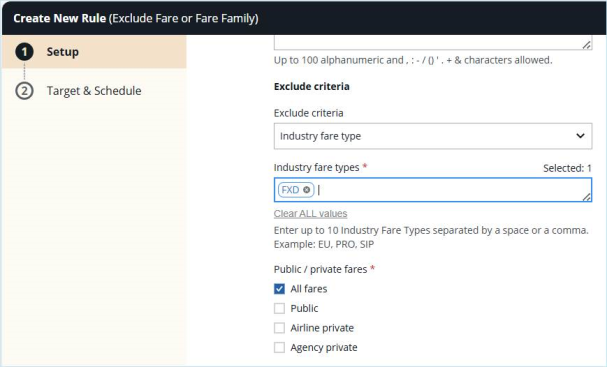
Create a new rule using Exclude Fare or Fare Family.
-
In the Exclude criteria field, select Industry fare type.
-
In the Industry fare types field, enter FXD.
Notes:-
‘FXD’ is a catch-all for all of the following ‘basic economy’ fare types:
eou, eru, eow, eox, eoy erh, erx, ery, pfd, psu, piu, pgu, pru, bru, zru, pmf, psf, pre.
-
FXD works if the airline is using the same industry fare type as most airlines to distinguish their Basic Economy Fares.
-
Some carriers do not follow the ATPCo standard when filing the fare type on their fares. In cases where an airline isn’t using any of the indicated industry fare types captured using FXD, then you may need to add additional industry fares types as needed, e.g., XES, which is used by airline Cielo Maya (CM).
-
-
In the Public / private fare check boxes area, select All fares.
How do I display Economy Only fares?
Using Exclude Fare or Fare Family
This application works for both Traditional and NDC searches. The rule application follows that this could be used for cabin type such that all cabins except desired cabin are excluded.
-
Create a new rule using Exclude Fare or Fare Family.
-
In Exclude criteria, select Cabin.
-
In Cabin type, select Premium First and finish setting up the rule.
-
Repeat step A and B, and in step C, select First, and finish setting up the rule.
-
Keep repeating these steps until you've selected all Cabin types except Economy.
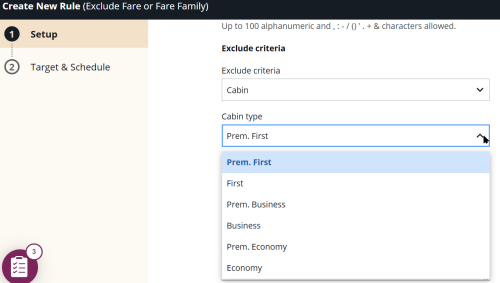
Since Cabin type is not multi-select, multiple rules must be created for each targeted cabin you wish to exclude. Alternatively, various rules could be created with Channel IDs for each applicable targeted cabin you wish to exclude.
Using Cabin class actions
This rule can be used to display Economy Only results, and only supports "Traditional" content, so you cannot select NDC or Both, as there is no Content Application area.
-
Create a new rule using Cabin class actions.
-
Select the Hold to Cabin action from the drop-down menu:
The Hold to Cabin option returns only results that are within the requested cabin, like Economy Only. If the cabin is not available, the flight is not considered. E.g., if a customer requests ECON and this rule is in effect, then only economy cabin classes should be used across all flights.
Note:
-
This requires that user input includes their desired cabin in the request.
-
This rule is not processed by availability.
-
-
Optionally, select the Use mileage to determine the significant sector check box. Default processing is to determine the significant sector by one of these three methods:
-
Cross IATA Area
-
Cross IATA Zone
-
Cross Countries
-
-
Specify the desired airlines. Use wildcard characters ** to indicate all airlines.
Note: Each rule has individual limits for the number of airlines the rule supports. See Airline List for more information.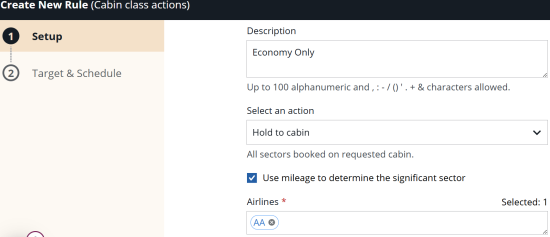
In Exclude Fare or Fare Family, how does Rule Authorization apply to Exclude by fare basis code?
Fare basis codes can only be included in fare display and pricing entries.
-
If no Rule Authorization exists or if it is set to Specific inputs supersede rule, a matching Content Optimizer Air rule for an agent-entered fare basis code is ignored and the entry is processed normally.
-
If the Rule Authorization is set to Rule is always applied, then if a Fare Basis Code is included in an entry and that fare basis code is also in the rule, then the rule is applied and the fare basis code is inhibited.
Fare display example for Galileo
In this scenario, the user wants to inhibit fare basis codes UA21A0UP and LA21A0VP for Dos Equis Airlines (XX) in the JFK-MIA market.
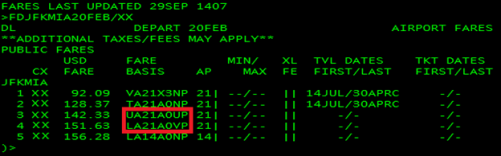
To inhibit these fare basis codes, create a rule with these parameters:
- Inhibit Type – Fare Basis Code(s)
- Codes – UA21A0UP, LA21A0VP
- Fare Type – All Fares
- Airlines– Dos Equis Airlines (XX)
- Rule Application – fare quote/pricing and fare display
- Content application - Traditional
- Geography: From – Airport – JFK; To – Airport – MIA, Both Ways
For the UA21AOUP and LA21AOVP fares to be inhibited for a Fare Display that does not include a fare basis code, Rule Authorization is not needed. The fares will be inhibited for the FDJFKMIA entry and not returned in the response.
But if an agent was to include the inhibited fare basis code (and the optional airline code of XX), then having Rule Authorization set to ‘Specific inputs supersede rule’ is required to inhibit the fare basis code. In this scenario, the agent would receive an error response:
 Fare quote example for Galileo
In this scenario, a user wants to inhibit fare basis codes UA21A0UP and LA21A0VP for Dos Equis Airlines (XX) in the JFK-MIA market. These flights are booked on Dos Equis Airlines for JFK-MIA-JFK.

To inhibit this fare quote, create a rule with these parameters:
- Inhibit Type – Fare Basis Code(s)
- Codes – UA21A0UP, LA21A0VP
- Fare Type – All Fares
- Carrier – Dos Equis Airlines (XX)
- Rule Application – shopping, fare quote/pricing, and fare display
- Geography: From – Airport – JFK; To – Airport – MIA, Both Ways
For the UA21AOUP and LA21AOVP fares to be inhibited for a Fare Quote that does not include a fare basis code, Rule Authorization is not needed. The fares will be inhibited for the FQ@ entry and not considered in the response.
But if an agent was to include the inhibited fare basis code, then having Rule Authorization set to ‘Specific inputs supersede rule’ is required to inhibit the fare basis code. In this scenario, the agent would receive an error response:
 Fare display example for Apollo
In this scenario, the user wants to inhibit fare basis codes TNN07BNZ and UNN03RNZ for Dos Equis Airlines (XX) in the JFK-MEX market.
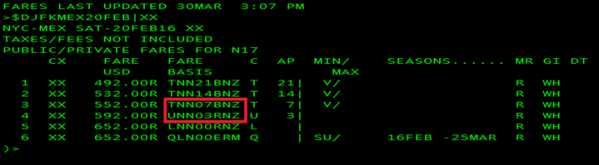
To inhibit these fare basis codes, create a rule with these parameters:
- Inhibit Type – Fare Basis Code(s)
- Codes – TNN07BNZ,UNN03RNZ
- Fare Type – All Fares
- Carrier – Dos Equis Airlines (XX)
- Rule Application – fare quote/pricing and fare display
- Geography: From – Airport – JFK; To – Airport – MEX, Both Ways
For the TNN07BNZ and UNN03RNZ fares to be inhibited for a Fare Display that does not include a fare basis code, Rule Authorization is not needed. The fares will be inhibited for the $DJFKMEX entry and not returned in the response.
But if an agent was to include the inhibited fare basis code and the mandatory airline code of XX, then having Rule Authorization set to ‘Specific inputs supersede rule’ is required to inhibit the fare basis code. In this scenario, the agent would receive an error response:
 Pricing examples for Apollo
In this scenario, the user wants to inhibit fare basis codes TNN07BNZ and UNN03RNZ for Dos Equis Airlines (XX) in the JFK-MEX market.

To inhibit this fare quote, create a rule with these parameters:
- Inhibit Type – Fare Basis Code(s)
- Codes – TNN07BNZ,UNN03RNZ
- Fare Type – All Fares
- Carrier – Dos Equis Airlines (XX)
- Rule Application – fare quote/pricing and fare display
- Geography: From – Airport – JFK; To – Airport – MEX, Both Ways
For the TNN07BNZ and UNN03RNZ fares to be inhibited for a Pricing entry that does not include a fare basis code, Rule Authorization is not needed. The fares will be inhibited for the $B@ entry and not considered in the response.
But if an agent was to include the inhibited fare basis code, then having Rule Authorization set to ‘Specific inputs supersede rule’ is required to inhibit the fare basis code. In this scenario, the agent would receive an error response:
 Fare display example for Worldspan
In this scenario, the user wants to inhibit fare basis codes TNN07BNZ and UNN03RNZ for Dos Equis Airlines (XX) in the JFK-MEX market.
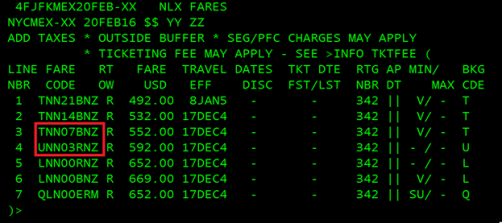
To inhibit these fare basis codes, create a rule with these parameters:
- Inhibit Type – Fare Basis Code(s)
- Codes – TNN07BNZ,UNN03RNZ
- Fare Type – All Fares
- Carrier – Dos Equis Airlines (XX)
- Rule Application – fare quote/pricing and fare display
- Geography: From – Airport – JFK; To – Airport – MEX, Both Ways
For the TNN07BNZ and UNN03RNZ fares to be inhibited for a Fare Display that does not include a fare basis code, Rule Authorization is not needed. The fares will be inhibited for the 4FJFKMEX entry and not returned in the response.
But if an agent was to include the inhibited fare basis code and the mandatory airline code of XX, then having Rule Authorization set to ‘Specific inputs supersede rule’ is required to inhibit the fare basis code. In this scenario, the agent would receive an error response:
 Pricing examples for Worldspan
In this scenario, the user wants to inhibit fare basis codes TNN07BNZ and UNN03RNZ for Dos Equis Airlines (XX) in the JFK-MEX market.

To inhibit this fare quote, create a rule with these parameters:
- Inhibit Type – Fare Basis Code(s)
- Codes – TNN07BNZ,UNN03RNZ
- Fare Type – All Fares
- Carrier – Dos Equis Airlines (XX)
- Rule Application – fare quote/pricing and fare display
- Geography: From – Airport – JFK; To – Airport – MEX, Both Ways
For the TNN07BNZ and UNN03RNZ fares to be inhibited for a Pricing entry that does not include a fare basis code, Rule Authorization is not needed. The fares will be inhibited for the 4P-- or 4p*-- entry and not considered in the response.
But if an agent was to include the inhibited fare basis code, then having Rule Authorization set to ‘Specific inputs supersede rule’ is required to inhibit the fare basis code. In this scenario, the agent would receive an error response:

How do I use Promote Preferred Fares to allow fares from airlines to be preferenced by excluding similar fares from other airlines that fall within a price and departure time range?
-
Promote preferred fares:
-
Requires additional provisioning and authorization. Contact your Account Management team to participate in the Alpha-phase testing for this feature.
-
Is exclusive to Travelport+ Traditional and NDC content.
-
Rules apply to all fares. There is no differentiating between Public/Private fares.
-
Is not in scope to work with Travel Dates.
-
Does not work with Smartpoint Desktop or Terminal/Cryptic entry.
-
-
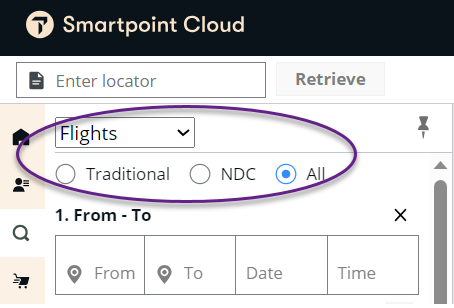
ONLY works with Smartpoint Cloud v3.11 and greater. In the Flight Search panel, either Traditional, NDC, or All content source option can be selected.
-
Create a Promote Preferred Fares rule.
-
Select one or more flight options for comparison on a like-for-like basis in the Cabin and Connections fields. All cabin classes and Non-Stop/Direct connections are default settings.
-
Select the non-preferred and preferred airlines. A maximum of five can be entered for each category.
-
Use the non-preferred airline(s) field to define which airline are not preferred.
-
Use the preferred airline(s) field to define which airline(s) for which to promote fares. Airlines are based on the Marketed airline.
-
Each rule has individual limits for the number of airlines the rule supports. See Airline List for more information.
-
-
Set fare preference conditions to promote preferred fares and define non-preferred airlines.
-
Select one or more of the airlines you added in the previous section in the Non-preferred airline(s) drop-down.
-
Select the range (amount or percentage) of the fare to compare in the when fare is drop-down list.
-
Enter a value in the between and and text boxes. Use a - prefix when typing a value for negative amounts.
-
Select the comparative airline for the non-preferred airline in the of preferred airline(s) drop-down menu.
-
Set departure time parameters with the Flight departure between numeric boxes to promote preferred fares and define non-preferred airlines. Departure time is in minutes (from -1440 to 1440).
-
You can select up to 5 non-preferred airlines and 5 preferred airlines per condition.
-
Click the delete icon
 to remove a condition.
 -
You can add up to five conditions.
-