Importing, Reconciling, and Reporting in CCR
The CCR Import, Reconcile, and Report function enables you to import credit card and GlobalWare invoices, reconcile them, and run reports. You can perform all of these functions at the same time or separately.
Notes:
- If you are importing transactions for a CCR account for the first time, be sure that you have run Startup first. For more information, see CCR Startup.
- If you have multi-user GlobalWare, no one else can edit CCR transactions. Be sure no one else is using CCR when you reconcile transactions.
Importing
CCR loads (imports) GlobalWare credit card transactions whose customer account and credit card number match those of the CCR account. The function does not import voided transactions. CCR imports transactions from the credit card file whose credit card number matches those of the CCR account.
After a GlobalWare invoice is imported, it is marked as loaded into CCR, so that it will not load again. You can view the CCR loaded flag of any invoice in its Status dialog box.
After credit card transactions are imported, the billing period end date is stored in the CCR Account. A warning will appear if you try to import that file again.
Reconciling
Transactions are considered reconciled if, for a pair of one CC transaction and one GlobalWare transaction, the ticket number and amount match. Offsetting transactions (two CC transactions that have the same ticket number and opposite amounts, such as +100 and -100, indicating a charge and a credit) are also considered reconciled.
GlobalWare changes the status of reconciled transactions to R. Also, for each pair, the Item ID is stored in the other’s Reconciled With field.
Reports
The following reports are available:
- Credit Card/GlobalWare Reconciliation Report, which lists GlobalWare transactions reconciled with credit card transactions
- Credit Card/Offsetting Transactions Report, which lists credit card transactions offset by another credit card transaction
- Unreconciled GlobalWare Invoices Report, which lists GlobalWare transactions with no matching credit card transactions
- Unreconciled Credit Card Transaction Report, which lists credit card transactions with no matching GlobalWare transactions
The Offsetting report and both Unreconciled reports are sorted by invoice date and ticket number. How the Reconciled report sorts is set up for each CCR Account. See Adding CCR Accounts.
Procedure
To import, reconcile, or report credit card transactions:
-
On the Corporate submenu, click CCR Import, Reconcile and Report.
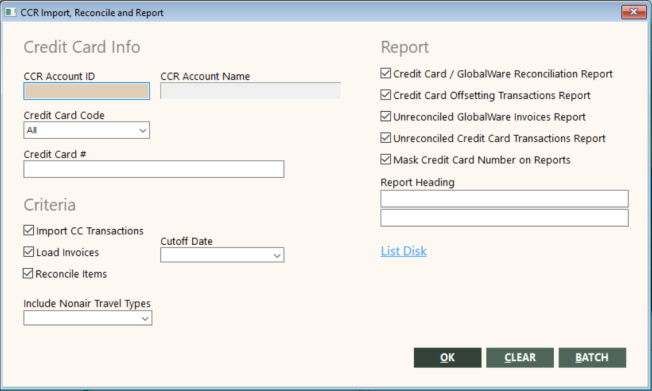
The CCR Import, Reconcile and Report screen appears.
-
Complete the screen as follows:
Field
Description
CCR Account ID
Enter the identifier of the CCR account you want to work with.
Credit Card Name
Name of the CCR account. GlobalWare automatically populates this field when you enter an account ID in the CCR Account ID field.
Credit Card Code
If you are loading/importing, select the credit card code from the drop-down list. If you not importing, you can select a specific credit card code or All.
If you select Generic and the CCR account has two or more generic cards set up, a drop-down list for the companies set up for those generic cards appears. Select the company you want to work with.
Credit Card #
Enter a credit card number if the CCR account has multiple numbers for one company but you only want to work with one of them at one time.
Import CC Transactions
Indicates whether to import transactions from the credit card company file.
Load Invoices
Indicates whether to load GlobalWare invoices for the CCR Account ID and credit card codes and numbers you specified on this screen.
Cutoff Date
If you are loading invoices, enter the last date for GlobalWare invoices that you want included in this reconciliation.
Reconcile Items
Indicates whether to reconcile GlobalWare invoices with the imported credit card transactions. Records that were previously imported are included in the reconciliation.
Include Nonair Travel Types
If you want to reconcile non-air items in addition to airline tickets, select non-air travel types from the drop-down list.
To select multiple types, Ctrl-click each one, then press Tab to move to the next field.
Note: GlobalWare will load invoices that have the travel types you specify. If you select any non-air travel type, and you are importing Diners Club, all non-air transactions from the Diners Club file will be imported.
For all other credit cards, all transactions are imported from the file regardless of whether you selected a non-air travel type or not.
Credit Card / GlobalWare Reconciliation Report
Indicates whether to generate the Credit Card / GlobalWare Reconciliation Report.
Credit Card Offsetting Transactions Report
Indicates whether to generate the Credit Card Offsetting Transactions Report.
Unreconciled GlobalWare Invoices Report
Indicates whether to generate the Unreconciled GlobalWare Invoices Report.
Unreconciled Credit Card Transactions Report
Indicates whether to generate the Unreconciled Credit Card Transactions Report.
Mask Credit Card Number on Reports
Indicates whether to mask credit card numbers on the CCR reports you generate.
Report Heading
You can enter a report header (up to 40 characters of remarks) for each report.
These default from the report headers specified for the CCR Account, but you can overtype them if desired.
- To review the transactions in the credit card company file, click List Disk.
-
Click OK.
On the screen that appears, navigate to the credit card company file, and then click Open.
Note: If you are importing American Express data, you need to navigate to two files: a header file and a detail file. After you use the screen to navigate to the header file, the screen appears again so that you can navigate to the detail file.
If you selected reports to generate, the Send to dialog box appears. For information about the report destination options, see Printing Overview.
To print any or all reports in a batch, click BATCH. For more information, see Batch Printing.
 CCR Import, Reconcile and Report screen