What's New
September 2025
As there are no customers using Universal Desktop, relevent information to that product has been hidden from the help system. If you are in need of any Universal Desktop information, please contact your Travelport representative.
September 2015
File Finishing Enhancement
The Smart-fill drop down list for specific vendors is available in Travelport Admin Portal. When selecting Specified Airline, Car or Hotel from the Supplier drop down list, the agent can now type in the vendor name/code, and the smart-fill drop down list populates search results for the agent to select.
Example screen display for specified airline:
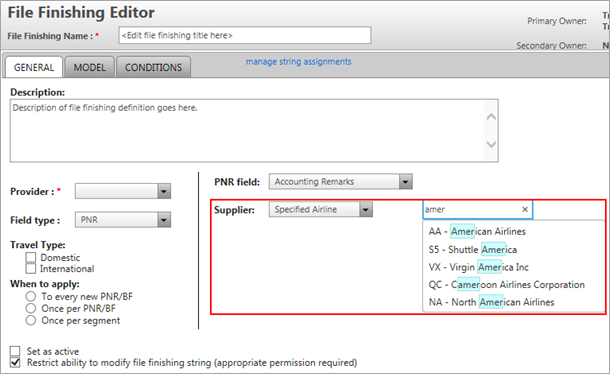
A defect was resolved for the request to Restrict ability to modify file finishing string (appropriate permission required) checkbox (defect 31304). In previous releases, the checkbox to restrict modification was not working; when an agency administrator created file finishing strings and unchecked this box, the check re-populated whenever the string was retrieved.
The ability to apply Rules per Reservation (or Quote) rather than applying to the whole Universal Record
Rules now trigger per individual reservation (quotes) contained within a Universal Record, rather than on the Universal Record as a whole. For example, an administrator may want to write a rule to apply a service fee to each reservation (quote). The service fee may differ based on segment data, the customer (corporate) ID, and specific general remarks within each reservation (quote).
The addition of a new rule call action, AddUnassociatedRemarks, is available for all Trigger points in Rules Editor. This permits the agency administrator to write rules to add multiple unassociated remarks to a PNR.
Example screen display:
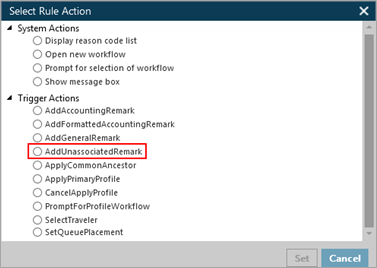
Refer to next page for an example Rule screen display.
NOTE: To ensure the unassociated remarks do not add each time the agent displays the reservation, use the new ScratchPad enhancement. Refer to the section: Rules Editor – addition of two new targets/values to the Data Context tree, ScratchPad within this Product Advisory.
Add Service Fees to a PNR
The addition of a new rule call action, AddServiceFee, is available to the Trip Review > View Reservation > Displaying Reservation Trigger point in Rules Editor. This permits the agency administrator to write rules to add service fees to a PNR.
Example screen display:
Trigger:

Call Rule Action:
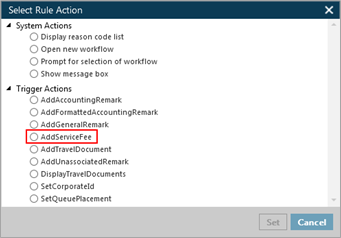
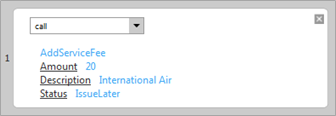
On selecting AddServiceFee, the administrator can set the amount, description and the status; whether the fee is ready to issue, or issue later.
Example screen display:
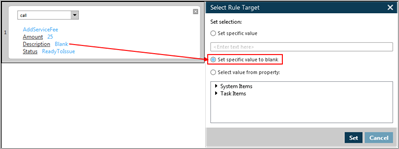
NOTE: The Description may be set to blank.
Example screen display:
Add Formatted Accounting Remark to a PNR
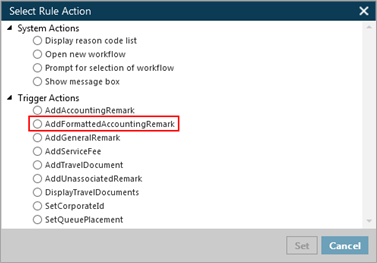
The addition of a new rule call action, AddFormattedAccountingRemark, is available for all Trigger points in Rules Editor. This gives the administrator the ability to add multiple (string) data to an accounting remark in a PNR.
Example screen display:
In previous versions, a user could only add one data field to a PNR via a Rule. The addition of this action provides an agency administrator the ability to write Rules in a way that more than one field pre-populates into a data string (i.e. concatenate data). For example, to add an accounting remark on adding service fees:
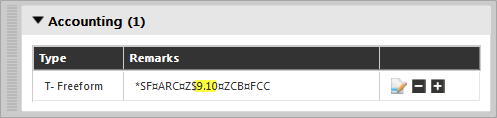
T-*SF¤ARC¤Z$24.13¤PM¤FCK, or to add selected reason codes into a string format.
Example screen display on selecting AddFormattedAccountingRemark:
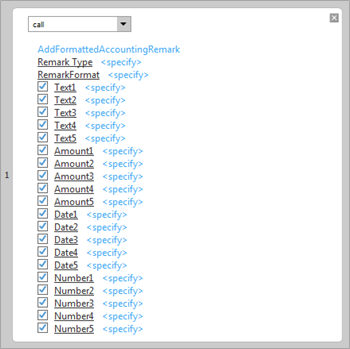
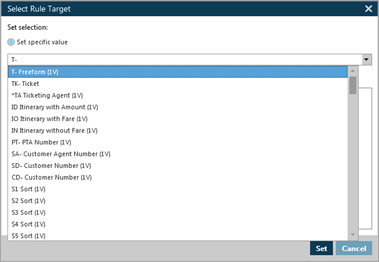
Remark Type: select the type of remark from the drop down list, for example freeform accounting remark. This is a smart-fill box, as the user types the matching entries display.
Example screen display:
RemarkFormat: This is where the agency administrator builds the data string. Select from the Available Field Types on the left, adding them in the order they must appear in the accounting remark.
The Available Field Types consist of a freeform and five text, amount, date and number fields.
Example screen display:
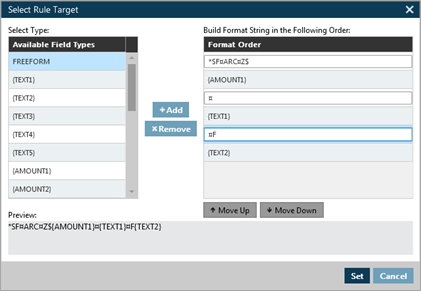
A preview of the entry shows at the bottom of this dialog box.
Points to note:
• Ensure the freeform contains the format required including spaces and all symbols such as $ (dollar), * (asterisk) and/or ¤ (pillow) etc. E.g.:

• The source and target type must match for the rule to run.
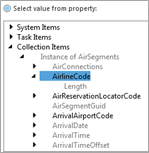
Use the TEXT fields for string values, e.g.:
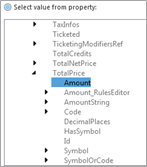
Use the AMOUNT fields for decimal values, e.g.:
Use the DATE fields for decimal values, e.g.:
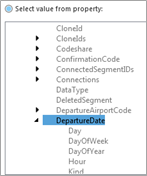
Use the NUMBER fields for whole numbers (intergers) values, e.g.:
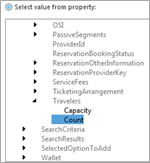
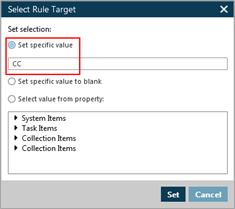
• There is also the option to set a specific value in the event of static data:
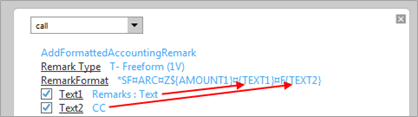
Ensure the associated targets are selected for your format. Where there is a mismatch, the field will be ignored and will not populate.
Partial screen display:
Ensure the target selected in the rule has data. For example, where the target is to a Service Fee, there must be a service fee in the PNR for the rule to trigger.
Partial screen display:
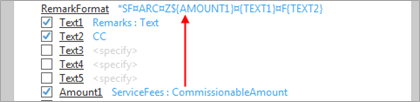
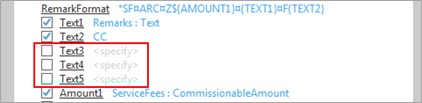
Ensure all unused targets are un-selected prior to saving the rule. In a future release, Travelport plans to uncheck the targets by default.
Partial screen display:
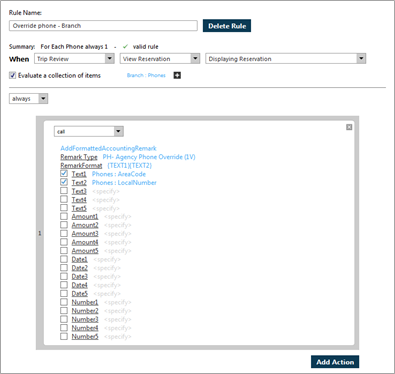
Example rule, override agency phone:
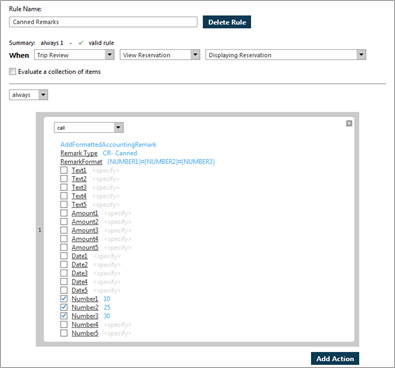
Example rule, Canned Remarks:
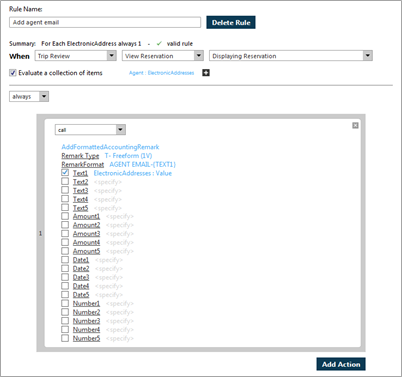
Example rule, add agent email:
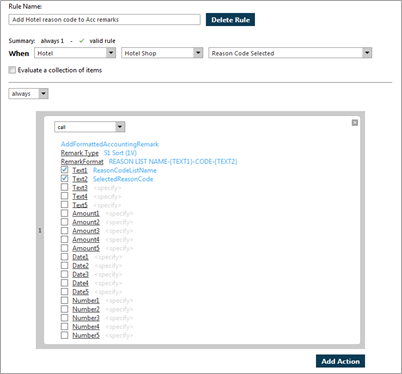
Example rule, add selected reason code:
Enhancements to Rules Editor – addition of two new targets/values into the Data Context tree
Service Fees
This addition to the data context tree permits an agency administrator to create rules to calculate the commissionable amount of the service fees added to a PNR, this saves the agents having to manually calculate and input the format. Using a rule, the calculated amount may be entered into a formatted accounting remark, which generates to the back office system.
Point to note:
• Universal Desktop uses ARC defaults:
CommissionRate set at 3.5%
MinimumCommissionAmount set at 0.70 cents
Screen display of Service Fee data context:
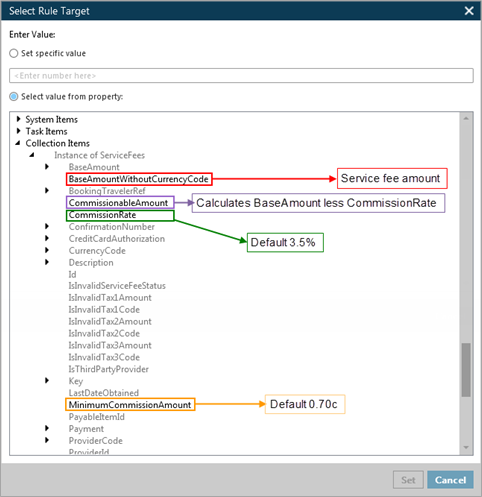
The assumption is that when issuing a service fee through TASF, the agency retains the amount less the commission (CommissionableAmount in the data context tree). This is normally the amount added to the accounting line and generated via the MIR to the back office system. If the commission is less than the minimum commission amount, the amount less the minimum commission amount adds to the accounting line.
Example rule action:
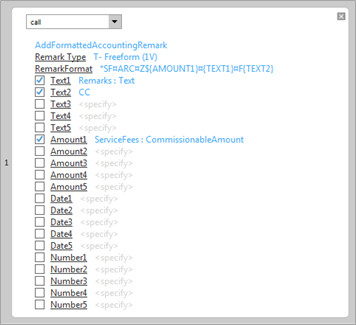
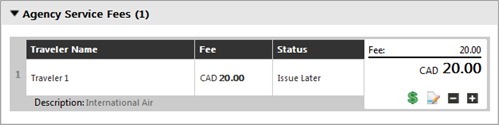
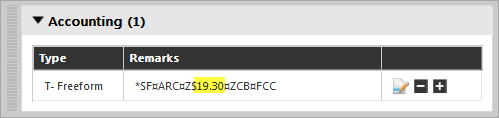
Where the service fee is 20.00, 3.5% commission of 0.70c (the minimum) would apply. Therefore, commissionable amount to the agency would be 19.30.
Service fee:
Rule generated accounting remark:
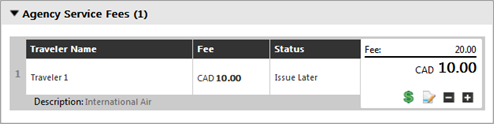
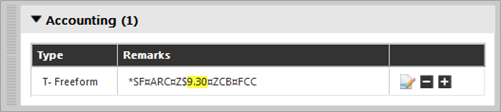
Where the service fee is 10.00, 3.5% commission of 0.35c would apply. Deduct the minimum of 0.70c, and the commissionable amount to the agency would be 9.30.
Service fee:
Rule generated accounting remark:
The administrator can change the defaults of the CommissionRate and MinimumCommissionAmount in a rule.
Example rule to change CommissionRate to 5.5% and MinimumCommissionAmount to .90 cents:
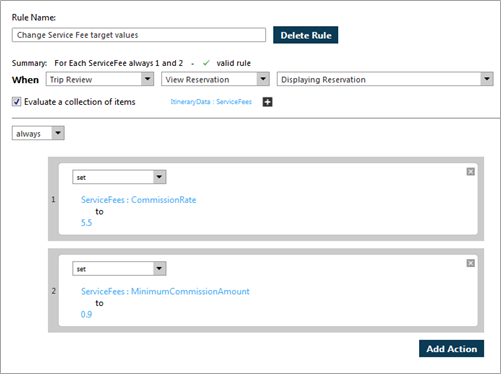
On running both rules with the new commission rate and minimum commission amount values:
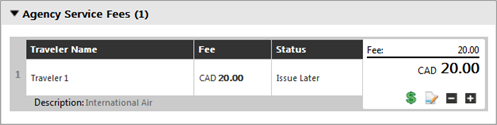
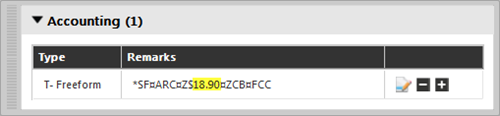
Where the service fee is 20.00, 5.5% commission of 1.10c applies, therefore commissionable amount to the agency would be 18.90.
Service fee:
Rule generated accounting remark:
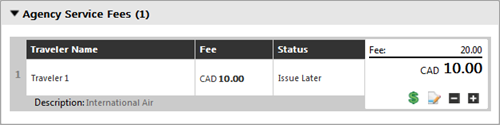
Where the service fee is 10.00, 5.5% commission of 0.55c would apply, therefore deduct the minimum of 0.90c and the commissionable amount to the agency would be 9.10.
Service fee:
Rule generated accounting remark:
ScratchPad
The addition of ScratchPad to the data context tree gives an agency administrator the ability to access multiple collections to use them for evaluation in later rules. Currently, the rules engine does not have the ability on all trigger points to access multiple collections at the same time. The ScratchPad data context is available on all trigger points, and collects data within a collection to access later.
For example, an administrator is able to write a rule to trigger on Air > Air Shop > Add Air Solution adding data to ScratchPad when the trip is evaluated as an international journey. The user is then able to write other rules based on the information in ScratchPad, such as charging a specific service fee or adding a formatted accounting remark.
Example screen display of ScratchPad data context:
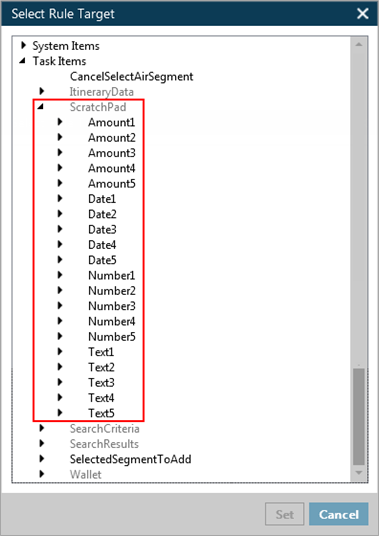
Similar to the new AddFormattedAccountingRemark action, the ScratchPad data context tree contains five text, amount, date and number fields.
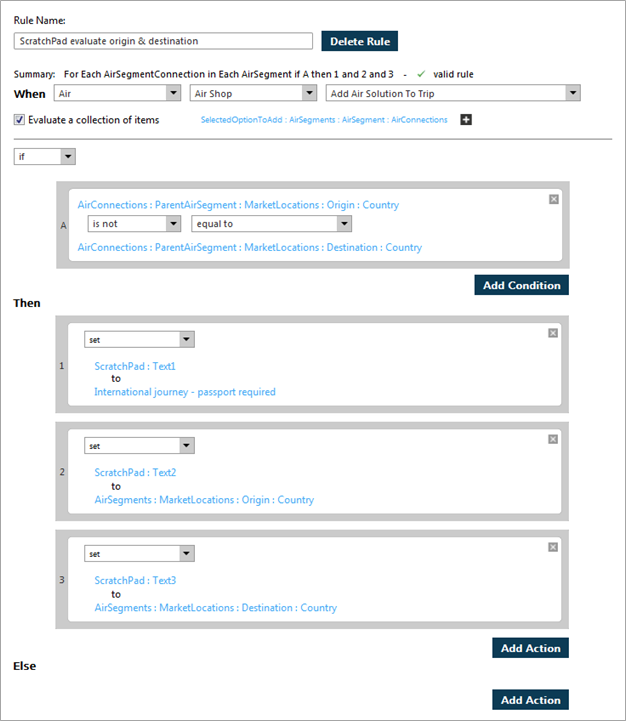
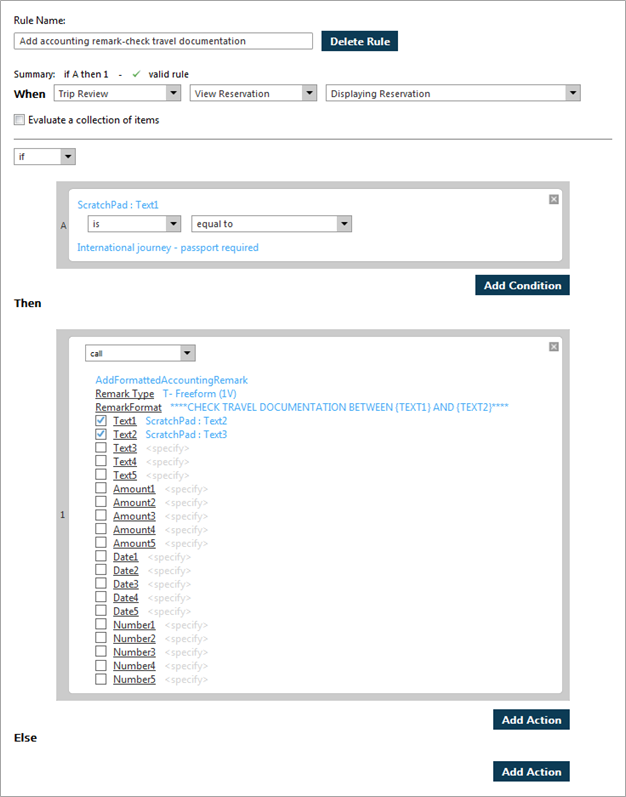
Consider the following business requirement: For any international trip, add an accounting remark to the booking to check travel documentation for the origin and destination countries.
Example rule to evaluate the origin and destination countries, adding data to ScratchPad for evaluation in a later rule to add the accounting remark:
Example rule to add the accounting remark, based on the data added to ScratchPad:
Previous versions of Universal Desktop did not have a feature to ensure a rule fired only once for each matching instance. When creating a collection, such as air segments in a pricing solution, the rule fired for each item meeting the rule conditions. Similarly, a rule written to add a remark when a service fee is present in Trip Review fired each time, and added multiple remarks to the booking. With the implementation of this version, the ScratchPad data context enhancement adds the functionality to prevent this.
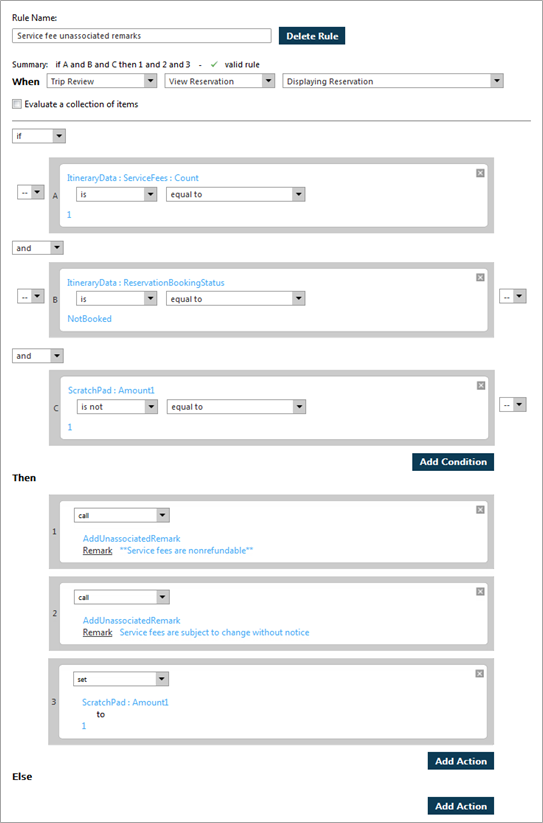
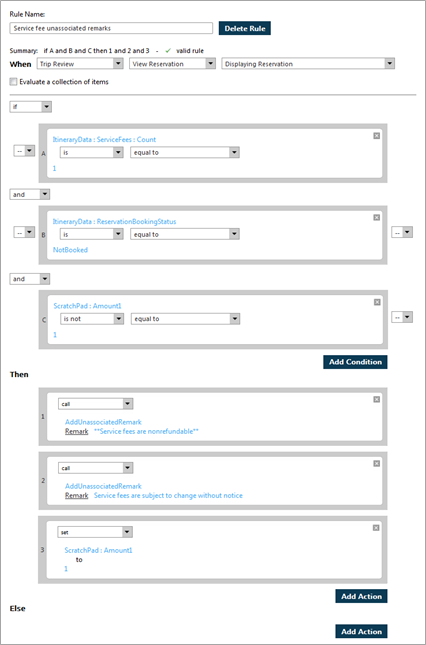
In the rule below, unassociated remarks add to a booking where a service fee is present (condition 1) and the segments are not yet booked (condition 2). Additionally, condition C evaluates whether the Amount1 target in ScratchPad has a value, the rule will only trigger if this value is not equal to 1. Where all these conditions are met, two unassociated remarks add to the reservation, additionally action 3 sets the Amount1 value in ScratchPad to 1 ensuring that the rule does not trigger again on the reservation.
Important note:
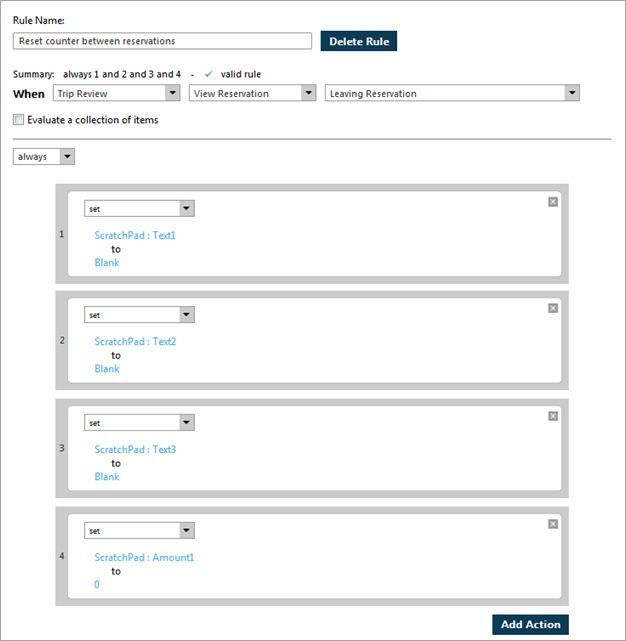
Because rules trigger only on invoking a workflow or adding a profile to a reservation, it is important the administrator write a rule to reset the values added to ScratchPad when a user adds a new reservation/quote to a Universal Record, otherwise these values carry to the new reservation/quote.
In the rule example supplied above, the unassociated remarks will not add to the new reservation/quote because the value in the ScratchPad Amount1 target has been set to 1.
Example rule display:
March 2015
The Management of Licenses Was Removed
Assignment and un-assignment of licenses was removed from the following paths:
• Create Agent – single profile create
• Modify Agent – single profile modify
Create and Modify Agent:
Profile > New Profile > Agent (create agent profile – one at a time)
Profile > Open Profile > Agent (modify existing agent profile – one at a time)
Section highlighted is removed in 1.11. The image is similar for Modify Agent
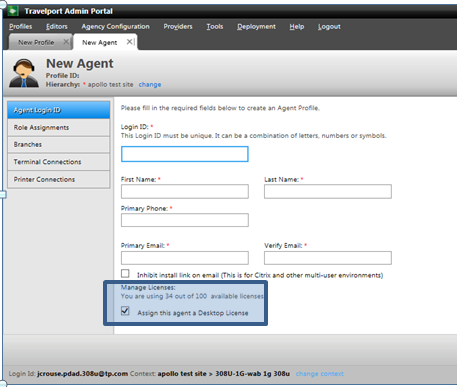
Prior to the 1.11 release, if you removed the assigned license (checkbox was unchecked), you then went to the Role Assignments on the left navigation bar. When you went to Role Assignments, you received a warning that you cannot assign roles until a license is assigned. This limitation is removed in 1.11.
License Functionality Was Removed from Bulk Create/Modify Agent
License was one of the many fields you could add or modify by bulk. As the license function has been removed with this update, so has the license field in bulk create and modify.
Bulk Activations of ACH Are Available
Prior to the release of 1.11, ACH carrier activations could only be performed by Branch. Release 1.11 has added the ability to do bulk activations by Branch Group and Agency.
When you view the current providers at a Branch Group or Agency level, you can see if there is an activation for that carrier within the Agency or Group, but cannot tell if it is for only one branch, some branches, or all branches. In other words, if even one branch within a Branch Group or Agency is activated, then those Branch Groups or Agencies show the ACH as activated.
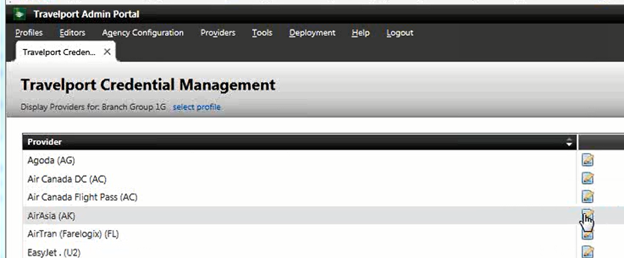
To activate a carrier for all branches, click on the pencil icon in the box, as shown for AirAsia. The following pop-up appears.
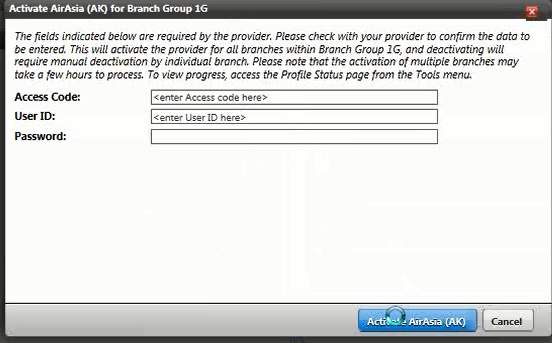
To view the status of a bulk update, go to Providers > Travelport Credentials, or select the Profile Status Page link.
A Successful status confirms that the carrier has been activated for that branch. Failed can imply several things, including that the carrier was already activated for that branch and therefore the system failed at activating it again.
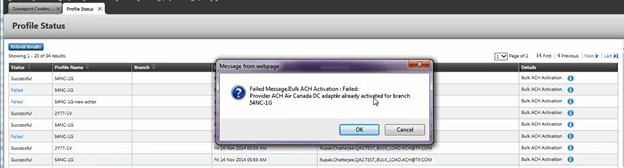
Click on the information icon to view the associated message.
Currently there is not a way to deactivate at a bulk level. Deactivation requires manual deactivation by branch
November 2014
New functions were added to Application Extensions and the External ID was moved from a field to a field group.
External ID and Source Field Group
External IDs can be linked to a unique Source, but the External ID does not require a Source, and the External IDs do not have to be unique. Only Sources within a profile must be unique. One profile can have numerous External IDs, limited by the minimum and maximum set and the limit defined by the Portal system. If the Source is left blank (null), then another Source for that profile cannot be left blank, as each Source field must be unique for that profile.
If a host is used for the Source field, such as 1P, the External ID cannot be modified. However, they can be deleted.
Searches for a Source must include the External ID.
Locating Which Agency Owns an Extension
Users with Sys Admin or Support User logons can view the hierarchy details for application extensions. You must emulate prior to using this feature. If you have not emulated before selecting the Deployment/Application Extensions menu options, you see the message, "User must be emulated to access this feature." As a Sys Admin, you may get back the entire list of application extensions. Click on an extension, and the agency that owns it appears in the box to the right of the list. The description for the application extension appears if one has been entered. Descriptions are optional.
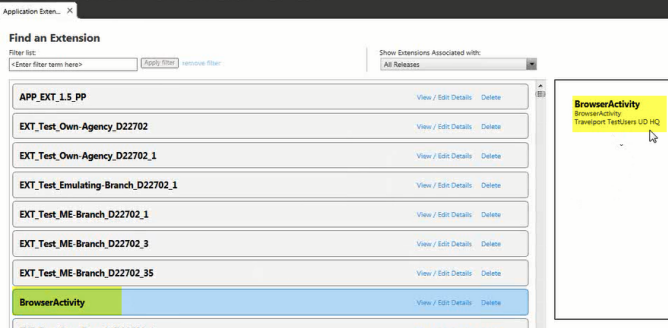
When there is no hierarchy to locate the owner, the system returns the message, "Selected application extension does not have any profile."
Agency Admin and Support Level 3
When logged in as an Agency Admin or Support Level 3, only the name and description are displayed. The API response only returns the extensions that exist in the agency currently being worked in.
NOTE: Owning agency is not returned in the API search response. Therefore, the only way to determine "ownership" is by looking at the associated profiles to determine the agency. If an application extension does not have any profiles assigned, Portal is not able to show the agency ownership information.
Locating Application Extensions Assigned to a Profile
Locate the selected profile. The system starts with the selected profile, then "walks" up the hierarchy to locate all application extensions in that profile's hierarchy. When you click on the view application extensions link, a pop up displays all extensions in that profile's hierarchy.
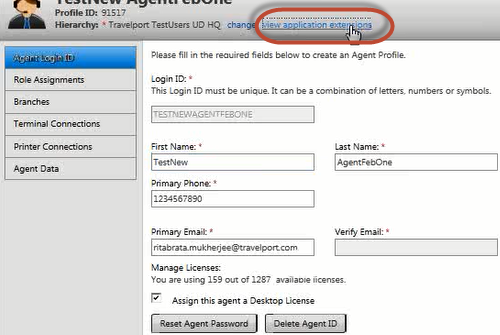
When the profile does not have any application extensions assigned in hierarchy, the system returns the message, "No results found."
August 2014
Status Page
The Details column now provides specific confirmation on an action. For example, whether a terminal connection was assigned or removed and the number. If the detail is greater than one line click the information icon, shown here in blue, to view the full detailed information.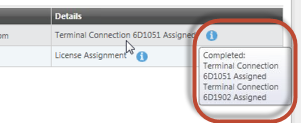
From the Profile Name column, you can now click the Agent Profile User ID link under Profile Name to jump to the Profile Page.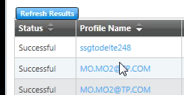
Refresh Results button was added above the Status column, allowing you to refresh a page without having to exit and re-enter it.
Sorting is now available for all of the columns except Details. You can sort them in ascending or descending order by clicking the column heading.
Copying from existing application extensions:
This is for System Admin users only. There is no change to Agency Admin functionality when assigning release assignments. The new function for Travelport System Admin users is a new radio button on the Manage Users page which is labeled Copy from Existing Application Extension. This new button allows System Admin user to copy profile assignments from an existing application extension to the new one they are creating. Profile assignments can only be copied from ONE application extension. However once the profile assignments are copied, System Admin users can add other profile assignments using the other flows (search by profile or hierarchy) and then can manipulate any of the previously assigned ones when they go to the Currently Assigned tab.
May 2014
Expansion of capabilities in bulk agent profile modifications. These include:
- Inserting dates for future uploads of profile changes
- Ability to add or replace roles
- Additional Action Codes
March 2014
- Allow agent profile modifications in bulk by CSV files.
- System defaults agent profile hierarchy assignments and Administrator can change them and the default settings.
- System assigns pre-determined agent default roles and Administrator can add roles.