Enhanced Exchanges: Early Adopter Release
Enhanced Exchanges (formerly Automated Exchanges for Smartpoint Cloud) is currently available only to agencies that are activated for Early Adopter testing. If your agency would like more information about being part of our pre-release testing, please contact your Travelport representative.
Exchange Price Quote
Important note: Users cannot access the Exchange Price Quote flow if their PCC does not have the product entitlement provisioned for Exchanges (contract must be signed by customer).
Overview
Exchange Price Quote enables agents to complete an exchange when the itinerary has already been modified and they want only a single exchange quote. This is especially helpful for corporate customers who require direct exchanges for specific flights rather than shopping for alternatives.
Supported scenarios
General scenarios supported:
-
Single and multiple PCCs
-
Exchanges are supported for the following:
-
One-way, round-trip, open-jaw itineraries (with or without ARNK segments)
-
Multi-offer
-
PNRs with up to 9 passengers
-
All PTC
-
Partially used/flown
-
Conjunction tickets
-
Maintain the brand from original ticket
-
Payment as cash, credit/debit card and invoice added to the booking file.
-
Private fares (including private fares shared through PFAR field with PCC on it)
-
Private fares using an account code
-
PNR has Hotel or Car segment
-
Interline tickets
-
Exchanges with an unused ticket
-
-
BSP Carriers must support EMD:
-
Change fees are collected via EMD
-
Refundable balances are automatically refunded via EMD
-
In both cases, a SVC segment is added and the EMD issued
-
-
ARC Carriers must support MCO:
-
Change fees are collected at time of ticketing
-
MCO is automatically issued for any negative balance when ticket is nonrefundable
-
Refund to original form of payment when ticket is refundable
-
-
Multiple exchanges on the same booking (subject to carrier and fare support)
-
Ticket and Hold Exchange are supported
-
If MIR is linked on Ticket, it will issue MIR to the back office
-
Keep to Brand modifier (no change to origin/destination)
-
Commission/Tour Code/Endorsement/IT-BT modifiers
Preparing the PNR with the new itinerary
This flow is designed for agents who work with corporate clients or already know the exact flight their customer wants. It allows them to modify the itinerary before entering into the standard exchange process. This itinerary can be modified in two ways:
-
Cancel the existing itinerary and book the new one with HK status
-
Retain the original itinerary and book new flight segments (segments can be confirmed with HK status or held with HS status.)
Note: this release does not support scenarios where an agent modifies the original segment with entry @1/date. Support for this functionality is under consideration.
Start exchange
-
Once the itinerary is modified, open Graphical Booking File, and select Change Flight. A dialog displays the available exchange options for this booking—provided it is eligible for exchange.
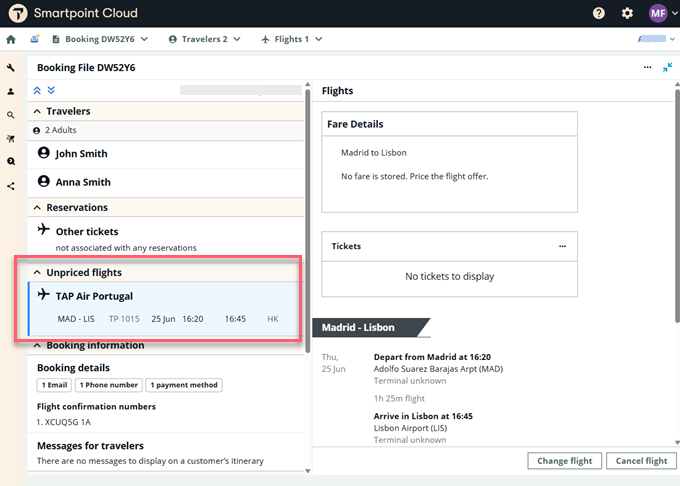
If the itinerary is updated and no filed fare is available, flights display in the Unpriced flights section, indicating that pricing has not yet been applied to the updated itinerary.
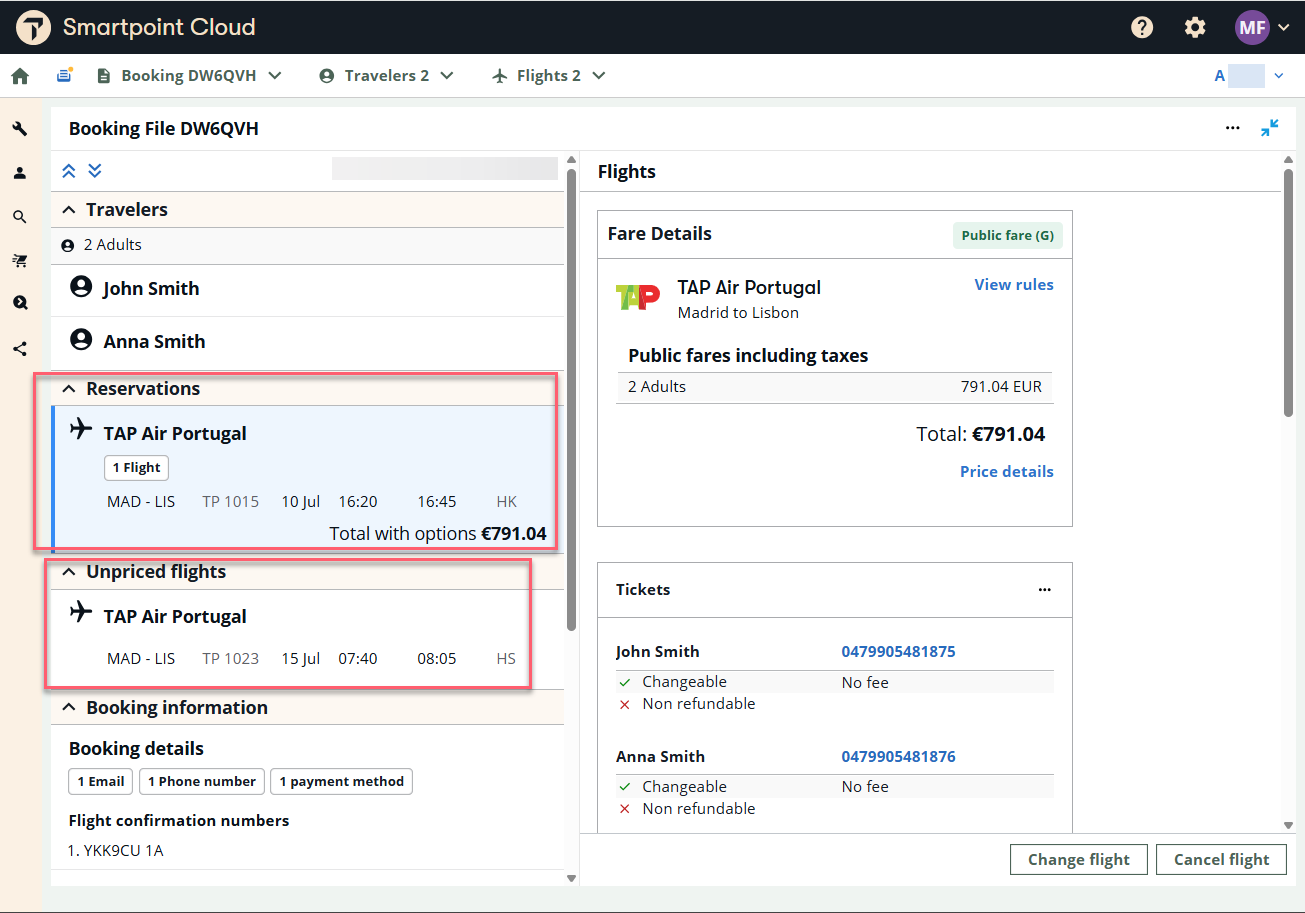
When original itinerary is retained and new segments are added (HK or HS), the original itinerary displays in the Reservations section and new flights display in Unpriced flights section until pricing is applied.
If you do not have exchange permissions, or if the flight coupons have a status other than OPEN, ARPT, or USED, the booking is not eligible for exchange.
-
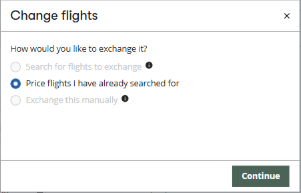
Select the option Price flights I have already searched for and press Continue.
-
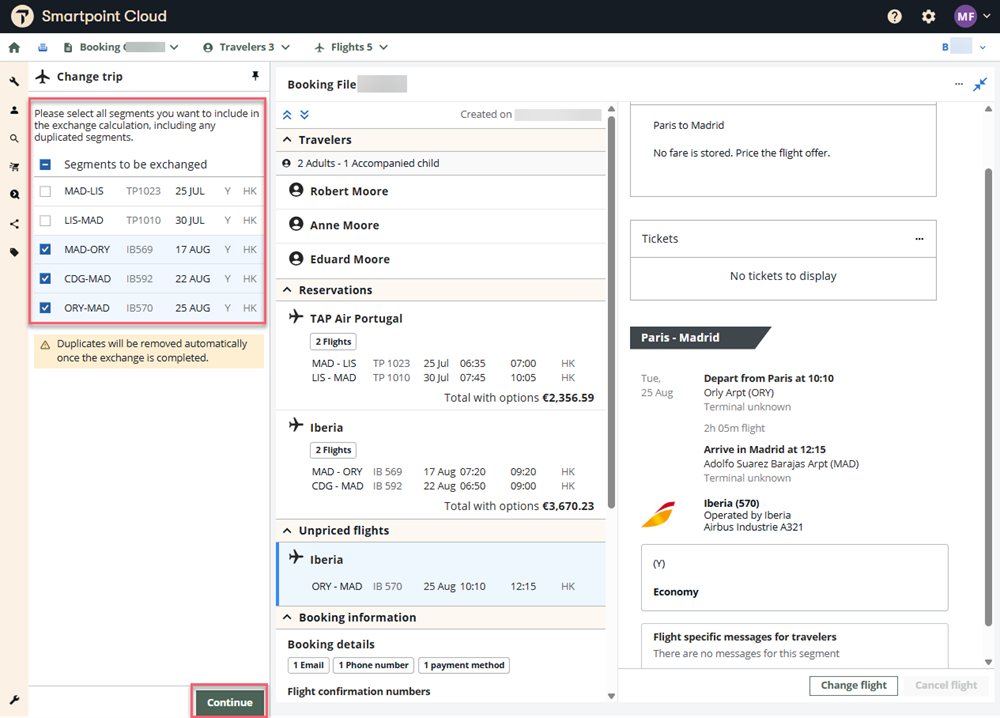
For bookings with multiple offers, select the segments to exchange and press Continue.
Pricing option
The Exchange Price Panel automatically populates flight and traveler information from the booking file. The user must select the flights to price and apply any relevant pricing modifiers to obtain the desired fare.
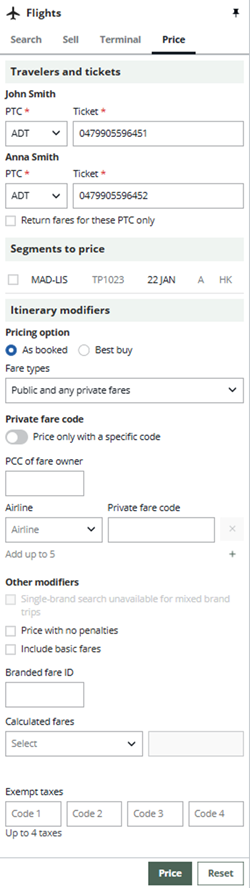
Note: For partially used bookings, flown segments are grayed out and struck through indicating they are ineligible to exchange. Although completed, these segments remain part of the exchange calculation.
-
In Travelers and tickets, the passenger’s name, PTC, and ticket number associated with each traveler are automatically populated.
-
If the Passenger Type Code (PTC) needs modification, select a new code from the drop-down menu.
-
Select Return fares for these PTC only to quote only the fares that apply to the PTCs displayed in the panel.
-
If there is no ticket in the PNR and you want to perform the exchange using an unused ticket, enter the ticket number manually in the blank ticket field.
-
If there is more than one ticket per passenger and you wish to select a different ticket, remove the ticket number to display all available ticket options.
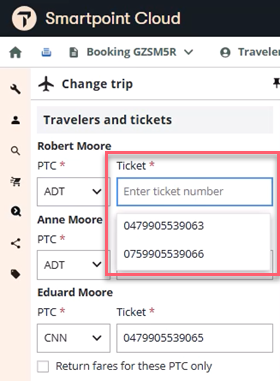
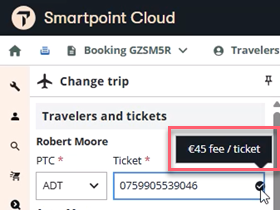
You can also add a ticket that is not linked to the booking file (ticket-only). In this case, an eligibility check will be performed, and any applicable penalty amounts can be viewed by hovering over the check mark.
-
-
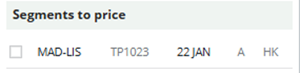
In Segments to price, all flights are displayed. Select the flights to price.
Important: Any segments that are deselected will be canceled during the exchange process. Ensure that only the flights intended for exchange and pricing remain selected before proceeding.
-
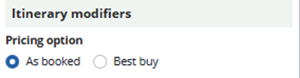
In Itinerary modifiers, select As booked or Best buy depending on the desired outcome. Default is as booked.
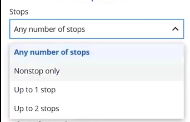
Use the Stops option to define the maximum number of connections allowed in exchange search results.
-
Any number of stops (Default): returns all available itineraries, regardless of the number of connections.
-
Nonstop only: returns only direct flights with no connections.
-
Up to 1 stop: returns itineraries with a maximum of one intermediate connection.
-
Up to 2 stops: returns itineraries with up to two intermediate connections.
-
-
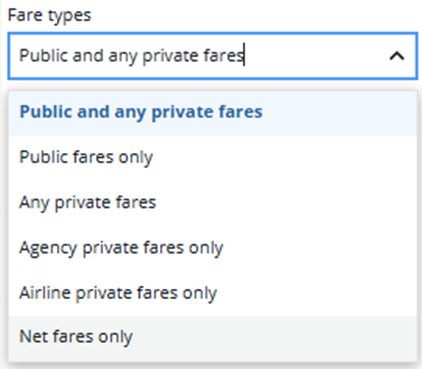
Select the type of fare (Airline Private/Public/Agency Private/Net Fare). If nothing is selected, the default is to send public and private fares.
-
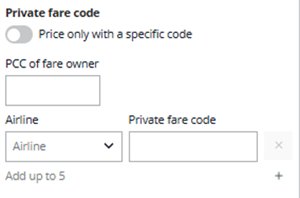
If a private fare with Account code was applied on the original ticket, the original account code displays and up to four additional account codes can be added. The default is one line, but additional lines can be added or deleted using the + and x buttons.
-
If agent wants only to see prices with the specific private fare code entered, then the switch bellows the Private fare code title should be activated and only one code is allowed.
-
If the private fare originates from another agency and a private-fare-sharing agreement is in place, enter the PCC of the fare owner.
-
-
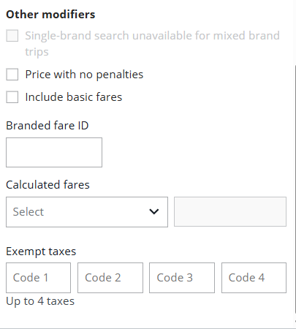
Optionally, apply other modifiers as follows:
-
Price only current XXX brand: Select this option to ensure that search results return only fares within the same brand as the original ticket.
-
Price with no penalties: Select this option to return fares that have no penalty restrictions such as change or cancellation fees.
-
Include basic fares: Select this option to include the most restrictive and lowest-priced fares in the search results.
-
Branded fare ID: Manually enter a specific branded fare tier. Only fares that match the selected brand are returned.
-
Select one of three options in Calculated fares to modify the result of the exchange calculation. Enter the numeric value for the selected option. Note: all these amounts should be reflected without decimals.
-
Discount by percent
-
Discount by flat amount
-
Increase by flat amount
-
-
Exempt taxes: Enter up to four tax codes to exempt the traveler from paying those specific taxes as part of the exchange calculation. Only the taxes specified in this field will be excluded from the recalculated fare.
-
-
Select Price to display the reprice response based on the parameters entered in the Change trip panel. Select Reset to update the details in the search panel.
Review and confirm
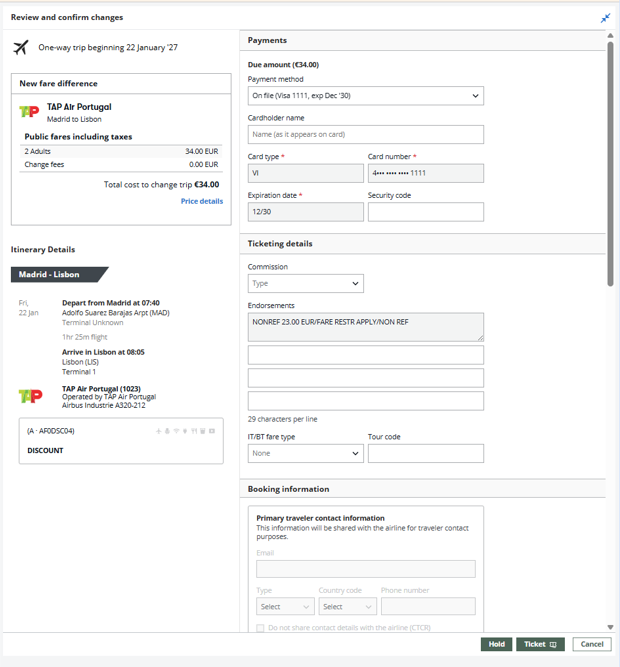
Upon sending the price request, a unique response is returned by the Exchanges API, and the information is populated in the Review and confirm screen. Details of the fare and itinerary display on the left side and the payment, ticket detail information, and PNR information display on the right.
New fare difference
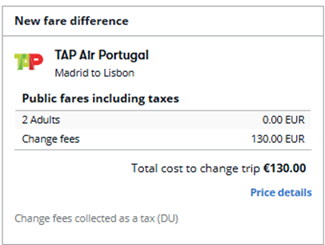
The New Fare section ummarizes the fare recalculation for all passengers, including any applicable change fee and the collection method used.
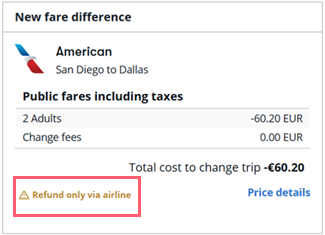
If any refundable amount cannot be issued as an EMD due to the airline not having EMD refund capability enabled, this will be indicated at the bottom of the Fare card.
-
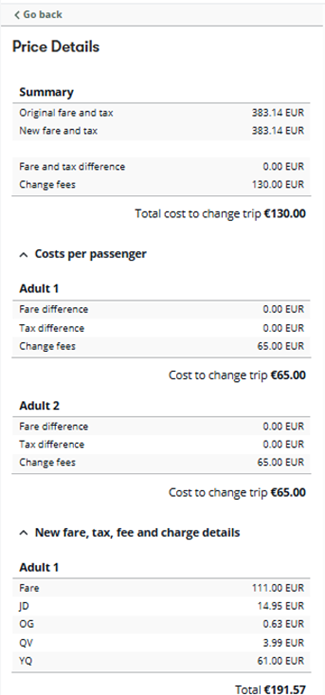
Select Price detailsto display the complete fare breakdown per passenger, including the tax breakdown. Select Go back to return to the previous screen.
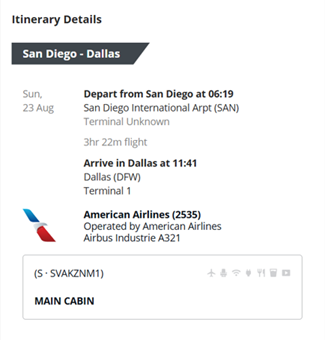
Itinerary Details
Itinerary Details displays all the information of the itinerary including City Pair complete name, Airport Name, Terminal information, Date/hours, Brand Name, Fare Basis code, and Equipment.
The Payments section provides a summary of fare or/and fees and provides a payments method drop down which can be used for any additional collection or permitted refund back to the traveler.
-
If there is a refund applicable on exchange balance, then select the refund method.
There are 4 refund methods:
-
EMD
-
MCO
-
Original FOP
-
Unknown (when airline is not sending any refund details, so the agent has to contact airline to get the refund details)
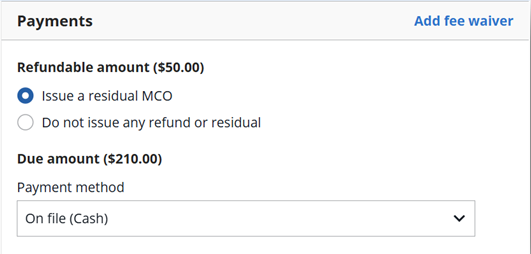
If there are residual taxes (BSP only), on the refundable options the agent can select which taxes to ignore.
-
-
For any additional collection, select from the form of payment options.
Currently, the available options are:
-
Cash
-
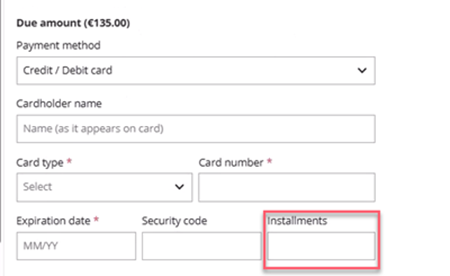
Credit/Debit card, with the option to add extended payments (installments). Only available in select countries.
-
Agency Invoice
-
-
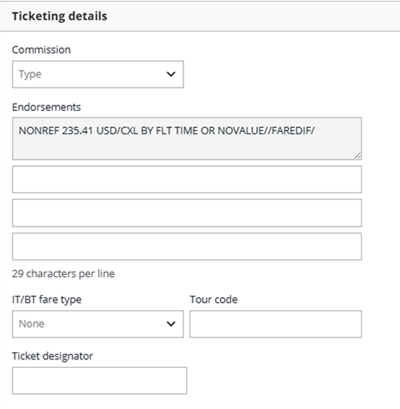
If necessary, add ticketing modifiers such as:
-
Commission: If original commission can be pre-populated the original commission amount or percentage displays.
-
Endorsement: Endorsement from the new offer displays as a read only.
-
IT/IB: No previous IT/BT selection displays.
-
Tour Code: No previous tour code displays.
-
Ticket designator: No previous ticket designator displays. This applies only for US and CA.
-
Traveler information contains all the passenger information taken from the booking file (PNR). At this point all fields are not editable.
-
Once any necessary adjustments are made to the payment method, select Ticket to immediately complete the exchange.
Upon selecting Ticket, Enhanced Exchanges will:
-
Issue the ticket(s)
-
(When applicable) - Create the SVC segments for penalty (BSP only)
-
(When applicable) - Add penalty fee as a tax (BSP only)
-
(When applicable) - Issue an EMD for the penalty (BSP only)
-
(When applicable) - Penalty charge at time of ticketing (ARC only)
-
If there is a residual value, then a refundable EMD is issued (BSP only)
-
If there is a residual value and it is not going back to the original form of payment, then a residual MCO is issued (ARC only)
-
-
Alternatively, select Hold instead of Ticket.
Upon selecting Hold, Enhanced Exchanges will:
-
Store the new filed fare that will be used for the exchange, once it is processed manually later
-
Update the ticketing modifiers in the new filed fare with the FEX modifier and original ticket number
-
(When applicable) - Create the SVC segments for penalty (BSP only)
-
(When applicable) - Add penalty fee as a tax (BSP only)
-
(When applicable) - Add the Penalty charge at time of ticketing (ARC only) to the ticketing modifiers in the new filed fare
-
(When applicable) - Create the MCO residuatl (ARC only)
Note: At present, once the PNR is in hold state for a future exchange, you cannot process the final exchange using the Enhanced Exchanges GUI. The final exchange will need to be processed manually (i.e. using TKP entry and issue also EMD).
-
-
On completion of a successful exchange, a confirmation screen displays.
Note: If the payment type is unknown on refund/residual cases, the final confirmation screen displays a banner advising the agent If you wish to process the refund or this trip, the airline requires you to contact them.
Error messages
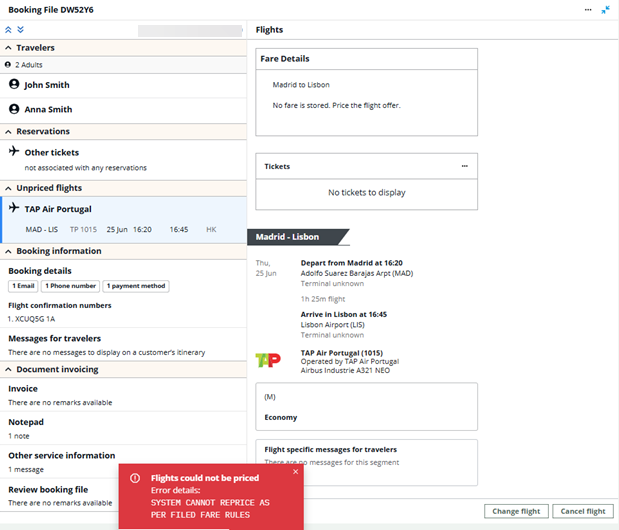
If any system error occurs during the exchange process a red warning message displays.
-
If error occurs during pricing, Price panel is kept open so the pricing modifiers can be changed and attempted again.
-
If error occurs during fulfillment and there is a payment error, Review and confirm screen remains open so payment can be updated.
-
For any other error, there is a redirect to the PNR view to start the exchange process again or ignore it.
Known issues
-
Hold exchanges - form of payment updates: if the FOP is changed on the Review and Confirm screen, the new FOP is saved in the exchange transaction. When issuing the exchange with cryptic entries, it will retain and use the FOP selected during the transaction, but the F. field will continue to display with the original FOP associated with the booking.
-
Fare Card display for held exchanges: When a booking file is placed in an On Hold status for a future exchange, users can still issue the exchange from the graphical booking file. Currently, the amounts shown in the Fare Card reflect the filed fare amounts rather than the actual fare difference that will be charged as part of the exchange transaction. This display limitation will be addressed in a future release.