Cancel a car segment
When a customer no longer wants to rent a car or changes an itinerary and needs a different car rental, you can cancel the rental car.
Graphical display
-
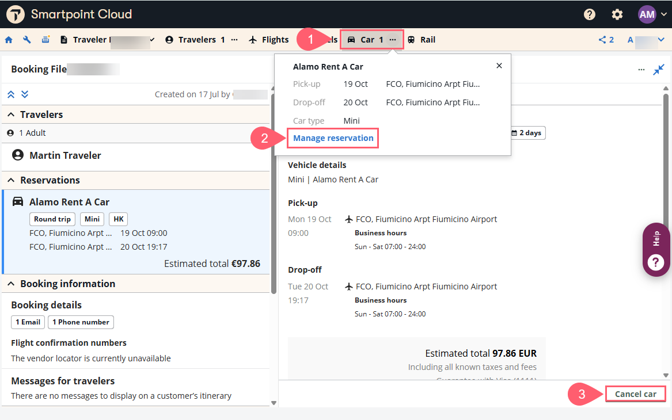
Select the three dots next to Cars in the top navigation bar.
-
Press the Manage reservation link.
-
Press Cancel car.
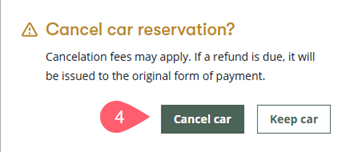
The following message displays:
-
Choose Cancel car.
A message confirms that the car has been successfully canceled.

Terminal display
The function identifier to cancel a car segment is X.
To cancel a car segment, use the following steps.
-
Display the booking file.
-
Enter X followed by the segment number. Example: X2
-
Add a Received From field and end the booking file.
Note: Because the booking may exist in the participant’s system, cancel the car segment instead of ignoring it before you end the transaction. Follow the steps above to avoid having a confirmed reservation in the company’s system which is not accessible in Smartpoint Cloud.