Signing On
Travelport+: Smartpoint 12.0
Signing On for the First Time
 Machine translation for sign-on topics is available in the Knowledge Base in the Sign on to Smartpoint Desktop with multi-factor authentication (MFA) article.
To sign on for the first time:
-
Important! If you are new to Travelport or migrating from Worldspan (1P) make sure that you received a Client ID from Travelport. If you are migrating from Apollo (1V), you are also assigned a new Client ID for Travelport+ (1G).
Typically, your Client ID is sent in your Welcome to Travelport email. If you do not have your Client ID, contact your Travelport representative.
 More Information
Smartpoint uses an alphanumeric Client ID (Client Identifier or CID), also known as an SSL Thumbprint, to identify a workstation that accesses the Travelport+ (1G) system. You cannot access Travelport+ (1G) without the correct Client ID.
Your Client ID is required during the Smartpoint installation process. While you can enter a placeholder Client ID during installation, you cannot access Travelport+ until your assigned Client ID is set in the Galileo TCP/IP application.
For more information, see the Travelport Smartpoint Welcome Installation Guide in the Travelport Knowledge Base.
-
Confirm that have registered for a MyTravelport account.
-
Launch Smartpoint 12.0 for the first time after installation. The Welcome screen is displayed

-
In Email address, enter the email address associated with your MyTravelport account. you must have a unique email address that is a work address, typically with your organization’s domain name.
Tip! If you do not already have a MyTravelport account, click Sign up to register. -
Click Continue to send an email to the address associated with your MyTravelport account with a one-time password (OTP).
Smartpoint’s authentication process is to send an email with a one-time password. However, another authentication method may be used for some agencies.
More Information
Currently, an email OTP is the only authentication method offered for Smartpoint 12.0, although additional authentication methods are planned for future releases.
However, there may be an exception if you share the same identity provider as Travelport. In this case, if you have the same email address for both Travelport and your agency, your agency’s default authentication process may override.
-
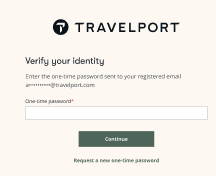
After you receive the OTP email, the Verify your identity screen is displayed.
-
In One-time password, enter the six-digit passcode to complete the authentication.
More Information
Currently, an email OTP is the only authentication method offered for Smartpoint 12.0, although additional authentication methods are planned for future releases.
However, there may be an exception if you share the same identity provider as Travelport. In this case, if you have the same email address for both Travelport and your organization, your organization’s default authentication process may override.
-
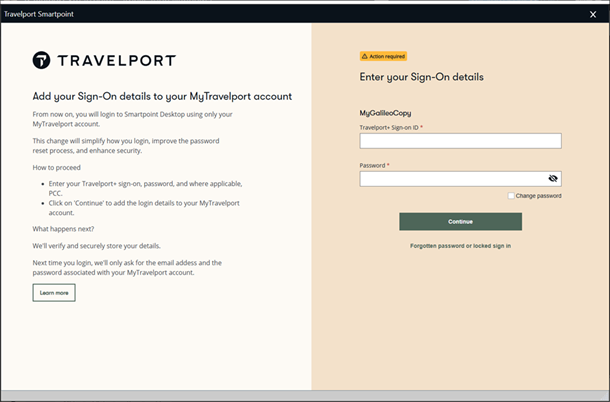
Click Continue to display the Enter your Sign-On details screen is displayed.
-
In Travelport Sign-on ID, enter your Travelport+ host sign on ID.
-
In Password, enter your host password.
-
Click Continue to display the success message.
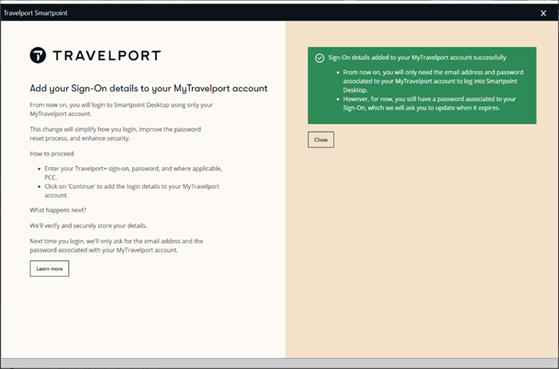
After the sign on is validated, your host sign-on credentials are associated to your MyTravelport login credentials and stored in your profile.
Your sign on defaults to your assigned PCC. If your Client ID is associated to more than one PCC, your sign on defaults to your primary PCC, and you must manually emulate after sign on using SEM/PCC/AG.
-
If applicable. If you have more than one host connection, you can duplicate the host sign-on details for additional connections using the same email address. However, whenever you open a new connection, you must log in again with your MyTravelport credentials.
Next Steps
-
After link add your Travelport+ host credentials to your MyTravelport account, you can sign on using only your MyTravelport ID and password.
-
You can sign off manually.
Note that if you do not sign off manually, your Travelport+ host session ends in the timeout period configured for your PCC, which is typically 30 minutes.