Setting Default Sign-On IDs and PCC
You can save time when you sign on by settting a connection to automatically display a default PCC (Pseudo City Code) and/or Sign-On IDs.
To set default PCCs and Sign-On IDs:
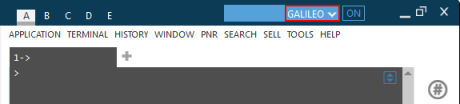
- Click the Connection arrow. In this example, the connection is named GALILEO for a Travelport+ (1G) connection, but the same procedure applies to Apollo (1V) connections.
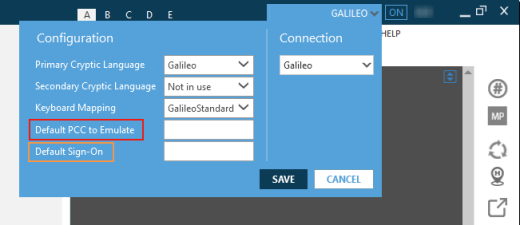
- Optional. In Default PCC to Emulate, enter the PCC associated to this connection.
- Optional. In Default Sign-On, enter your assigned sign-on ID associated to this connection.
Note: To be saved, sign-ons must contain a 4 to 10 characters.
In the following example, the default PCC is A111 and the default sign-on ID is MyID.
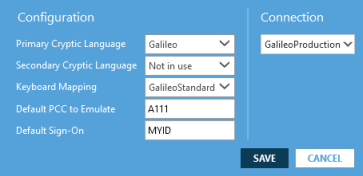
Note: The Default Sign-On does not apply to signing on for Travelport+ in Smartpoint 12.0 because Smartpoint automatically uses the sign-on ID that you associated to your MyTravelport account in your first sign on.
When you sign on in the future, your new settings automatically display. In this example, both the Sign-On and PCC are displayed by default.
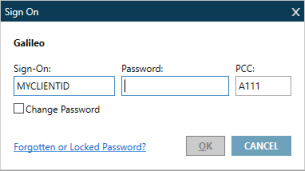
You only need to enter your password to complete the sign on information.
Tip! You can override your default sign-on ID or PCC by typing over the existing text.