Manage NDC bookings
Tip: Tap or select an image in the steps below to view it full sized.
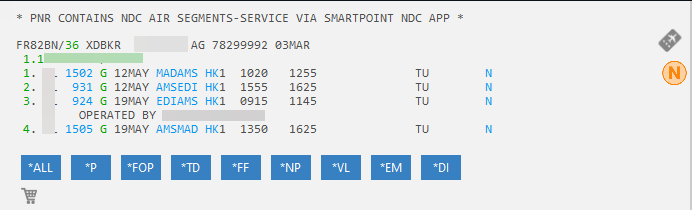
Retrieve an NDC booking. When an NDC booking is made, the status is HK. NDC bookings have a status of HK. Bookings made prior to February 5, 2026 may have a status of ZK.
-
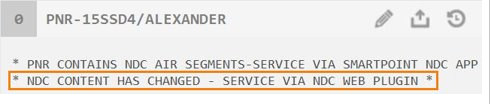
When an NDC booking has a schedule change, an orange warning banner advises the new flight details, different to the passive booking in Smartpoint.
-
The segment code HK indicates an NDC booking by default. Bookings made prior to February 5, 2026 may have a status of ZK.
-
Select *VL to display the airline locator. Like a traditional booking if there is NO airline vendor locator then the booking may not have transmitted to the airline, so please contact the airline to confirm.
-
Select *SI to display the SSR information entered in the traveler form.
-
Select *DI to view payment, document, base fare, tax, and ticket time limit information.
NDC icons
The NDC icon indicates the status of the booking. This status also displays when you hover over the icon.
The NDC icon only displays in the PNR Viewer.
-
 in green indicates the NDC segment's status is confirmed (HK), the PNR is ticketed, and the ticket number is in the DI remarks.
 -
 in orange displays in the following scenarios:
If the NDC segment's status is confirmed (HK), and the PNR is non-ticketed.
If the NDC segment's status is confirmed (HK), the PNR is ticketed and an Involuntary change has been received.
-
 in gray displays in the following scenarios:
-
If all NDC segments are flown.
-
If the booking has been canceled.
-
-
 in red indicates the booking is invalid or that all segments are canceled due to flight disruption.
NDC booking schedule changes
For Travelport+, queue 11 on the host is a dedicated queue for NDC booking schedule changes. When an airline has a schedule change, it is automatically placed on queue 11.
For Apollo, schedule changes are placed on queue 22. For Worldspan, schedule changes are placed on queue 7.
Agent next steps
If the agent retrieves the booking in the Flight Search NDC plugin, an orange banner displays the new flight times for that booking and the passive segment details are automatically synchronized.
Note: The schedule change remains on queue until the agent takes action. The banner is removed after the initial notification and does not display when the booking file is opened again.

The schedule change will fall into the agent's queues as it does today in Smartpoint for ATPCO bookings. As the plugin and Smartpoint sync in the same session, there is no specific queue for the plugin.
-
For Travelport+, it is queue 11.
-
For Apollo, it is queue 22.
-
For Worldspan, it is queue 7.
Apply waiver code
Involuntary schedule change
Following an involuntary schedule change, agents (subject to airline support) can apply an optional waiver code to avoid any penalties or fees. See Schedule Change Notifications for details on how to apply a waiver code.
Voluntary change
Where supported by carrier, agents can manually enter a waiver code and select a waiver type for voluntary changes.
-
Retrieve a non-disrupted reservation and select Change flight.
-
The NDC Air Search (Modify) panel displays with waiver fields in the Loyalty and discounts section. Select Apply waiver to flight results.
-
Enter a waiver code and select a waiver type from the following:
-
Change fee
-
Price difference
-
Change fee and price difference
-
Name change
Notes:
-
Waiver types list is dependent on carrier support.
-
Both Waiver code and Waiver type must be populated or an error is triggered.
-
-
Once both fields are populated, select Search. Search results display with waiver applied.
If a waiver type is selected that the carrier does not support, an error message displays to contact the airline directly.