Retrieve a booking file in the graphical view
Retrieve using locator
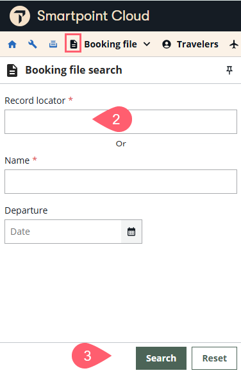
If you know the locator, you can quickly retrieve a booking by entering the locator in the booking file search.
-
To open the booking file search, press the icon to the left of Booking File on the top navigation bar.
-
Enter the record locator.
-
Press Search.
Advanced retrieve using name
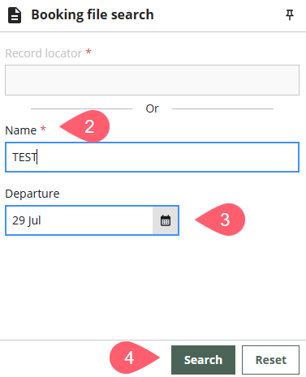
To view a list of bookings using a passenger's last name, use the graphical Booking file search. The Booking file search can also filter results by origin, destination, airline, flight number, and departure date.
-
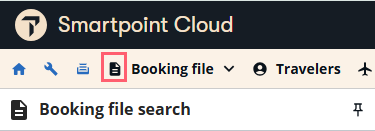
To open the booking file search, press the icon to the left of Booking File on the top navigation bar.
-
Enter the passenger's last name.
-
Optionally, enter the travel date to filter the results. It can be selected from the calendar.
-
Press Search.
If only one booking file matches your search criteria, the booking file opens. If more than one booking file matches, a list of booking files displays. Select a booking file and click the Retrieve button at the bottom of the panel to open it.
If multiple results matched your search criteria, once a booking is opened, the list remains for you to retrieve another booking if needed. If changes have been made to the opened booking, you are prompted to save or ignore the changes.
Whichever graphical way you search for a booking,
-
If you are working on the graphical view, the graphical view of the booking displays.
-
If you are working in the terminal view, the booking displays in the current terminal window.