|
ScriptPro Editor This topic is for use by scriptwriters who are using ScriptPro Editor to create custom scripts for their agencies. Agents can go to Using ScriptPro Scripts for more information about using custom or standard scripts within Travelport Smartpoint. |
Search/Replace Window
The Search/Replace window displays in the same location as the Compiler Results window. Options are available to search for text within the current script displayed, all open files, or the entire develop folder.
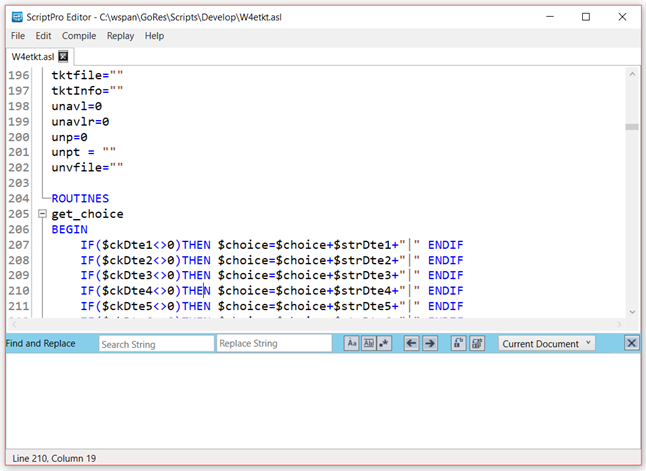
Search window details
Press <Ctrl+F> to display the Search/Replace window and all the available options.
Press <Ctrl+R> to toggle between the Search/Replace window and the code screen.
Search elements

|
Number |
Element |
Description |
|---|---|---|
|
1 |
Search String |
Enter the string value to be searched |
|
2 |
Replace String |
Enter the optional replacement value |
|
3 |
Match Case |
Select if the search should result in only exact case match |
|
4 |
Match Whole Word |
Select if the search should result in only exact entire word(s) |
|
5 |
Use Regular Expressions |
Search using an expression. See Microsoft Reference Guide. |
|
6 |
Find Previous |
Move focus to the previous successful search item |
|
7 |
Find Next |
Move focus to the next successful search item (F3) |
|
8 |
Replace Next |
Replace the next successful search item with the string from the replace field |
|
9 |
Replace All |
Replace all matching strings with the string in the replace field |
|
10 |
Search Location |
Select the desired location to search/replace. Options include Current Document, All Open Documents, and Development Folder. |
|
11 |
X |
Close search/replace window |
Search results details

As you type the Search String, the search will begin automatically from the position of the cursor in your source code. The list of found items will build instantly as you continue to type. The file name, row, column, and line detail of the found string will display. Clicking the line referencing a found string will take your cursor to the coordinating line in your source code.
Searching the Development folder will display in the same manner. However, the search process will not begin automatically. You must enter the string to be searched and click the Find Next arrow. The search will immediately show all found locations.
When you select a line of a file that is not open, the file will automatically open with the cursor to the line location.
Note: If you change your search fields, you will need to click the Find Next arrow to refresh the results window.
Replace string
Replacing a string is handled by typing in the details of what should be the new value. Select the location to search.
- Select Replace Next to walk through the code and replace one item at a time.
- Select Replace All to replace all occurrences at one time without walking through the code.
Note: If you are selecting to replace a string using the Development Folder search location, the files are automatically opened and the item replaced. These files will need to be recompiled.