Launch Smartpoint Cloud
-
Access Smartpoint Cloud in one of the following ways:
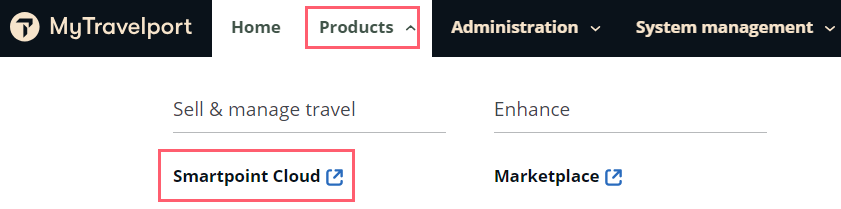
Log into MyTravelport. From the Products menu, select Smartpoint Cloud. Only provisioned users have this menu option
Log into Smartpoint Cloud.
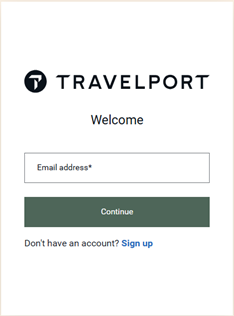
Remember credentials: Smartpoint Cloud will not automatically remember your credentials. However, you can choose to save your password using the browser's password manager. Each time you enter a new sign-on ID or password, a pop-up window will ask to save that password.
-
Important: Multi-factor authentication (MFA) is now integrated into the login process for this product.
What is MFA? It is a two-step verification process designed to keep your account safer. The new, secure login experience adds an extra layer of protection to your account. In the future, this update will simplify password recovery and improve self-service and registration.
As part of this process, a code is sent to your associated email address to authenticate your login. With MFA, your data and information are well-protected.
-
When you first launch Smartpoint Cloud or if your sign-in is not saved, the Sign in window displays. Enter your Travelport+ host credentials to access. If you have a PCC-specific account, you do not need to enter a PCC. If your account is not PCC specific and you do not enter a PCC, another window displays for you to enter a PCC to continue.
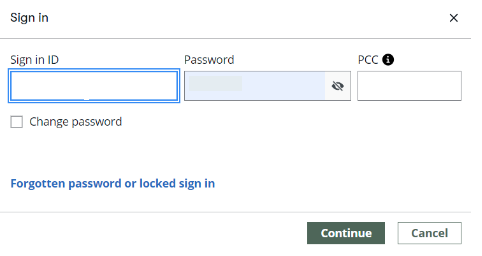
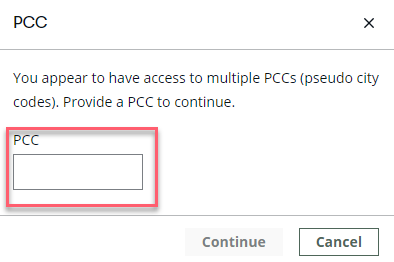
Note: The PCC will be pre-populated if a default PCC has been previously set in the Smartpoint Cloud Settings.
For future sessions, if your credentials are saved to your profile, only the MyTravelport email sign-in step is required.
PCC emulation
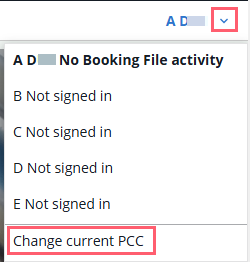
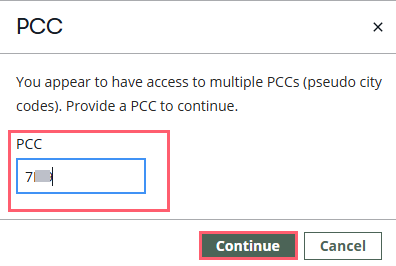
Once signed in, you will see the current PCC in the upper right corner. To emulate in a different PCC, open the drop-down menu and select Change current PCC. A dialog box is displayed to specify a different PCC within the same area. Press Continue to complete the emulation.
Working with areas
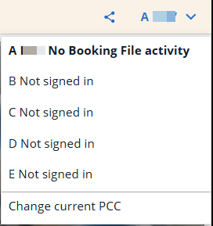
To modify the work area, select the drop-down menu next to the PCC. For Service Bureau sign-ons, when selecting the area, insert the PCC you wish to emulate.
The booking in the initial area will be displayed if you switch back to it.
Request temporary password
If you have forgotten your password or if your account is locked, select the Forgotten password or locked sign in link to open the Request Temporary Password feature in MyTravelport.
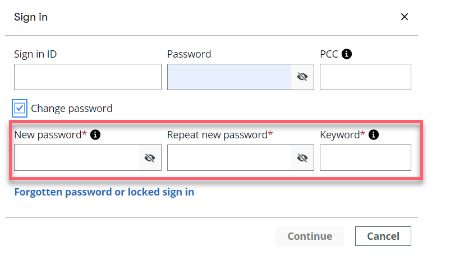
If you wish to change your existing password, select the checkbox Change Password.
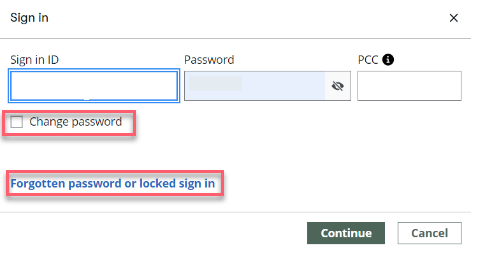
If you choose to change your password, your screen will re-display with areas to enter your new password and repeat it.
There are two instances when your password must be changed:
-
When your password is 90 days old.
-
The first time you sign on as a new user.
Your new password must adhere to the following criteria:
-
Be between 8 and 10 characters in length
-
Must contain at least one alpha AND one numeric character
-
May not contain a special character
-
Cannot be days of the week or month names
-
Cannot be your name (first or last as shown in STD profile)
-
Cannot be your sign-on ID forwards or backwards (with or without a check digit)
-
May not contain three consecutive similar characters (Example: AAA or 222 or 123)
-
You may not re-use your previous 5 (five) passwords
-
Changes are limited to once per day
-
At least three characters must change in the new password for the system to accept it
-
The first three characters of the new password must be different than the old one
-
-
Press Continue.
-
Select the Go to terminal windows button in the lower right to open a terminal window, press the Search icon to begin booking, or press the Home icon. Home functionality is explained in a later section.
Sign off of Smartpoint Cloud
To leave Smartpoint Cloud you must sign off from the system.
Terminal windows
Enter SOF to sign off all areas. If there is a booking that has not been saved, the system will warn you to finalize it or ignore it.
Graphical view
Press the Sign Out button under the profile icon at the top right corner of the screen. If there is a booking that has not been saved, the system will warn you to finalize it or ignore it.
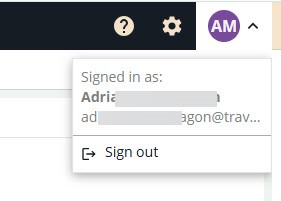
With no active reservation in any area, you will be redirected to the page where you can enter your credentials.
Whenever you click on the Home icon, you return to the home page that shows the bookings with recent activity.