Trip Quote
Saving and Retrieving Itineraries
 In Trip Quote, you can save and retrieve up to 20 quote options, booked itineraries, and flight schedules.
To save itineraries, quote, and flight schedules:
-
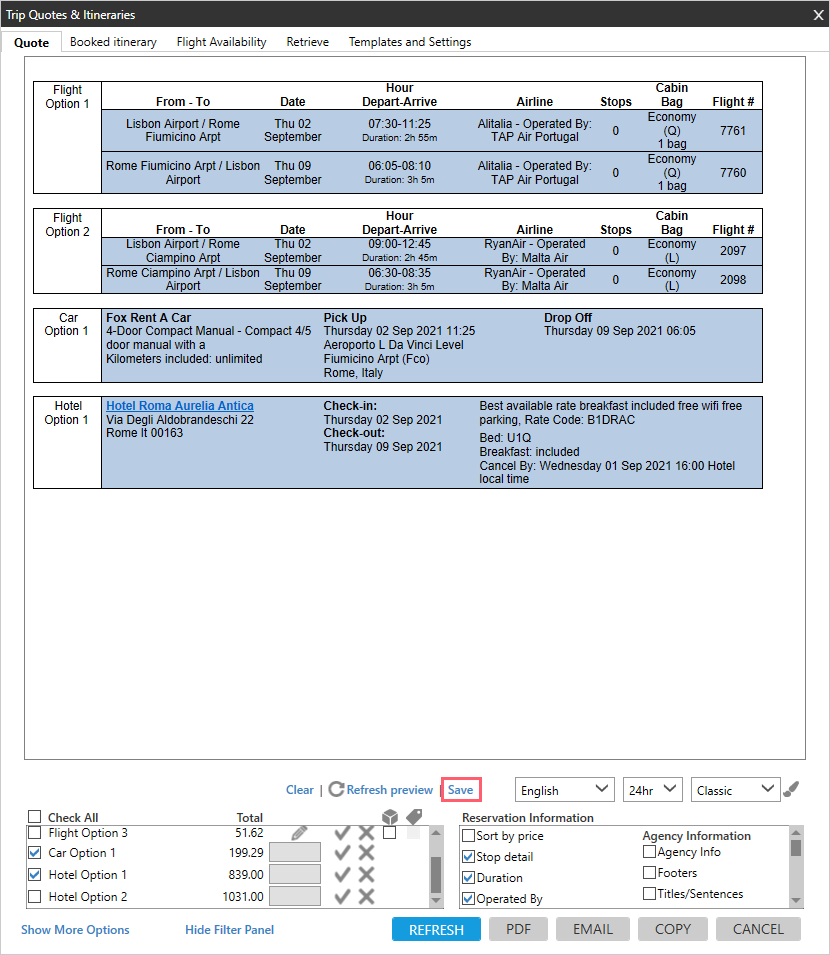
From the Quote, Booked Itinerary, or Flight Availability tabs, click Save for the desired quote or itinerary.
This example shows unbooked quotes. For quotes, you can save multiple combinations of the options in the quote as separate files.
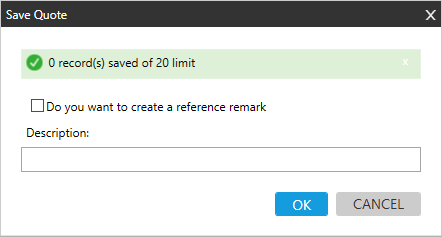
The Save message is displayed. This example shows a Save Quote message, but the fields are the same for Save Booked Itinerary and Save Flight Schedule.
 Tip! When saving a new quote, Trip Quote displays the total count of saved records across all PCCs and Smartpoint versions, even if the new quote is the first record saved under that specific PCC. The number of saved records is based on an individual agent's sign on ID, and includes all PCCs on which the records are saved.For example, if an agent saves records in PCCs A111, B111, and C111, the maximum number of saved records across these three PCCs is 20. If you reach the maximum, you will need to retrieve and delete records to save newer records.
 -
Optional. Select Do you want to create a reference remark if you want to include the reference number and description as a remark in the PNR/Booking File. The Note remark displays CTQ REFERENCE and includes the reference number automatically assigned to this saved file.

This reference number in the remark can also be used by other agents to retrieve the saved record.
-
Optional. In Description, entire a title for the saved quote or itinerary.
To retrieve saved itineraries, quote, and flight schedules:
-
If applicable. Emulate to the PCC where the PNR/Booking File is stored.
Agents must be using the same PCC to access stored records for that PCC.
-
Click the Retrieve tab to display the list of saved records.
 Tip! To see additional records, click Show More Options. You can also click Hide Filter Panel if you only want to see the record.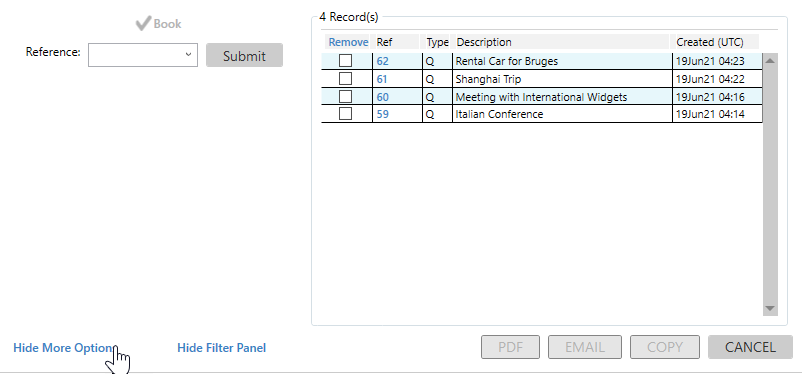
-
To display a record, you can either:
-
Click the reference number in the Ref column of the Record list. Reference numbers are automatically generated by Smartpoint.
-
To access another agent's saved record, enter the reference number obtained from the agent in the Reference list, and then click Submit. Agents must be using the same PCC to access stored records for that PCC.
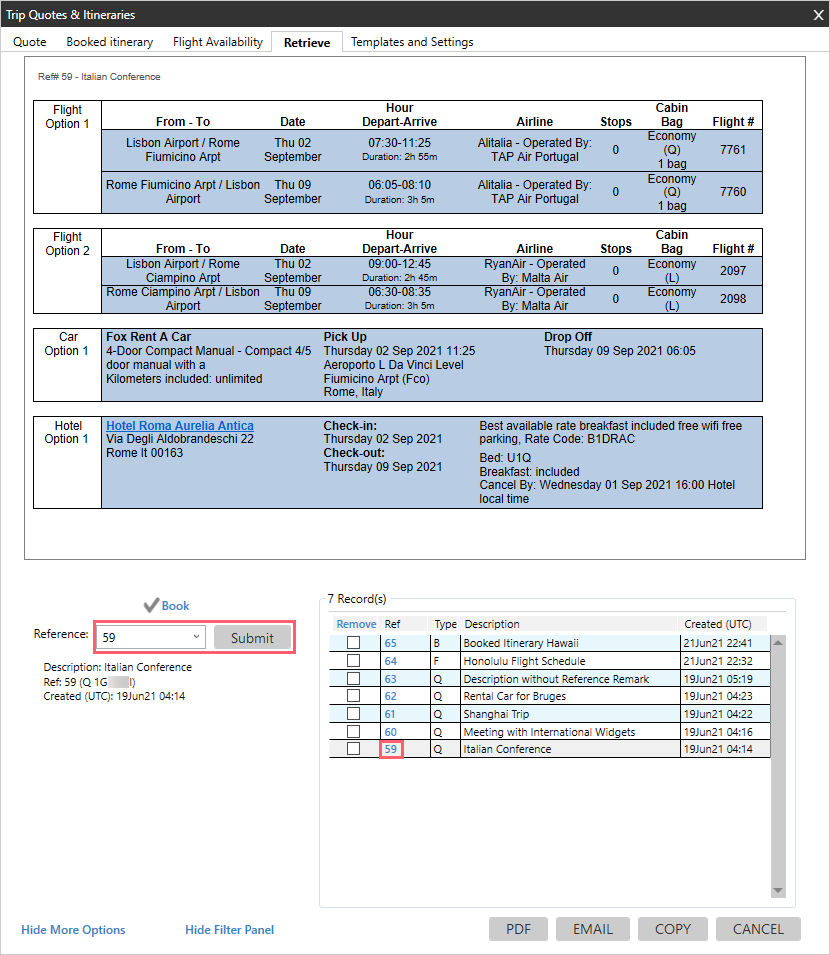 Tip! You cannot change a saved record. If your record requires changes, you will need to create a new quote, itinerary, or flight schedule.
 -
-
Optional for unbooked quotes. You can click the Book
 icon to book flight options directly the saved quote. Currently, this feature is not available for car or hotel options.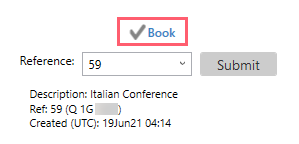
 More Information
If there is more than one quote option a list displays,
Click the Book
icon from the list.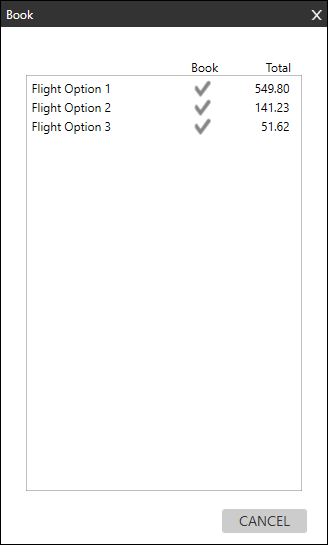
A confirmation message is displayed.
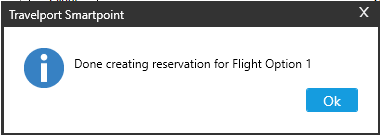
And the flight option is booked in the PNR/Booking File.
-
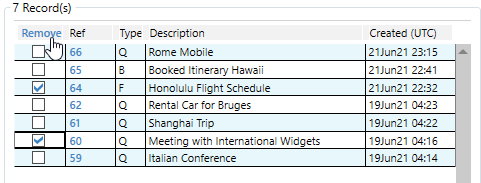
Optional. To delete saved records, select the desired records in the Remove column on the Records list, then click Remove.
Tip! To delete a saved record, you must emulate into the PCC associated to that record. -
Optional. Save, send, or copy the displayed quote:
-
PDF to save the record as a PDF file, which can be attached to an email or text.
-
EMAIL to send the record as an email.
-
COPY to copy the record to the Windows clipboard.
Note: These features are available only for saved quotes. They are not currently available for saved booked itineraries or flight availabilities.
-