Launching Smartpoint
Launching Smartpoint with Galileo Desktop Hidden
Smartpoint can be implemented to hide Galileo Desktop and display only Smartpoint when launched. There are two ways to hide Galileo Desktop:
- Activating standalone Smartpoint
Standalone Smartpoint automatically hides Galileo Desktop and is activated by your agency. - Enabling Hide Galileo Desktop.
The Hide Galileo Desktop feature allows individual agents the option to hide Galileo Desktop if it is installed to display with Smartpoint.
Activating Standalone Smartpoint
Standalone Smartpoint activation is available to automatically hide Galileo Desktop.
To configure for standalone Smartpoint:
Standalone Smartpoint must be enabled with the proper configuration settings in Travelport Marketplace. For more information about configuring your agency for standalone Smartpoint, please contact your account executive.
To activate standalone Smartpoint:
If you are configured for standalone Smartpoint in Travelport Marketplace, Smartpoint automatically confirms your configuration status with Travelport Marketplace. To update your configuration settings from Travelport Marketplace, you can either:
-
Sign out and sign in again to Travelport Smartpoint. (Recommended)
-
Enter #CONFIGPLUGINON and #UPDATESETTINGS.
 Instructions
- Enter #CONFIGPLUGINON in the Terminal Window after you install Travelport Smartpoint.
- To verify that Galileo Desktop is hidden:
- Enter #UPDATESETTINGS to verify that the configuration plug-in is set to “true”.
- Confirm in the Application Settings that the Hide Galileo Desktop check box is not displayed.
Enabling Hide Galileo Desktop
If Smartpoint is installed to display Galileo Desktop, you have the option to hide Galileo Desktop.
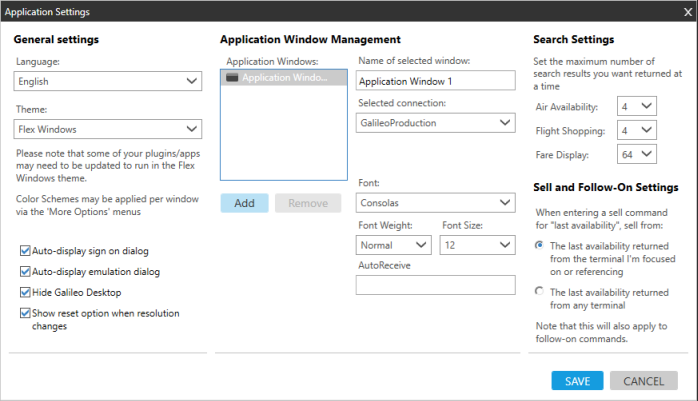
- In the General Settings section, select the Hide Galileo Desktop check box.
- Click SAVE.