Profile Settings
The Profile pages let you manage your profile, choose a preferred language, view your customer numbers (CIDBs), and manage notifications and emails.
Smartpoint 12.0 and above users can view and unlink a host sign-on directly in MyTravelport.
Important: Smartpoint Cloud users must enter their static GTID in their profile. For more information, refer to static GTID.
To update your profile:
-
Select the Profile icon in the upper right and select My profile. It is the blue circle icon with your initials inside on the upper right of the page.
- Select Edit profile.
- If you are a member of multiple organizations, you can choose a default organization. When creating a case, the default organization is pre-populated in the form.
- Select Save profile.
Unlink a host sign on
Note: Available only to Smartpoint 12.0 and above users.
You can view your host sign ons in the Smartpoint Sign-On section of your profile.
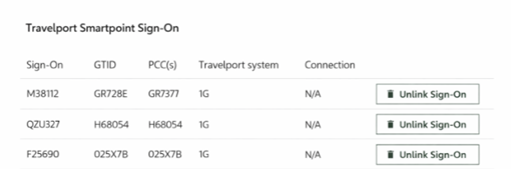
To unlink a sign on, select the Remove Sign-On button. Click Confirm to unlink the sign-on from your profile.
Multi-Org Settings
If you need access to offices outside of your own, it may be possible for your Administrator to extend your permissions.
If your organization has a Master Customer Number (MCN), then your organization has multiple customer numbers (CIDBs) under a master account. The master customer’s Administrator can make changes to MyTravelport that affect users across the organization. Contact your Administrator if you require multi-org access. Your Administrator's contact information displays on the Profile Settings page in the Customer number section.