Flight disruption - NDC schedule changes
Important: This workflow applies to
Tip: Tap or select an image in the steps below to view it full sized.
This page includes:
-
Overview and requirements of the new airline schedule change process
-
New workflow
-
Accept changes for a canceled held booking
Overview
Agencies consuming NDC content have airline flight disruptions and schedule changes automatically reflected in their NDC booking.
-
Travelport+ (1G) receives an NDC schedule change notification from the airline for an NDC booking.
-
Travelport+ automatically updates the flight information, and adds, updates, or removes any new segments related to the change.
-
Travelport+ continues to store the original and new segment details in the DI lines.
These enhancements aim to reduce manual intervention and improve the overall efficiency of disruption handling for travel agents and agencies.
To fully support the new flight disruption workflow, all PCCs within an agency must have their AAT table's NORM field set to Y. As of February 5, 2026, Travelport automatically activates the NORM field in all AAT tables to Y. If your agency opts out, refer to the original flight disruption process.
The new NDC flight status displays as HK, which aligns more closely with industry standard and improves overall booking accuracy. Although the status shows HK, booking creation, modifications, and cancellations are still serviced via
NDC airline schedule change workflow
Important information:
-
The NDC segment status displays as HK after February 5, 2026. Bookings made prior to this date may display a ZK status. The ZK status will change to HK if the segment is modified. For more information, refer to NDC segment status.
-
Agencies using automation to service bookings should review the automation for compatibility.
Agencies consuming NDC content now have airline flight disruptions and schedule changes automatically reflected in their NDC booking file.
When an NDC schedule change notification is received from the airline, Travelport+ updates the flight segment status accordingly. This includes:
-
Changing UN (Not Operating) to TK (Schedule Change).
-
Updating TK (when used alone, indicates a Time Change).
-
Adding UN or HX (Have Canceled) segments to the itinerary.
After the itinerary is updated, the booking is routed to specific queues based on the type of schedule change received:
-
Queue 11 – For schedule changes, including flight number changes, route changes, re-timing, and partial involuntary cancellations.
-
Queue 23 – For full involuntary cancellations, TTL expiry, no-shows, and voluntary changes made outside the NDC channel.
Action involuntary changes
Important: Agents must accept, modify, or cancel the airline schedule change either by using Smartpoint Cloud or Smartpoint Desktop through the NDC capabilities within Flight Search.
Accept involuntary changes
To accept involuntary changes:
-
Retrieve the booking file in the graphical booking flow.
-
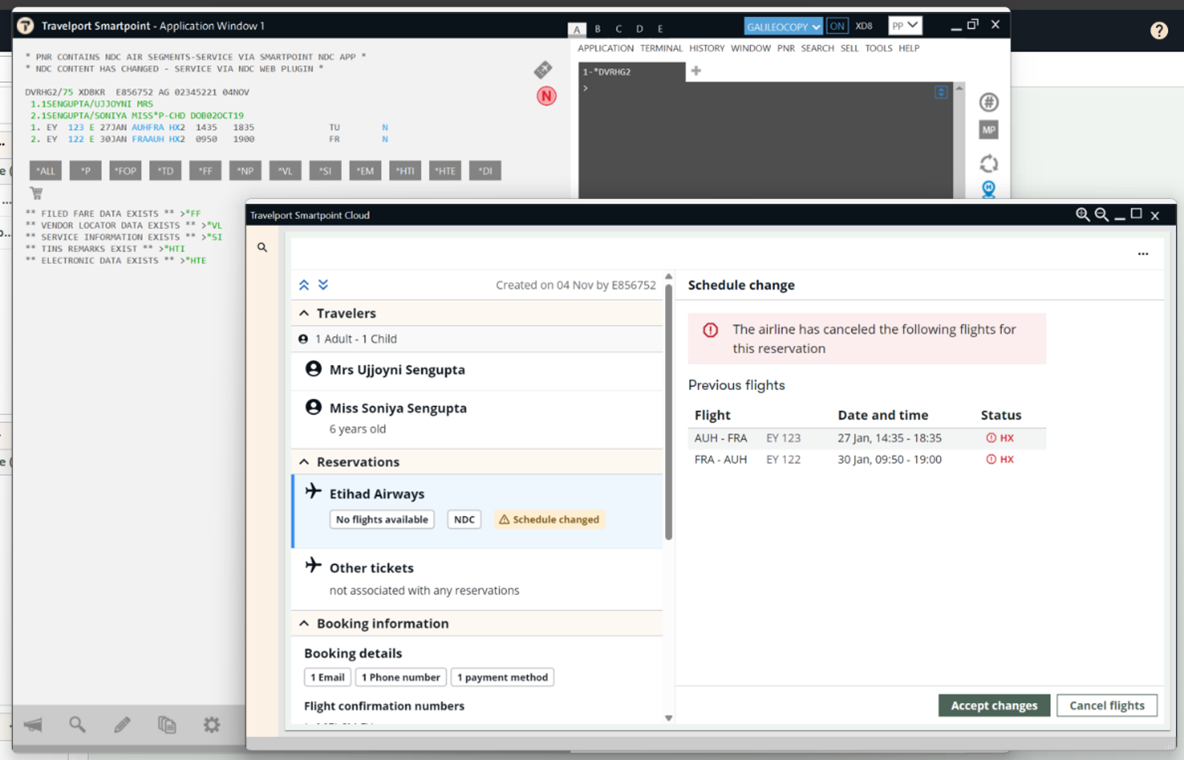
The booking file displays with a Schedule changed warning in the Reservation information. Schedule change information displays on the right panel, with UN segment status for the original flight which is no longer operating and TK segment status for the new flight the customer is re-accommodated on.
If the customer is satisfied with the re-accommodation, select the Accept changes button.
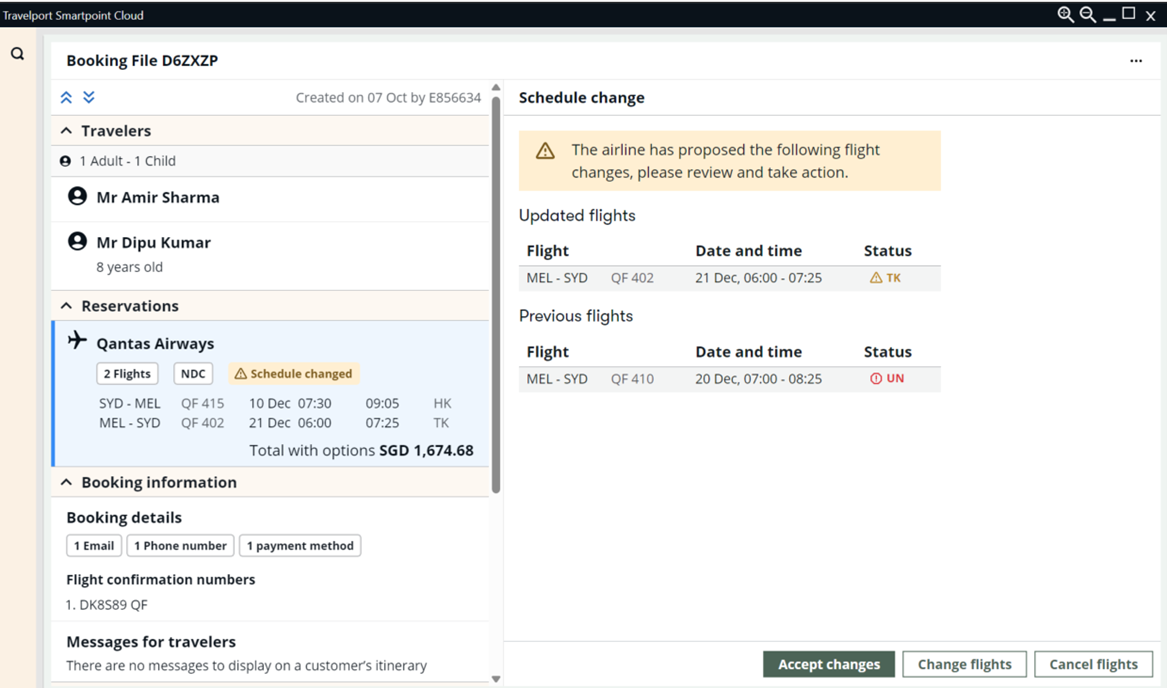
If the updates are successful, a Schedule change accepted toast message displays. The Schedule changed warning and the UN status segment are removed, and all segments now show HK status.
Note: The airline may revalidate or reissue tickets (varies by airline) depending on the type of disruption.
 Example - Time Change (TK)
An airline sends a schedule change notification with a time change on segment 1, SIN to MEL.
-
The original flight was departing at 2330 arriving at 0856. Now the flight is departing at 2340 and arriving at 0904.
-
Segment 1 status changes to TK and the new flight times are shown in the itinerary.
-
The booking file is placed on Q11 and the DI lines are updated with the original and new flight information.
Follow the Accept involuntary changes steps above to process the flight time change.
Example 3 - Flight no longer operating (UN or HX)
The outbound flight, segment 1, is no longer operating and the airline has not rebooked the customer on an alternative flight.
The airline has not offered an alternative. Airlines can send either the status of UN or HX.
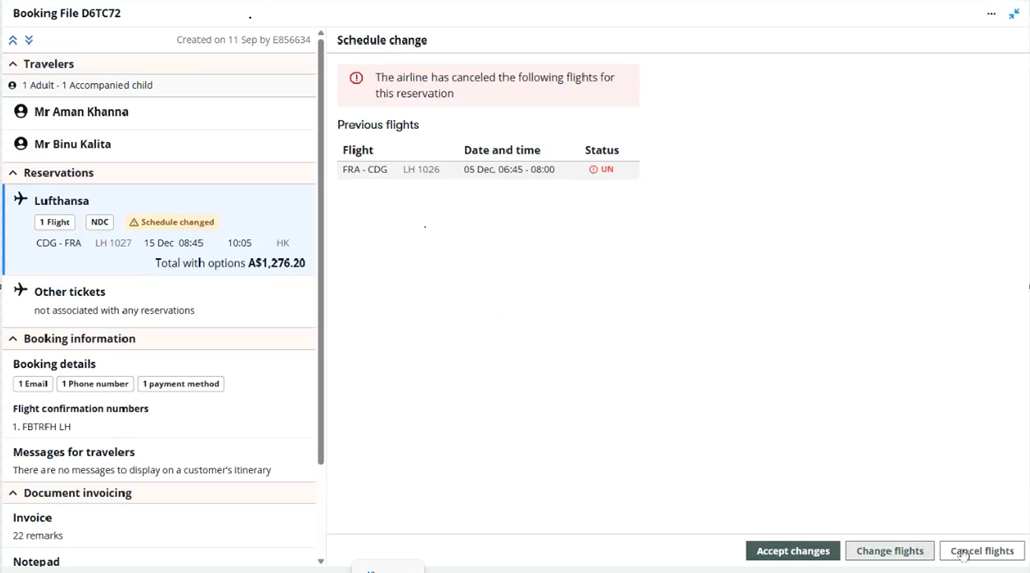
In this example, the booking file can be modified to search for an select an alternative flight, or canceled if no suitable alternative is available.
If supported by the airline, if the customer decides not to travel, service the booking following the cancel involuntary changes process. If not supported by the airline, contact the airline to request a refund.
Modify involuntary changes
If the traveler is unsatisfied with the new flight options returned by the airline, the agent can look for alternatives. Provided the airline's business rules for involuntary changes are satisfied by the new flights selected, the penalties are waived.
-
-
Select the Change flights button.
-
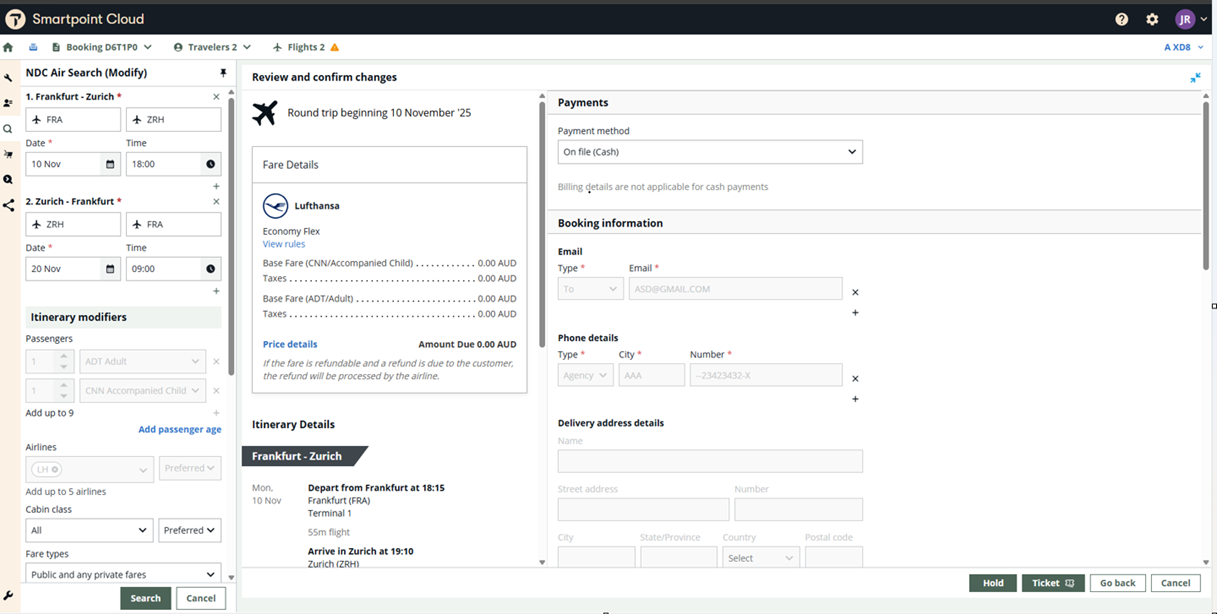
The NDC Air Search (Modify) panel on the left is pre-populated with the current flights. Change the date/time for the undesired flight to something more suitable.
In this example, the airline changed the outbound from 11 NOV to 12 NOV and the user has decided to search for 10 NOV:
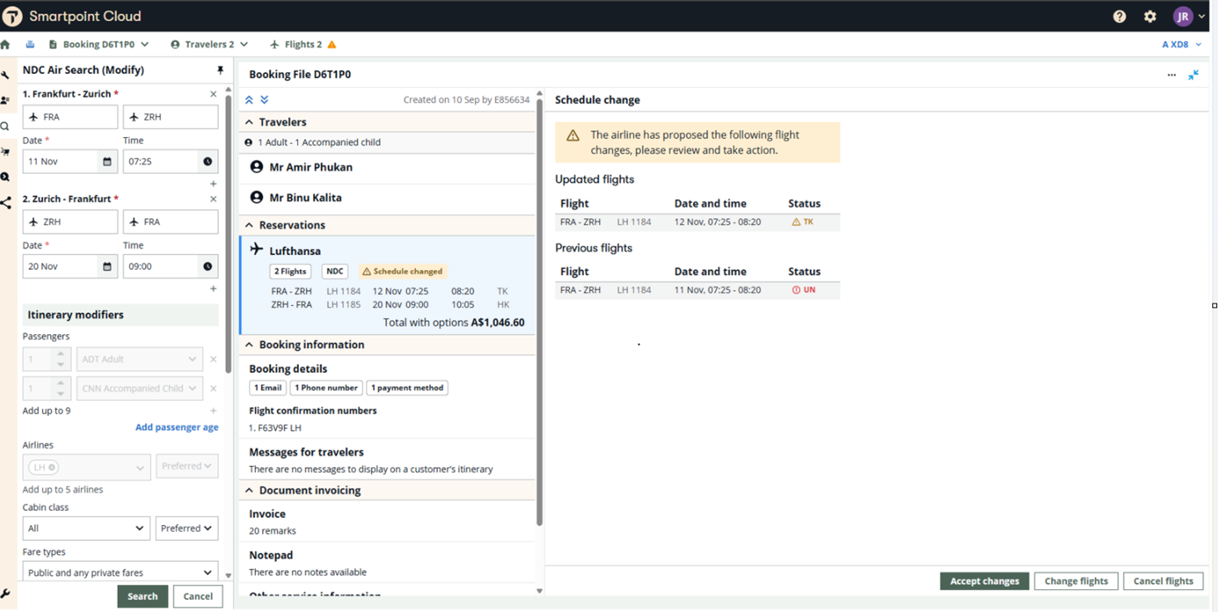
-
To look for alternative flights, select Search. Alternate flight options display with the price difference showing as $0.00 if the penalties have been waived by the airline.
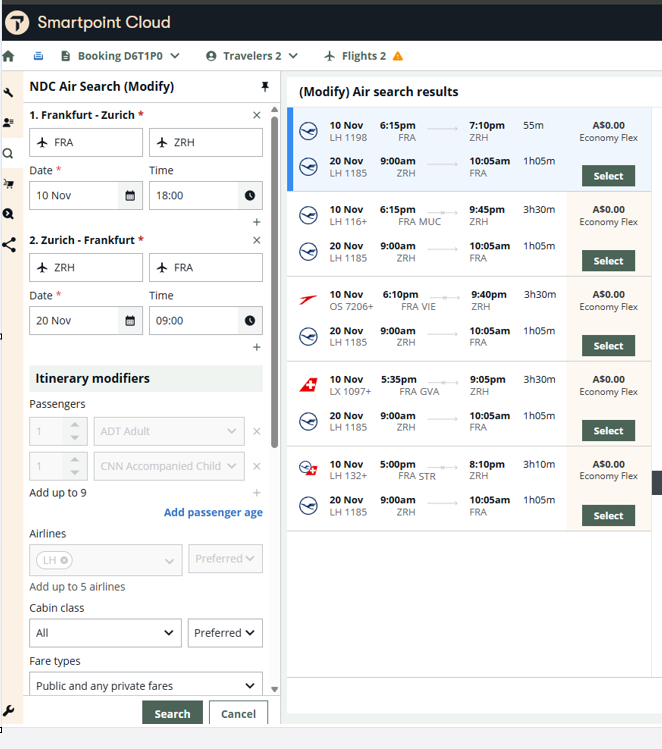
Note: Certain airlines do not support rebooking via the NDC API after flight disruption with penalties waived. If this is the case, the price differences shown for the flight options will not be $0.00. A warning banner displays advising the user they may need to contact the airline directly to rebook without penalties.
-
Select the new flight option. The Review and confirm screen displays confirming the flight selections and again displaying that the penalties have been waived.
-
After reviewing, select Ticket.
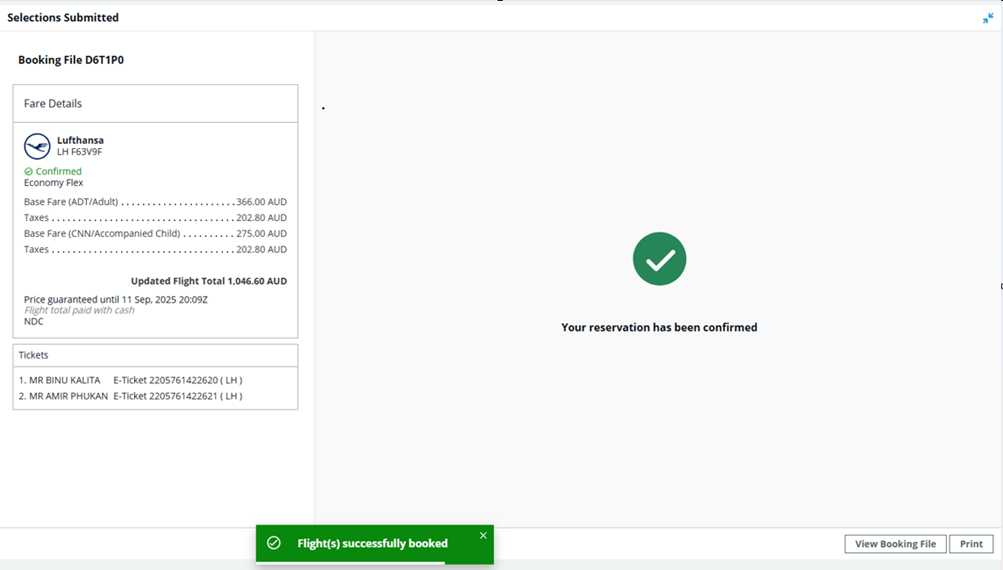
The confirmation screen displays, indicating that the new flights have been booked successfully. If the airline has reissued the ticket, the new tickets are displayed.
Waiver code
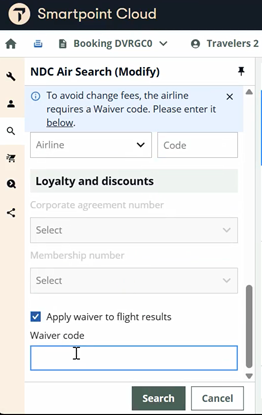
Certain airlines may require the user to enter a waiver code to have the penalties waived. If this is the case, the Apply waiver to flight results check box is automatically selected and the user enters the waiver code in the text box.
Cancel involuntary changes
If the traveler is unable to find a suitable alternative, or no longer wishes to travel, he/she may request a refund with penalties waived. Each airline defines its own rules for when and how refunds are allowed, including whether penalties are waived and whether refunds can be processed via Smartpoint Cloud or the Smartpoint Desktop Flight Search NDC plugin.
-
In this example, the airline has canceled the outbound entirely and not provided a suitable alternative.
-
Select Cancel flights.
-
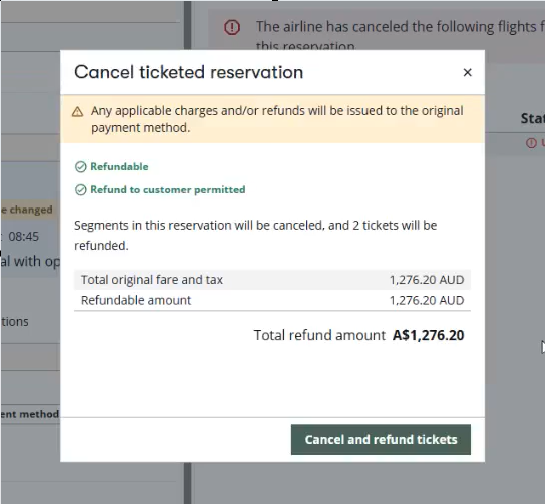
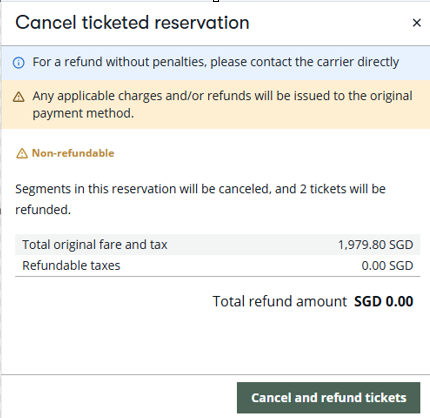
A dialog box displays indicating the original fare and tax and the refundable amount. In this case, the total amount paid is being refunded, so all penalties have been waived.
Select Cancel and refund tickets.
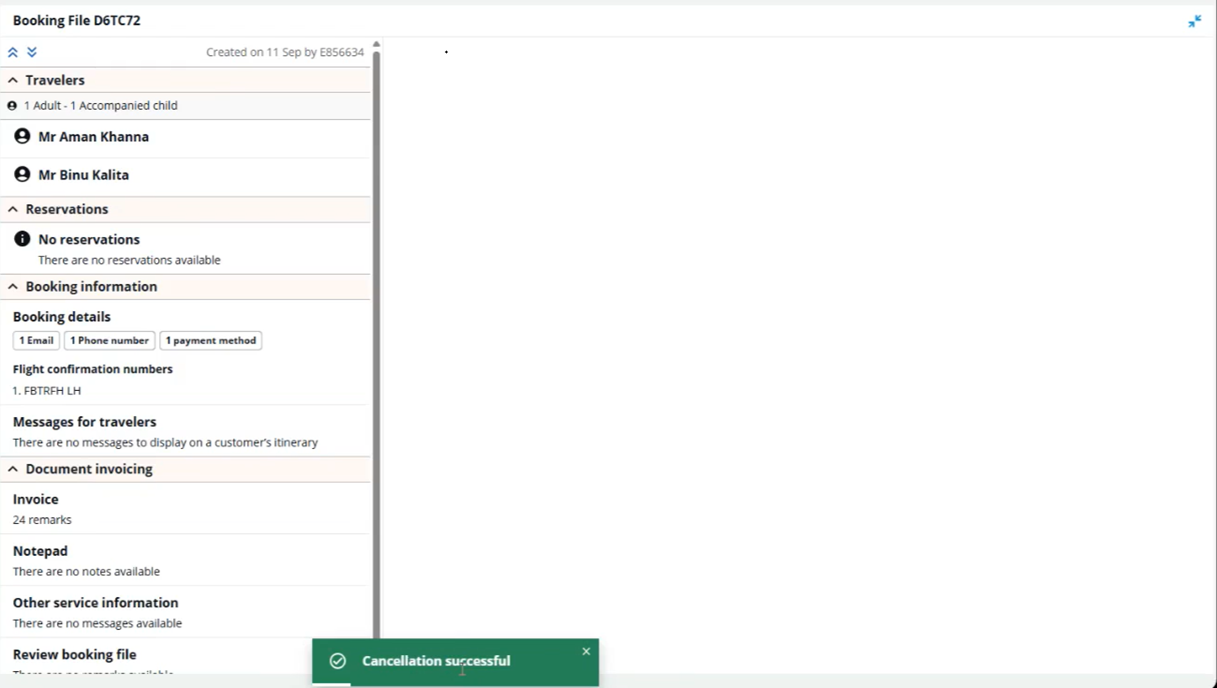
A toast message displays indicating if the cancellation was successful.
Note: Certain airlines do not support rebooking NDC flights after flight disruption with penalties waived. If this is the case, the refundable amount will not be equal to the original fare and taxes, and a warning banner displays advising the user they need to contact the airline directly for refund without penalties. Close the Cancel and Refund window and contact the carrier for a refund request.
In addition, placing a ticket on credit is not supported. Contact the airline directly to request the cancellation.
Important note: If all the segments in an NDC booking are canceled by the airline, no segments are added back to the booking. No banner is added, and the booking file is placed on Queue 23 for processing. Most airlines require the agent to contact the airline customer care center to assist the traveler.
Canceled held booking
In the case of a held booking that is canceled due to time-limit expiry or the cancellation of all segments without alternatives, the user must accept the change via Smartpoint Desktop or Smartpoint Cloud to remove the HX segments from the face of the booking file to history.
FAQs
| Question | Answer |
|---|---|
|
Does this new flight disruption flow work for all NDC carriers? |
Yes, the new flight disruption flow is supported by all live NDC carriers. |
|
Is there a minimum version of Smartpoint Desktop user need to be on to access the new flight disruption management flow? |
Yes, users need to be on Smartpoint Desktop version 11.7.1.24 or higher to access the new flight disruption flow. |
|
Does the new flight disruption management flow in Smartpoint Cloud? |
Yes, there is no need for customers to do an upgrade. |
|
Does the new flight disruption flow work on lower Smartpoint Desktop versions if the AAT setting for the NORM field is set to ‘Y’? |
Yes, it does work, with some limitations:
|
|
What type of disruptions are covered under the new flight disruption management flow? |
Schedule changes included in the new disruption flow are flight change, departure date change, route change, flight retiming, and partial or full flight cancellation without an alternative. |
|
Does the user need to take any action on canceled order due to time limit expiry? |
No, action required from the user. Our PNR sync logic will act on the booking and place on the cancellation queue (Q23). |
|
What happens when a user clicks the ‘Accept changes’ button for a disrupted booking in Flight Search NDC plugin in Smartpoint Desktop or Smartpoint Cloud? |
|
|
Does the user need to accept a disrupted booking if the traveler agrees with the reprotection for any type of flight disruption - flight rebook, retimed or cancellation without an alternative? |
Yes, the user must accept to sync up the PNR, if the traveler is satisfied with the reprotection option. |
|
What happens if the user does not send an acceptance for a schedule change when the traveler is satisfied with the re-protection? |
The user will not be able to perform further actions on that disrupted booking, as the PNR will be out of sync. |
|
Can a user modify a booking after accepting the reprotection option, and what will occur if they do? |
Once the reprotection is accepted, any subsequent flight modification is subject to penalties according to the fare conditions. |
|
Can a user cancel a booking after accepting the reprotection option, and what will be the outcome? |
Once the reprotection is accepted, any subsequent cancellation is subject to penalties as per the fare conditions. |
|
Can the user rebook if the traveler is unhappy with the reprotection in the new flight disruption management flow? |
|
|
Can the user refund/cancel if the traveler is unhappy with the reprotection in the new flight disruption management flow? |
|
|
Can the user rebook a disrupted booking where all segments are cancelled without alternative? |
No, it’s not supported by NDC carriers. Hence, the user needs to accept / cancel the disrupted booking and create a new booking. |
|
What happens if ‘Change flights’ and 'Cancel flights' buttons are not visible for a disrupted booking in NDC plugin in Smartpoint Desktop or Smartpoint Cloud? |
Contact the airline's call center directly to request a modification or refund on that disrupted booking. |