Graphical Manual Exchange
Traditional (GDS) bookings can be manually exchanged using a graphical interface if they meet the conditions for manual exchange.
Manual exchange conditions
For the manual exchange option to be available, first change the itinerary and file the fare per passenger (on a multi-passenger PNR). Then review the change conditions to know if the ticket can be exchanged and what the amount of the penalty is.
The manual exchange option is available under these conditions:
-
PNR should have only one ticket number with OPEN/ARPT status.
-
PNR is for single and multiple passengers. On multi-passenger booking files, a maximum of 4 different PTCs is allowed and filed fare needs to be per passenger.
-
Ticket must be original issue (multiple reissued tickets are not currently supported).
The manual exchange option will not display under these conditions:
-
PNR with multiple tickets or filed fares for same passenger
-
PNR with NDC segments with or without GDS segments are not supported
Refer to limitations and known issues below.
Manually exchange a ticket
-
If the conditions for manual exchange are met, display the graphical booking file.
-
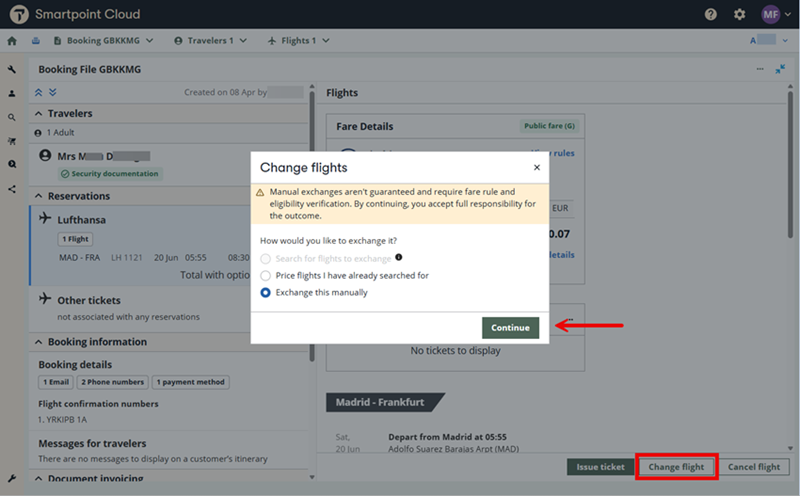
Select the Change flights button. The Change flights dialog opens.
-
Select Exchange this manually and then press Continue.
-
Information about the tickets and their status display.
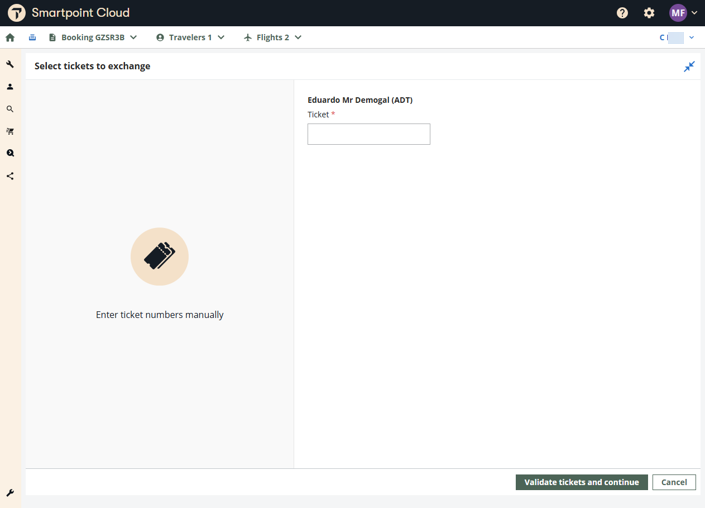
 If the booking file has no ticket related, an additional screen displays requesting the ticket information.
-
Enter the ticket number.
-
Press Validate tickets and continue.
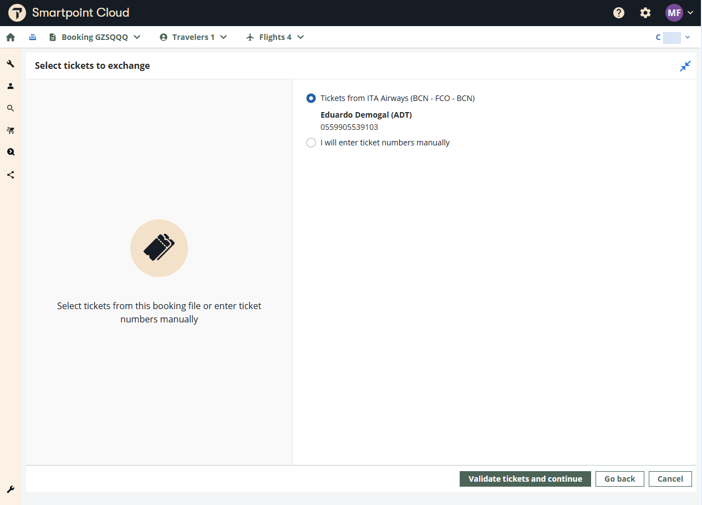
If the booking file has more than one offer, and all the tickets remain on other ticket section, an additional screen displays requesting the selection of the tickets or the input of new ones.
-
Select which ticket to exchange or enter the ticket number manually.
-
Press Validate tickets and continue.
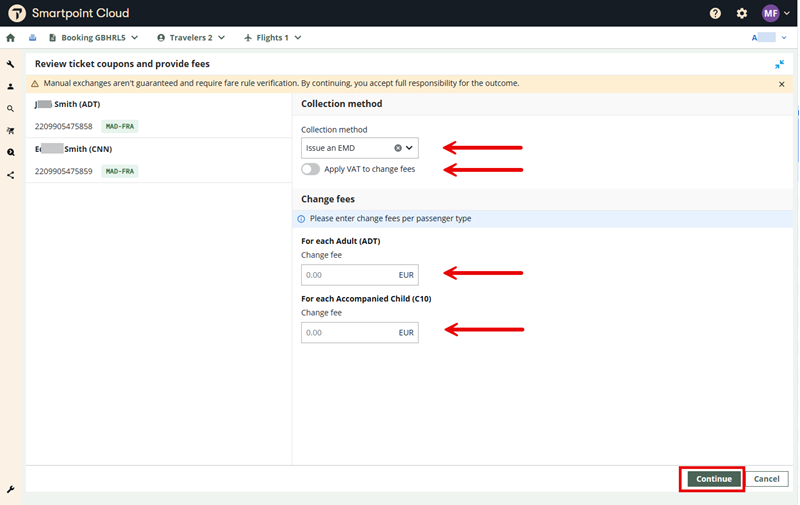
Enter the change fee amounts (if applicable) per passenger type code.
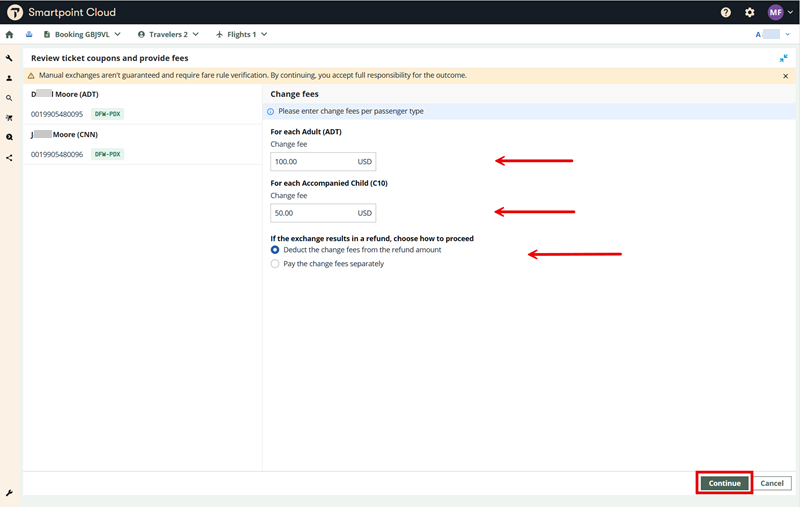
To
For BSP markets, users must select the change fee collection method (EMD or tax) and confirm if VAT applies to the change fee.
Fee
Tax
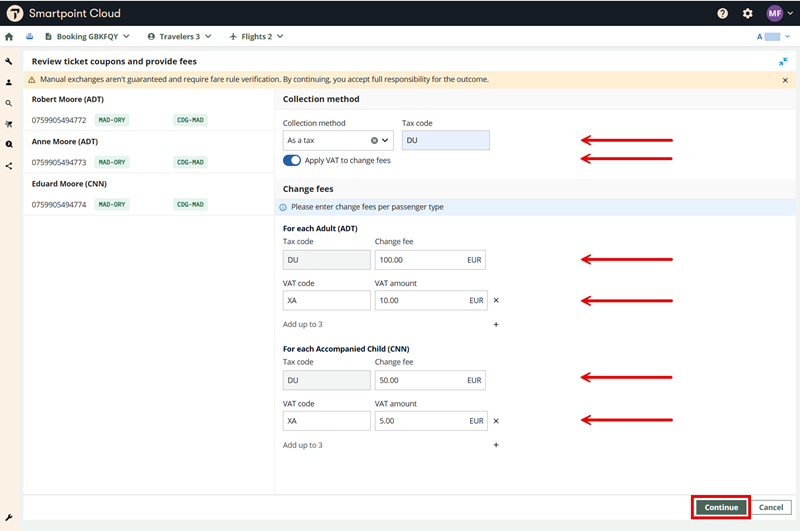
-
-
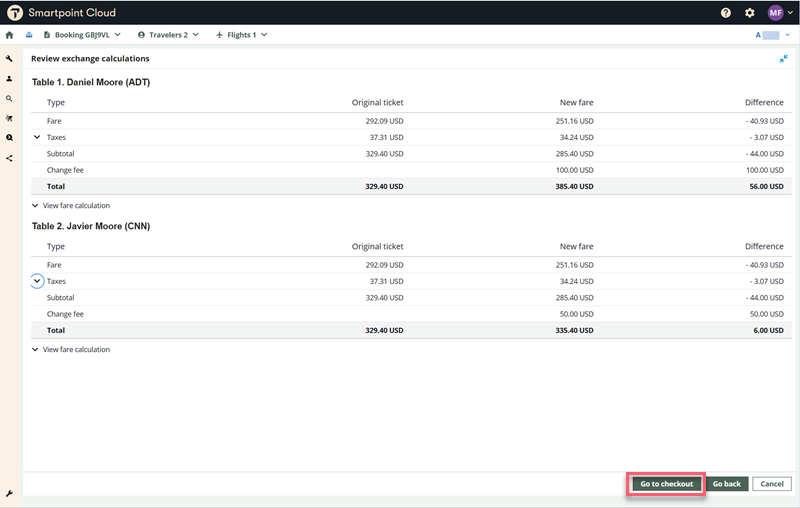
Press Continue to compare the original and new fares along with the difference. The change fee is shown as part of the final calculation.
-
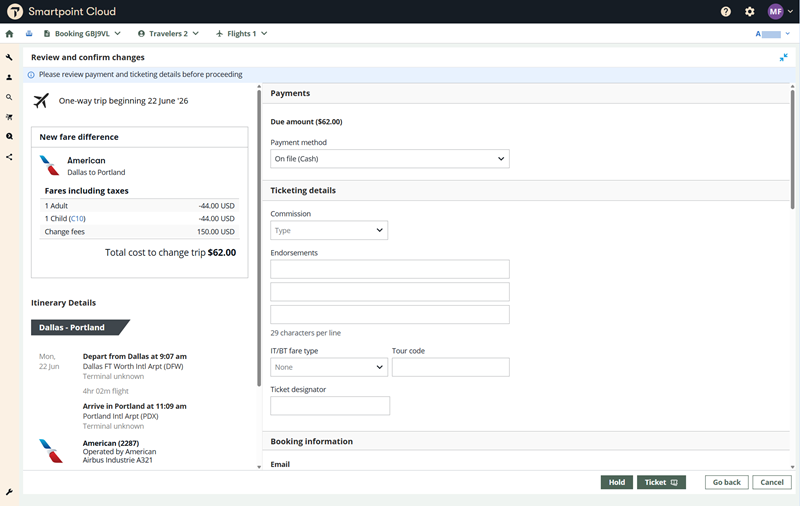
Select the Go to checkout button. The Review and confirm changes window displays the fare and fees breakdown, new itinerary details, ticketing details, and payment information. Commission information from the original ticket is pre-populated, if it exists, and it can be changed (for additional collection scenarios). You can also enter ticket endorsements, tour code, fare type, and ticket designator (US and CA markets only), in addition to changing the form of payment, if desired.
-
You have the option to Ticket or Hold.
-
Select Ticket to complete the ticket exchange. Any additional collection or refund scenarios are processed using the method selected in the Payment section.
Once complete, a confirmation screen displays the details of the new fare, the total cost to change the trip, and the new ticket number.
You can return to the terminal view and enter *HTE to view both the original and new ticket numbers.
-
If Hold is selected, the ticket exchange will not be completed and no payment is processed. The ticketing line of the filed fare will be updated with any necessary ticketing modifiers to easily process the exchange in the future (i.e., before the ticketing deadline for the filed fare is reached), as per the details displayed/entered on the Review and confirm screen.
Once complete, a confirmation screen displays the details of the new fare and the total cost to change the trip. The ticketing deadline also displays, reminding you to complete ticketing and document issuance within that time frame.
When you are ready to proceed with the exchange, retrieve the booking in the terminal and enter the necessary ticketing command (i.e., TKP).
-
Refund from an exchange
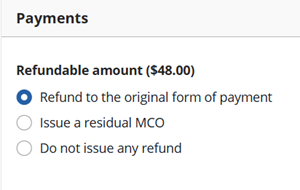
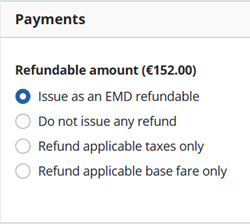
If the total cost to change the trip indicates a refund scenario (i.e., negative amount), then the Payments section displays the following options:
ARC
-
Refund to the original form of payment means the passenger is entitled to receive the refundable amount.
-
Issue a residual MCO means a miscellaneous credit order will be issued and the passenger can use it for future travel.
-
Do not issue any refund means the refundable amount will be ignored.
BSP
-
Issue as an EMD refundable means a refundable electronic miscellaneous document will be issued and needs to be refunded for the passenger to receive the amount
-
Do not issue any refund means the refundable amount will be ignored.
-
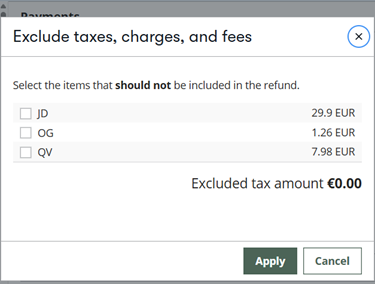
Refund applicable taxes only means only the refundable taxes will be refunded
-
Refund applicable base fare only means only the refundable base fare will be refunded
Refund and additional collection from an exchange
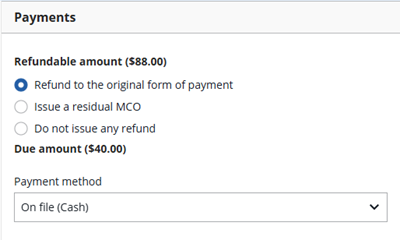
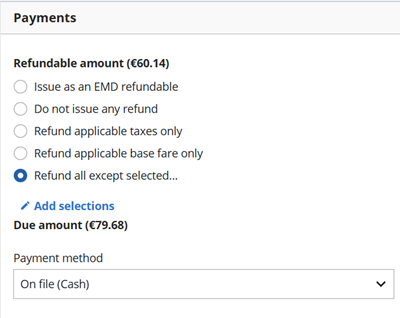
If the total cost to change the trip indicates a refund scenario (i.e., negative amount) and an additional collection, then the Payments section displays the following options:
ARC
BSP
Apply selections
Limitations
Current limitations are:
-
Itinerary must be wholly unflown (i.e., there are no past-date air segments existing)
-
Ticket must be original issue
-
PNRs with NDC segments not supported
-
IT/BT tickets are not yet supported
Known Issues
-
Adding a new entry in the Endorsements section of the Review and confirm screen sometimes results in incorrect endorsements data being included on the new ticket.
-
When performing a manual exchange in a multi-offer scenario, the Review and Confirm screen displays incorrect information. Specifically, both the fare details and itinerary sections show the entire itinerary instead of only the selected offer being processed. As a result, the confirmation screen also reflects the full itinerary rather than the specific exchanged offer.
Error handling
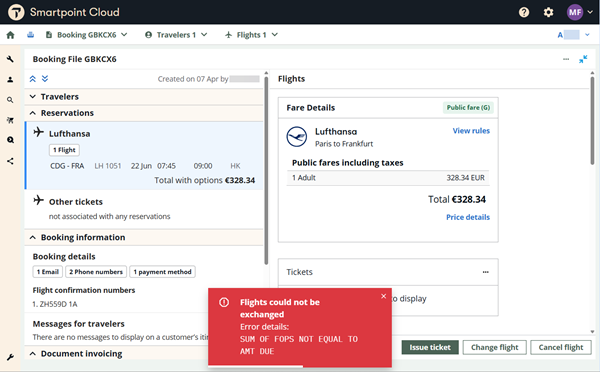
If any system error occurs during the exchange process, an error message displays.
-
If error occurs during fulfillment and there is a payment error, the Review and confirm panel remains open so payment can be updated.
-
For any other error, the user is redirected to the PNR view so they can start again the exchange process or ignore it.