Availability filter panel
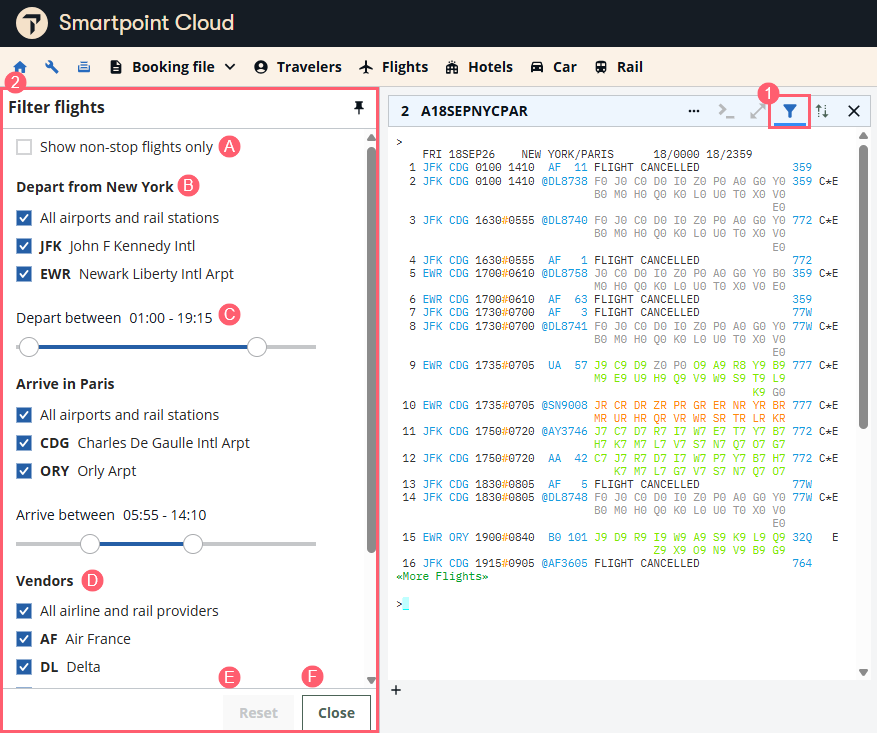
The availability filters allow you to adapt the response screen to your preferences, in a graphical and easy way. In an availability screen, selecting the funnel icon opens a later panel to set the filters.
-
Select the icon to open the filter panel.
-
Filter panel
-
Check to view non-stop flights only
-
Select airports of preference
-
Set a time range according to departure and/or arrival
-
Select specific vendors to display
-
Reset filters
-
Close filters panel
-
Filters are applied simultaneously with your selection. When you close the panel, the filters remain applied as indicated by a red dot ( ) on the icon.
Each terminal window can have a different filter panel, which behave independently of each other.
Sort icon
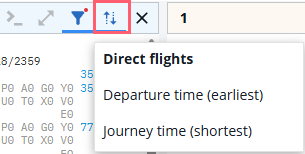
By default, the availability is sorted by direct flights. Select the sort icon if you prefer to sort them by departure time or journey time.
Neutral and direct availability
Travelport+ has two air availability displays that provide two system ranges to meet different needs.
Neutral availability stores the information supplied by the airline. Schedules in Travelport+ are updated daily and availability is updated every few seconds.
Direct availability provides real-time access to the airline's system. Every request goes across to the airline's system. Travelport+ displays whatever is returned by the airline but does not store it anywhere in the system.