Review and confirm
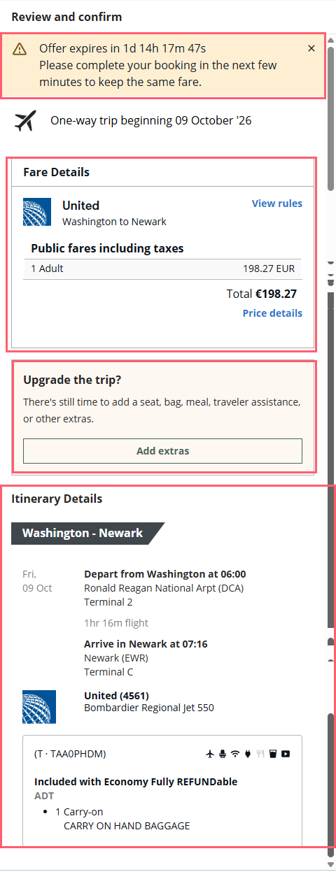
After selecting the flight(s), you are taken to the Review and Confirm screen. On the left side, you can review the fare details and itinerary, as well as select any available Extras before completing the booking.
Review and confirm shows your itinerary, inclusions, booking class and fare basis code per flight, and the option for seats. Rules and pricing breakdown are also links on the display.
Review and confirm page displays the offer time limit for NDC options and the ticket time limit for all source content displayed both in the agent's local time and Zulu time by hovering on the "i" icon. NDC offers are only available for a certain amount of time. If the booking is not completed (hold or ticket) in that time, the offer is no longer valid and will fail to book.
On the right side of the Review and confirm screen, is for completing the booking and traveler information. If you added booking file elements prior to using Flight Search, various elements would be populated and any required missing information is identified with a red asterisk.
The following sections can be added.
Payments
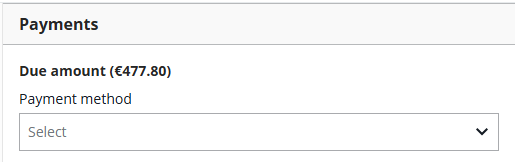
If there is a form of payment (FOP) in the booking file, it will be available from the drop-down menu. FOP is only needed when ticketing. The list contains cash and credit card, which can be added later in the booking file or here.
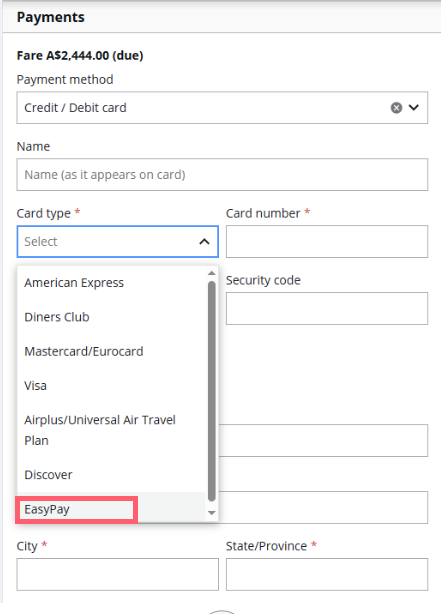
Note: Easy Pay is also a payment option available when selecting credit card. Once you have created an IEP account (Easy Pay Once you have registered an IEP account (Easy Pay account) on the IATA Customer Portal and money has been deposited into that account, an IEP number (Easy Pay number) can be generated for payment. If supported by the carrier, once you choose Credit/Debit card as the payment method, EasyPay is an option in the card type list. account) on the IATA customer portal and deposited funds into the account, an Easy Pay number can be generated and entered as a credit card payment method.
Billing address
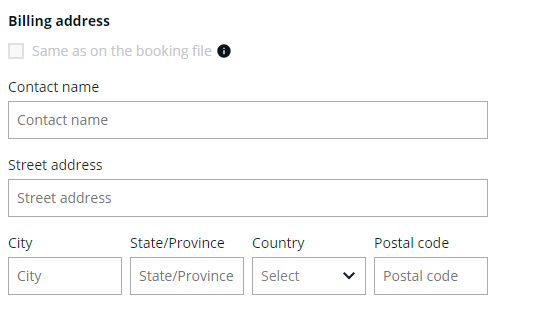
This section is displayed when the selected payment method is other than cash.
If previously entered with formats, you can select the Same as on the booking file box.
Booking information
Primary traveler contact information
For traditional booking options only, there’s a section to include the primary passenger's contact details in the booking so that they are transmitted to the airline.
Enter the primary contact email and/or phone number. Alternatively, select the "Do not share contact details with the airline" box.
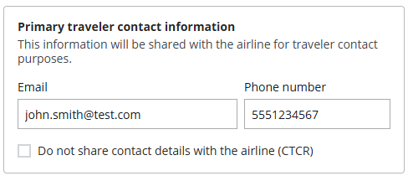
Email details
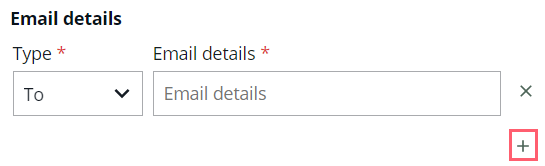
You may add multiple emails using the + symbol.
Phone details
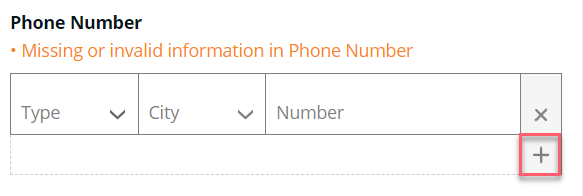
The first phone number should always be the agency’s phone number.
To add the traveler’s phone number, press the + symbol. Additional phone numbers can be added the same way.
Delivery address
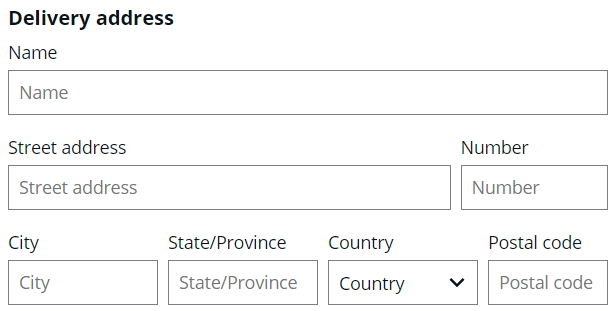
If you add a delivery address, the contact’s name is important to the airline.
Traveler 1
This area is for the main traveler when there are multiple travelers. When you scroll down you would see Traveler 2 and more as needed. If the traveler’s name was added in the booking file, it would populate here.
Name
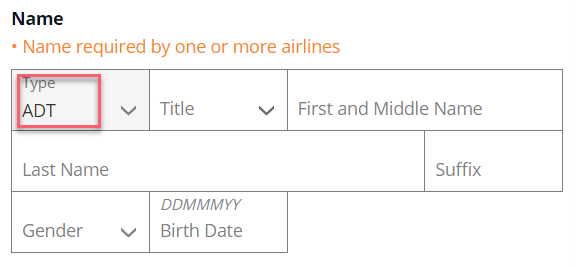
The PTC Passenger Type Code, used to categorize travelers. The most common PTCs are adult (ADT), child (CNN), and infant (INF). used in the search process displays. The gender and birth date fields are not mandatory for adults. However, if a value is entered in one of the fields, then both fields must be completed.
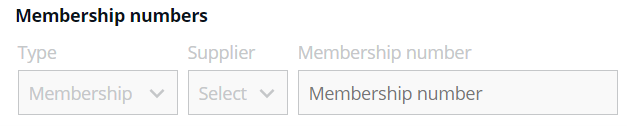
Membership numbers
You must enter corporate agreement, membership, and abonnement numbers as booking file elements.
Security documentation
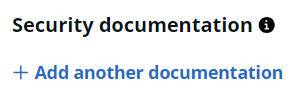
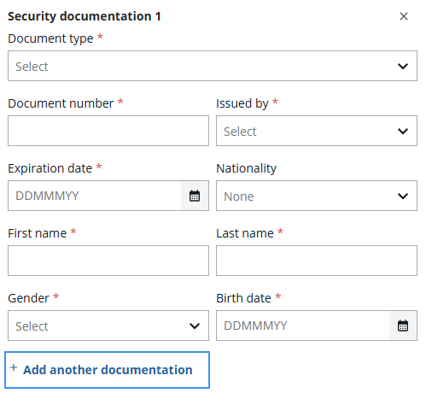
This area will accept passport, visa, redress number, and known traveler number for traveler 1.
Select Add another documentation.
Choose the documentation type and complete the necessary fields.
If there are multiple travelers, their information would be added.
At this point, you have multiple options:

Hold
This would complete your booking file and end the booking. If there are elements you need to add or want to review with the traveler, this is your best option. Once Hold or Ticket is selected, the graphical view will display when you select view PNR. The booking view will then be active. Module 1 covers booking view for additional questions.
Ticket
If all the necessary booking file elements are present, a ticket would be issued. NDC tickets are issued by the airline, and you would be supplied with the ticket number. Note: Ticket is currently not enabled for GDS flights; Hold must be selected in first instance.
Quote
Press the Quote button to place the flight(s) in the Trip Quote basket. Trip Quote is covered in a separate module.

Go back
This option returns you to flight selection. You can change your selections and then proceed to Review and confirm. The Traveler 1 information is not lost.
Cancel
The booking made would be canceled in its entirety. If you hadn’t ended the reservation with Hold, it is the equivalent of ignoring the booking file.
To return to the home panel, use the Toggle View icon  . The home icon will open the shortcuts/notepad/recall area.