Before you start
Set up Static Galileo Terminal Identifier (GTID)
Early Adopter agents will be accessing Smartpoint Cloud using the same static GTID from their current Smartpoint. Using the same GTID will enable agents to switch between Smartpoint and Smartpoint Cloud during the same booking flow.
The static GTID for each Early Adopter agent will need to be set up during the sign-up process.
Before you start, confirm that the GTID in Smartpoint Cloud matches the GTID in Smartpoint Desktop.
In Smartpoint Desktop, enter 6D. Note: You can also use the Apollo format +J in Smartpoint Desktop, but this format does not work in Smartpoint Cloud.

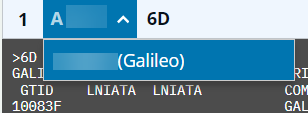
In Smartpoint Cloud, enter either 6D or KGB in a terminal window, or check the drop-down to confirm the GTID matches.

Multiple GTIDs
Currently, you cannot set a default PCC. If you have multiple GTIDs in your profile, the first GTID configured in the profile is used by default for sign in. To change the GTID being used, open a terminal window and select the PCC drop down (next to the terminal window number) to display the list of GTIDs available to you, then select the GTID you want to use.
Some users may have multiple GTIDs for the same PCC if they work on multiple terminals simultaneously without needing to switch work areas.